What is QuickBooks® Database Server Manager
When multiple users need to access the same QuickBooks® company file simultaneously, QBDBM acts as the intermediary that coordinates these connections. It runs as a Windows service (QBDBMgrN) on the computer hosting the company file and manages all communication between client workstations and the QuickBooks® data. [Intuit Documentation]
Key Functions
Database Server Manager performs three essential functions:
- Creates and maintains Network Data (.ND) files that contain connection information
- Manages dynamic port assignments for different QuickBooks® versions
- Coordinates multi-user access and ensures data integrity during concurrent operations
Why QBDBM is Required
Without Database Server Manager, QuickBooks® operates in single-user mode only. The service is mandatory for:
Multi-User LAN Setups
Multiple workstations accessing a company file stored on a Windows server over the local network
Terminal Server/RDS Environments
Remote Desktop Services configurations where users connect to applications via terminal sessions
System Architecture & Components
Understanding the architecture of Database Server Manager helps diagnose issues and optimize performance. The system consists of multiple integrated components working together.
Core Components
| Component | Function | Location |
|---|---|---|
| QBDBMgrN.exe | Main Database Server Manager application and configuration interface | C:\Program Files\Intuit\QuickBooks® 20XX\ |
| QuickBooksDBXX | Windows service that manages database connections (XX = year) | Windows Services (services.msc) |
| QBCFMonitorService | Company File Monitor Service for additional monitoring on port 8019 | Windows Services (services.msc) |
| .ND Files | Network Data files containing server and port information for each company file | Same folder as .QBW files |
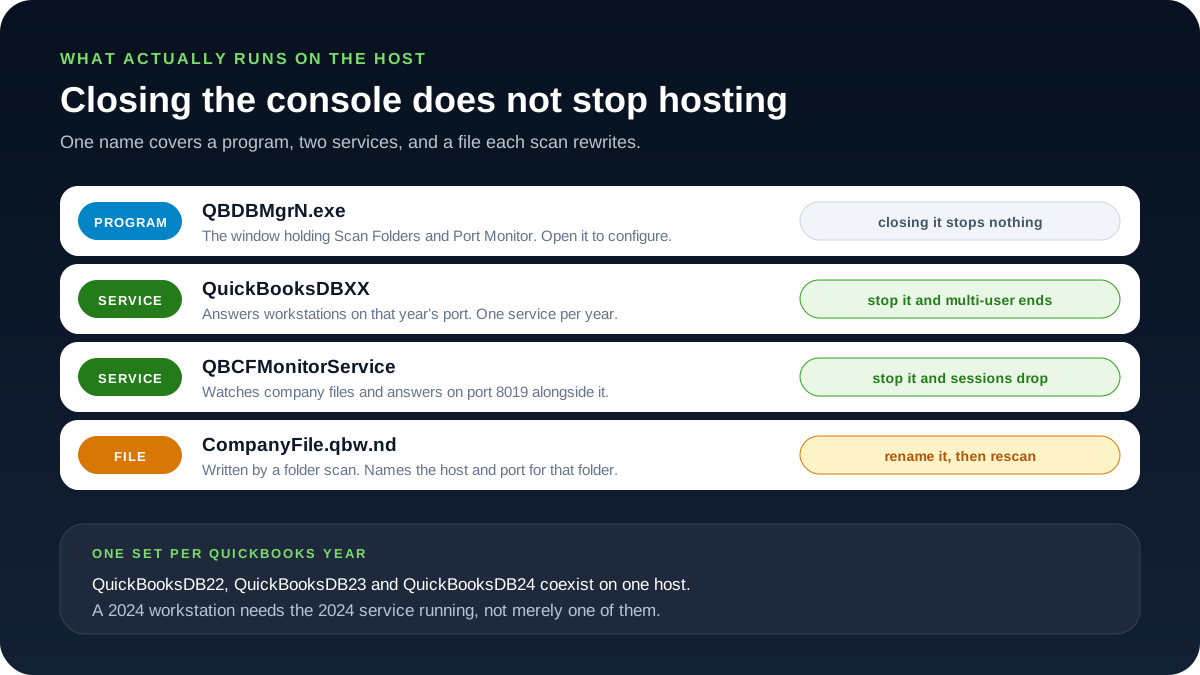
One name, four different things
Four separate things carry the Database Server Manager name, and telling them apart matters. Confusing one for another can make a host look configured when it is not: someone may leave a window open and assume the file is being served, or restart the wrong service and see no change.
QBDBMgrN.exe is a program. It is the window that holds the Scan Folders and Port Monitor tabs, and you open it to tell the host which folders to serve and to read back the port it settled on. It is the console you configure the host from, not the thing doing the serving. Closing it stops nothing; workstations stay connected exactly as they were.
QuickBooksDBXX is a Windows service, where XX is the two-digit QuickBooks® year. This is the component that actually answers workstations, listening on that year's port, and it runs whether or not anyone is signed in at the host. Stop it and multi-user access ends for every workstation on that version.
QBCFMonitorService is a second Windows service. It watches the company files themselves and answers on port 8019, alongside the year service rather than instead of it. Stop it and live sessions drop even though the year service is still running, which is why a host that passes a casual "the service is running" check can still fail in practice.
CompanyFile.qbw.nd is a file, not a program and not a service. A folder scan writes it beside the company file it describes, and it names the host and the port for that folder only. Nothing keeps it current by itself. Because the scan is what produces it, it is also disposable: rename it, rescan the folder, and a fresh one is written from what the host is doing now.
The year suffix matters as much as the distinction between the four. Each QuickBooks® year installs its own service, so QuickBooksDB22, QuickBooksDB23 and QuickBooksDB24 sit side by side on one host without interfering with each other. They are not interchangeable. A workstation running the 2024 edition needs the 2024 service running, not merely one of them.
Communication Flow
The typical connection flow for a workstation accessing a hosted QuickBooks® file:
- 1Client Initiates Connection: User opens QuickBooks® and attempts to open a company file via UNC path
- 2.ND File Lookup: QuickBooks® reads the .ND file to determine the server name and port number
- 3Service Connection: Client connects to the QuickBooksDBXX service on the specified port
- 4Authentication: Service verifies user permissions and file availability
- 5Data Access: Multi-user session is established and database operations are coordinated through the service
Prerequisites and Requirements
Before installing Database Server Manager, ensure your environment meets these requirements:
Server Requirements
Operating System
QuickBooks® Desktop 2024 supports:
- Windows Server 2022
- Windows Server 2019
- Windows Server 2016
- Windows 11 Pro (for small office hosting)
- Windows 10 Pro (while Microsoft supports it)
Hardware Specifications
| Users | RAM | Processor | Storage |
|---|---|---|---|
| 1-5 users | 8 GB minimum, 16 GB recommended | Intel i5 or equivalent | SSD with 2.5 GB free space |
| 6-10 users | 16 GB minimum, 32 GB recommended | Intel i7 or Xeon | NVMe SSD with 5 GB free space |
| 10+ users | 32 GB minimum, 64 GB recommended | Multi-core Xeon processor | RAID 10 NVMe array |
Network Requirements
Permissions Required
To install and configure Database Server Manager, you need:
- Local Administrator rights on the server
- Permission to create and modify Windows Services
- Ability to configure Windows Firewall rules
- Access to create and share network folders
- NTFS Full Control permissions on the data folder
Installation Methods
QuickBooks® Database Server Manager can be installed using two different methods depending on your needs.
Method 1: Full QuickBooks® Installation
Install QuickBooks® Desktop with the option to host company files. This method installs both the QuickBooks® application and Database Server Manager. [Intuit Documentation]
- 1Run QuickBooks® installer as Administrator
Right-click the installer and select Run as Administrator
- 2Choose Custom and Network Options
Select the option to customize installation features
- 3Select hosting option
Choose "I will be using QuickBooks® Desktop on this computer, and I will be storing our company file here so it can be shared over our network"
- 4Complete installation
Follow remaining prompts to finish the installation
Method 2: Database Server Manager Only
Install only the Database Server Manager component without the full QuickBooks® application. Ideal for dedicated database servers.
- 1Run QuickBooks® installer as Administrator
- 2Choose Custom and Network Options
- 3Select database-only installation
Choose "I will NOT be using QuickBooks® Desktop on this computer. I will be storing our company file here so it can be shared over our network"
- 4Complete minimal installation
Only Database Server Manager components will be installed
Version Matching Requirement
Database Server Manager version must match the QuickBooks® Desktop version on client workstations. If clients use QuickBooks® 2024, the server must have 2024 Database Server Manager installed.
First-Time Configuration
After installation, configure Database Server Manager before hosting company files.
Launch Database Server Manager
Open Database Server Manager by searching for "Database Server Manager" in Windows Start menu or navigating to:
C:\Program Files\Intuit\QuickBooks® 20XX\QBDBMgrN.exeReplace XX with your QuickBooks® year (e.g., 24 for QuickBooks® Desktop 2024).
Understanding Scan Folders
Scanning is how the host learns which company files it is responsible for. Every other part of Database Server Manager assumes a scan has already been run against the right folders, so this is the step to check first when a host appears configured but no workstation can connect.
What a Scan Actually Does
A scan is a narrow, predictable operation. It does not search the whole machine and it does not guess where your data lives.
- 1It walks the folders you listed
Only the folders added to the Scan Folders list are examined. A folder that was never added is invisible to the host.
- 2It finds every .QBW company file inside them
Both the folder itself and everything beneath it are searched.
- 3It writes a .ND network descriptor next to each one
The descriptor takes the company file's own name with .nd appended, and sits in the same folder.
- 4It records the host name and the serving port in that descriptor
This is what a workstation reads to find out where to connect.
The scan reads each company file only far enough to identify it, then writes beside it. The .QBW itself is not modified — no transaction, list or preference inside it is touched — which is why scanning a folder is safe to repeat as often as you like. [Intuit Documentation]
Choosing Which Folders to Add
Rescan Whenever the Answer Changes
A descriptor is a snapshot taken at the moment of the scan. It does not follow the company file and it does not correct itself. Rescan the folder on the host after you:
- Move or copy a company file into a different folder
- Rename the host machine
- Change the host's IP address
Until you rescan, workstations keep following directions that were correct at the time and are not correct now.
Port Monitor and Dynamic Ports
The Port Monitor tab in Database Server Manager reports the port that each year's service is currently listening on. It is the authoritative answer for this host, right now, and it is the number every firewall rule downstream has to match.
Why the Number Can Change
QuickBooks® 2019 and later assign the database port dynamically by default. The service asks Windows for a free port when it starts, which means the number is not guaranteed to be the same one it used last month. A firewall rule written against the old number keeps working right up until the port changes, and then stops matching — producing a setup that was fine for weeks and fails without anyone having touched it. [Intuit Firewall Configuration]
Fixing the Port for a Year
You can pin the port to a value of your choosing, per QuickBooks® year, so that firewall rules stay valid across service restarts.
- 1Open Database Server Manager on the host and select Port Monitor
- 2Find the row for your QuickBooks® year
Each installed year has its own row and its own port. They are independent of one another.
- 3Turn off dynamic assignment for that year and enter the port you want
- 4Renew the scan of your company-file folders
The descriptors still contain the old port until they are rewritten, so a fixed port that is never rescanned changes nothing for the workstations.
- 5Write the number down
Every firewall rule you create afterwards depends on this value being recorded accurately somewhere other than the screen you are looking at.
Two Ports, Two Owners
Port 8019 is often mentioned in the same breath as the database port, but it belongs to a different service and behaves differently.
| Port | Owned By | Notes |
|---|---|---|
| Reported in Port Monitor | QuickBooksDBXX (one per year) | Dynamic by default on 2019 and later. Read it before writing any rule; never assume last month's value. |
| 8019 | QBCFMonitorService | Fixed, shared across years, and separate from the year port. Opening one does not open the other. |
QuickBooks® Services Overview
Two Windows services do the actual work of hosting. They run independently of any logged-in user and independently of the Database Server Manager window, and a host is only serving when both are running.
| Service | Purpose | Symptom When Stopped |
|---|---|---|
| QuickBooksDB24 | Serves company files to workstations running QuickBooks® 2024, on the port shown in Port Monitor | 2024 workstations cannot open the file in multi-user mode at all |
| QuickBooksDB23 / QuickBooksDB22 | The same role for the 2023 and 2022 editions — one service per installed year | Only that year's workstations are affected; other years keep working normally |
| QBCFMonitorService | Monitors the company files and answers on port 8019, alongside every year service | Live sessions drop and hosting checks fail, even though the year service is still running |
What to Expect in services.msc
Open the Services console on the host and sort by name. Both services are listed under exactly the names above, so the 2024 database service appears as QuickBooksDB24 and the monitor as QBCFMonitorService. For a working host:
Checking and Correcting from a Command Prompt
The console is fine for one machine, but these commands are faster and are what you want when working over a remote session. Run them from an elevated Command Prompt on the host.
# Check current state (replace 24 with your QuickBooks® year)
sc query QuickBooksDB24
sc query QBCFMonitorService

# Start either service if it reports STOPPED
net start QuickBooksDB24
net start QBCFMonitorService

# Make sure both come back on their own after a reboot
sc config QuickBooksDB24 start=auto
sc config QBCFMonitorService start=auto
A service that starts from the command line and then stops again on its own is not a configuration problem; it is a fault worth investigating in the Windows event log before changing anything else. [Intuit Service Troubleshooting]
Network Data (.ND) File Management
The network descriptor is a small configuration file that tells a workstation where to go. It holds the name of the host serving that folder and the port that host is listening on — nothing else. There is no accounting data in it, and there is no copy of your company file inside it.
It lives beside the company file it describes, in the same folder, carrying the same base name with .nd appended:
D:\QuickBooks\Data\Acme.qbw       # the company file - authoritative, never renamed
D:\QuickBooks\Data\Acme.qbw.nd    # the descriptor - rebuilt by any folder scan
Why Renaming It Is Safe
Because a scan writes the descriptor from scratch, the descriptor is rebuildable at any time. That makes renaming it a genuinely reversible diagnostic rather than a risk: if the rename does not help, you rename it back, and nothing has been lost either way. This is why it is a reasonable first check rather than a last resort.
- 1Have everyone close the company file
- 2On the host, open the folder holding the company file
- 3Rename the descriptor to CompanyFile.qbw.nd.old
Rename it, do not delete it. Keeping it costs nothing and gives you a way back.
- 4Rescan that folder in Database Server Manager
A fresh descriptor is written from what the host is doing now, rather than what it was doing when the last scan ran.
- 5Reopen the file from a workstation
A stale descriptor is the usual explanation for connection errors that appear immediately after a server move or an address change. Everything looks right on the host, and the workstations are simply following directions that were accurate last week.
Rename the Descriptor, Never the Company File
The .QBW file is authoritative. It holds your accounting data, no scan can regenerate it, and it is never renamed or deleted as part of troubleshooting. Only the file whose name ends in .nd is safe to rename. Check the extension before you press Enter.
Hosting Configuration Best Practices
Exactly one machine may host a given company file. That machine is the host; every other machine is a workstation. This is not a preference or a performance tuning choice — two machines both claiming to host the same file is a fault condition, and it produces exactly the intermittent, hard-to-reproduce connection failures you would expect from two computers answering the same question differently.
The Menu Label Is Inverted
In QuickBooks® Desktop, hosting is checked under File → Utilities. The menu shows the action available to you, not the state you are currently in, and this single fact is the most consistently misread thing in the whole subject. The label tells you what will happen if you click it, so it always names the opposite of the current setting.
| What the Menu Says | What It Means | Where This Is Correct |
|---|---|---|
| "Stop Hosting Multi-User Access" | Hosting is currently ON for this machine | Only on the host |
| "Host Multi-User Access" | Hosting is currently OFF for this machine | On every workstation |
The Classic Hosting Conflict
A second machine that has hosting switched on is the classic hosting conflict. It usually happens because someone read the menu forwards, saw "Host Multi-User Access" on a workstation, and clicked it in order to enable something that was already correct. Walk every workstation and confirm each one offers "Host Multi-User Access" — meaning hosting is off — and that only the host offers "Stop Hosting Multi-User Access".
Where the Company File Belongs
The company file goes on the host's own local NTFS disk. Not a NAS appliance, not a mapped network drive, and not a folder that is itself a link to storage somewhere else. Database Server Manager has to hold locks on a file it can reach directly, and storage that sits behind another device's file-sharing implementation cannot give it that. Hosting from unsupported storage is a known cause of H-series errors and of file damage. [Intuit Community]
Workstations then reach that local folder over the network through a share on the host, with folder permissions set so every QuickBooks® user can read and write it. [Intuit Folder Permissions]
Firewall Configuration Requirements
Firewall work comes last, because it depends on a number you can only get from Port Monitor. Read the current port for your QuickBooks® year first; a rule written against a guessed or remembered port looks correct in the console and blocks every workstation anyway.
Rules Belong on the Host
Create inbound rules on the host, for the year port and for 8019. The workstations do not need matching rules, because the workstations are the side that initiates the connection — outbound traffic they start is already permitted, and their firewalls are not what is refusing anything. Time spent opening ports on workstations is time not spent on the machine that is actually blocking.
- 1Read the year port from Port Monitor on the host
Do this even if you believe you know the number. On 2019 and later it is dynamic by default.
- 2Add an inbound rule on the host for that port and for 8019
8019 is QBCFMonitorService and is not covered by the year-port rule.
- 3Cover both TCP and UDP where your installed year requires it
Requirements differ by version; the safe order is to add TCP, test, and add UDP if the connection still fails.
- 4Add the program exceptions listed below
# Replace 55368 with the port Port Monitor reports for your QuickBooks® year.
# Run from an elevated PowerShell prompt on the host, not on a workstation.
New-NetFirewallRule -DisplayName "QuickBooks® DB Server" -Direction Inbound -Protocol TCP -LocalPort 55368,8019 -Action Allow
New-NetFirewallRule -DisplayName "QuickBooks® DB Server UDP" -Direction Inbound -Protocol UDP -LocalPort 55368,8019 -Action Allow
Program Exceptions
Alongside the port rules, allow the executables themselves. Port rules and program exceptions are evaluated separately, and a setup can pass one and fail the other.
| Executable | Why It Needs an Exception |
|---|---|
| QBDBMgrN.exe | Database Server Manager itself, on the host |
| QBCFMonitorService.exe | The company file monitor that answers on port 8019 |
| QBW32.exe | QuickBooks® Desktop itself, needed wherever the application runs |
Re-Check After a Windows Feature Update
A Windows feature update can reset or drop firewall rules, and it is a common reason a setup that worked for months fails overnight with nothing having been changed by anyone. If multi-user access stops and the machine has updated recently, confirm the rules still exist before investigating anything else. [Intuit Firewall Configuration]
Frequently Asked Questions
Q: Can I run multiple versions of Database Server Manager on the same server?
A: Yes. Each QuickBooks® year installs its own Database Server Manager service (QuickBooksDB22, QuickBooksDB23, QuickBooksDB24, etc.). Multiple versions can coexist, each managing company files for their respective year. [Intuit]
Q: What happens if the Database Server Manager service stops unexpectedly?
A: All workstations will lose multi-user access immediately. Users currently in the file will be disconnected. The service must be restarted before multi-user access can resume. Configure the service for automatic restart on failure to minimize downtime.
Q: Do I need to rescan folders after moving a company file?
A: Yes. When you move a company file to a different location, you must add the new folder location in Database Server Manager Scan Folders and rescan. This regenerates the .ND file with correct path information. [Intuit]
Q: Can Database Server Manager host files from a NAS or network drive?
A: No. Intuit does not support hosting QuickBooks® company files from NAS devices or network drives. The company file must reside on a local NTFS drive on the server where Database Server Manager is installed. Using unsupported storage locations causes H-series errors and data corruption. [Intuit Community]
Q: How do I determine which port my Database Server Manager is using?
A: Open Database Server Manager, navigate to the Port Monitor tab. The listening port for your QuickBooks® version is displayed there. QuickBooks® 2019 and later use dynamic ports that may change, so always verify the current port in Port Monitor. [Intuit]
References and Resources
These sources were reviewed when the guide was updated:
Conclusion
QuickBooks® Database Server Manager is the foundation of successful multi-user QuickBooks® deployments. Proper installation, configuration, and maintenance ensure reliable access for all users and prevent common connectivity issues.
Key Takeaways
Need Professional Database Server Configuration?
For complex multi-site deployments, high-availability configurations, or enterprise-level support, Prime Connect provides expert QuickBooks® infrastructure consulting services.
Contact Prime Connect for Professional Services