QuickBooks® Error 80029c4a: Windows Component Error
Quick Answer:
Error 80029c4a occurs when Windows components (MSXML, DLL files, or .NET Framework) required by QuickBooks® are damaged or not properly registered. Fix it by running QuickBooks® Install Diagnostic Tool, re-registering DLL files, and repairing .NET Framework.
What is QuickBooks® Error 80029c4a?
QuickBooks® Error 80029c4a is a Windows component error that occurs when critical system files required by QuickBooks® are damaged, missing, or not properly registered. This includes MSXML (Microsoft XML Core Services), QuickBooks® DLL files like QBXMLRP2.dll, and .NET Framework components. The error typically appears when opening QuickBooks®, accessing certain features, or after Windows updates.
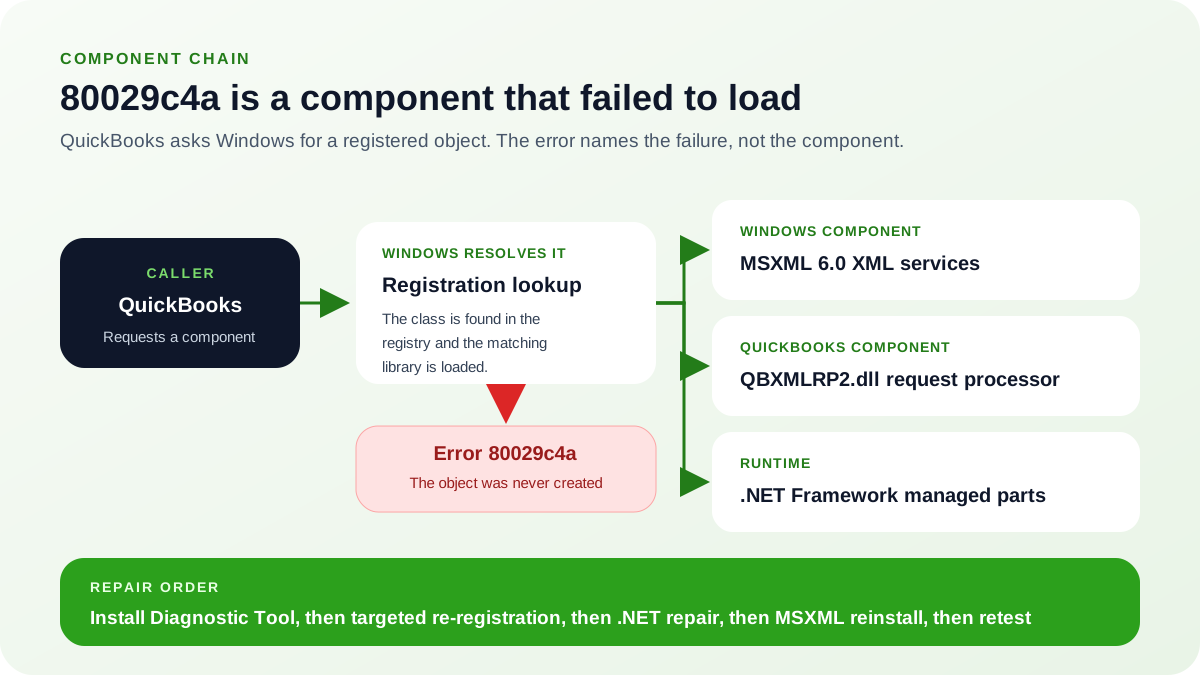
The chain is short. QuickBooks® asks Windows for a registered component, Windows looks that registration up and loads the matching library, and the object comes back. Error 80029c4a is raised at the lookup and load step, so it reports that the object was never created and says nothing about which component failed. Let the Install Diagnostic Tool identify the component first, then re-register or repair only what it or the error text actually names.
Error 80029c4a: Windows component error
Critical Windows components required by QuickBooks® are damaged or not properly registered.
Symptoms:
- Error 80029c4a when opening QuickBooks®
- QuickBooks® won't start or crashes immediately
- Error appears after Windows update
- MSXML or DLL error messages
Resolution Steps:
- 1.Run QuickBooks® Install Diagnostic Tool
- 2.Re-register Windows DLL files
- 3.Repair .NET Framework via Windows Features
- 4.Reinstall MSXML components
First Checks for Error 80029c4a
Start here
- Download QuickBooks® Install Diagnostic Tool from Intuit
- Close all programs
- Run the diagnostic tool as administrator
- Wait 10-15 minutes for repairs to complete
- Restart your computer
- Try opening QuickBooks®
- If still fails, proceed to detailed steps for manual DLL registration
Detailed Solution Steps
- Run QuickBooks® Install Diagnostic Tool.
Use Intuit's automated repair tool to fix component issues:
- Go to Intuit's website and search for "QuickBooks® Install Diagnostic Tool"
- Download the tool (QBInstall_Tool_v2.exe or similar)
- Close all programs including QuickBooks®, browsers, and Office
- Right-click the downloaded file → Run as administrator
- Click Yes when prompted by User Account Control
- Wait 10-15 minutes for the tool to scan and repair components
- The tool will repair MSXML, .NET, C++, and QuickBooks®-specific components
- Restart your computer when the tool completes
- Try opening QuickBooks®
Note: This tool automatically fixes most component issues. If it doesn't resolve the error, proceed to manual steps below.
- Manually Re-register QuickBooks® DLL Files.
Register critical QuickBooks® DLL files using Windows Command Prompt:
- Close QuickBooks®
- Press Windows + X, select "Command Prompt (Admin)" or "PowerShell (Admin)"
- Type the following commands one at a time, pressing Enter after each:
DLL Registration Commandsregsvr32 qbxmlrp2.dllregsvr32 msxml3.dllregsvr32 msxml4.dllregsvr32 msxml6.dll- You should see "DllRegisterServer succeeded" for each command
- If you get an error, the DLL may not be in the system path
- Navigate to QuickBooks® installation folder first:
Navigate to QuickBooks® Foldercd C:\Program Files\Intuit\QuickBooks® [Year]regsvr32 qbxmlrp2.dll- Restart your computer after all registrations are complete
- Repair .NET Framework via Windows Features.
Fix corrupted .NET Framework installation:
- Open Control Panel → Programs and Features
- Click "Turn Windows features on or off" on the left side
- Find ".NET Framework 4.8 Advanced Services"
- Uncheck the box to disable it
- Click OK and wait for Windows to apply changes
- Restart your computer
- After restart, go back to "Turn Windows features on or off"
- Re-check ".NET Framework 4.8 Advanced Services"
- Click OK and wait for re-enablement
- Restart your computer again
- Reinstall MSXML Components.
Download and reinstall Microsoft XML Core Services:
- Go to Microsoft Download Center
- Search for "MSXML 6.0"
- Download MSXML 6.0 Service Pack 2 for your system (32-bit or 64-bit)
- Close all programs
- Run the downloaded installer as administrator
- Follow the installation wizard
- Restart your computer
- Try opening QuickBooks®
Important: Download MSXML only from Microsoft's official website to avoid malware or corrupted installers.
- Update Windows and QuickBooks®.
Ensure all components are up to date:
- Open Windows Update (Settings → Update & Security → Windows Update)
- Click "Check for updates"
- Install all available updates
- Restart your computer after updates install
- Open QuickBooks® (if it opens)
- Go to Help → Update QuickBooks® Desktop
- Download and install the latest QuickBooks® update
- Restart QuickBooks® after updating
Why Does Error 80029c4a Occur?
Common Causes
- Damaged MSXML Components: Microsoft XML Core Services corrupted by Windows updates or malware
- Unregistered DLL Files: QuickBooks® DLL files like QBXMLRP2.dll not properly registered in Windows registry
- Corrupted .NET Framework: .NET Framework installation damaged preventing QuickBooks® components from loading
- Windows Updates: System updates interfering with or replacing QuickBooks®-required components
- Incomplete QuickBooks® Installation: QuickBooks® not fully installed or installation interrupted
- System File Corruption: Hard drive errors or malware damaging critical system files
How to Prevent Error 80029c4a
Best Practices:
- Keep Windows and QuickBooks® updated to latest versions with all patches
- Run antivirus scans regularly to prevent malware from damaging system files
- Schedule Windows updates during off-hours when QuickBooks® is closed
- Always use proper QuickBooks® installation/uninstallation procedures
- Maintain system restore points before major Windows or QuickBooks® updates
Frequently Asked Questions
What causes QuickBooks® Error 80029c4a?
Error 80029c4a occurs when Windows components required by QuickBooks® (MSXML, QBXMLRP2.dll, or .NET Framework) are damaged, not properly registered, or missing.
What is MSXML and why does QuickBooks® need it?
MSXML (Microsoft XML Core Services) is a Windows component that QuickBooks® uses to process XML data for features like importing/exporting data and web services. QuickBooks® requires MSXML 6.0 to function properly.
Is QuickBooks® Install Diagnostic Tool safe to use?
Yes, QuickBooks® Install Diagnostic Tool is an official Intuit utility designed to repair QuickBooks® and Windows component issues. It is safe and recommended by Intuit support.
Can I use regsvr32 commands safely?
Yes, regsvr32 is a standard Windows utility for registering DLL files. Running it from Command Prompt as administrator is safe when registering legitimate QuickBooks® and Windows DLL files.
Related Resources
Need Professional Help?
If you're still experiencing Error 80029c4a after following these steps, or need help with advanced component repairs, our QuickBooks® experts are here to help.
Get Expert Support