Export or back up the relevant data first. Do not delete, void, unreconcile, or adjust historical transactions unless you understand the accounting impact.
Menu names can change. We link current first-party instructions so you can confirm product behavior before acting.
Identify the failure before applying a fix
A workstation reports Error 3110 or a 3000-series network communication failure while opening shared Sage 50 data.
Record the complete message, affected organisation or company, user, date range, and last successful action. A precise symptom is more useful than trying several broad repairs at once.
Checks before changing data
- Confirm which computer holds the data and whether another workstation can open it.
- Record whether the server itself can open the company.
- Check for recent server, network, security, or power-management changes.
Resolution path
- Map the failure boundary. Test the server and one known-good workstation to determine whether the issue is local, server-wide, or company-specific.
- Use the same company and user for the comparison.
- Do not have multiple users repeatedly retry during testing.
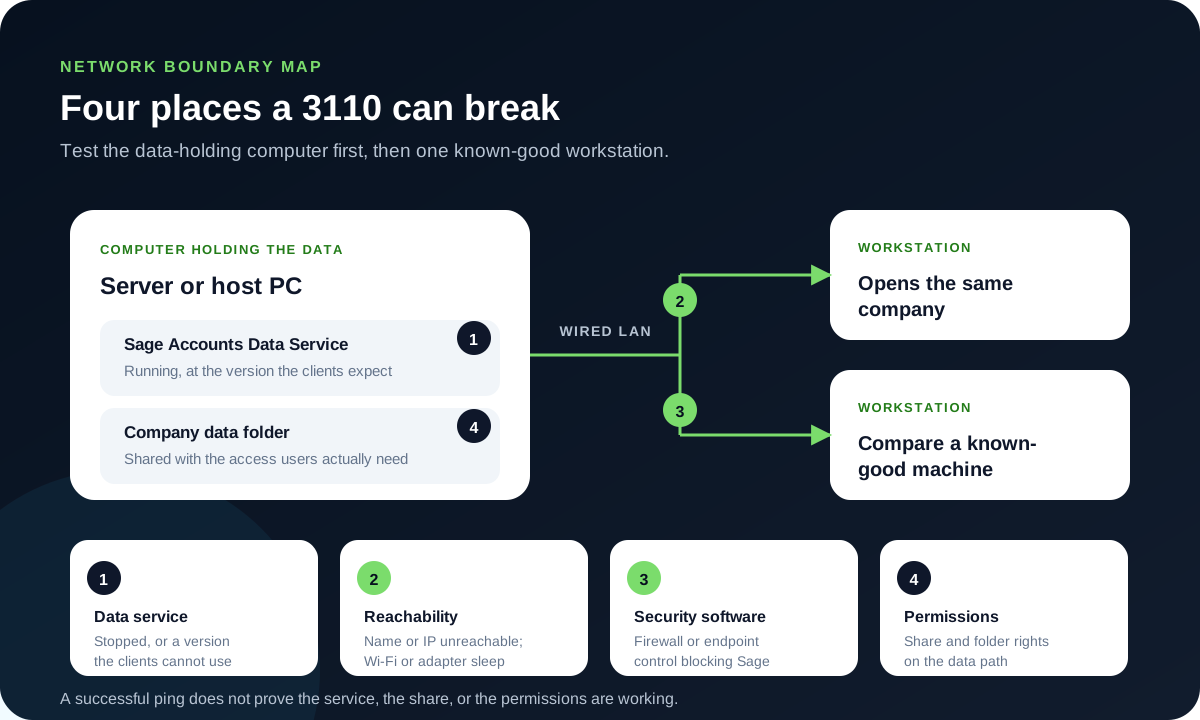
Locate the failure on this map before changing a firewall rule or a permission. The comparison that narrows it fastest is whether the data-holding computer can open the company itself.Source: Ledger Clinic original diagram - Check Sage Accounts Data Service. On the computer holding the data, verify the correct Sage data service is installed and running for the product version.
- Restart the documented Sage service, not unrelated Windows services.
- Confirm the server and clients use compatible versions.
- Test stable network reachability. Check name and IP reachability, wired connectivity, network-adapter power management, and access to the data location.
- A successful ping alone does not prove file or service access.
- Avoid Wi-Fi for a controlled multi-user test.
- Review firewall and permissions with IT. Use Sage’s current data-service guidance to allow the required service and access, then retest one workstation.
- Do not guess ports from an old article.
- Grant the minimum access required to the correct data path.
Verify the result
A disappearing error is not enough. Confirm the accounting and workflow outcome:
- The server and authorised workstations open the same company.
- The data service stays running.
- Users can work concurrently without repeated disconnects.
What to avoid
- Disabling the firewall or antivirus globally.
- Moving live company data during troubleshooting.
- Applying broad Everyone/Full Control permissions without IT review.
When to involve product support, IT, or your accountant
Stop making changes and escalate when any of these conditions applies:
- The service stops repeatedly.
- Several companies or all workstations fail.
- Network equipment, domain policy, or endpoint security is involved.
Bring the exact error, screenshots, affected record IDs, timestamps, product version or region, and a description of every change already attempted. That evidence shortens the support path and reduces repeated or conflicting fixes.
Sources checked
First-party product documentation used to verify the workflow and risk notes in this guide.