Export or back up the relevant data first. Do not delete, void, unreconcile, or adjust historical transactions unless you understand the accounting impact.
Menu names can change. We link current first-party instructions so you can confirm product behavior before acting.
Identify the failure before applying a fix
Sage reports Error 54, file access failure, data errors, missing records, random characters, or repeated crashes around one company dataset.
Record the complete message, affected organisation or company, user, date range, and last successful action. A precise symptom is more useful than trying several broad repairs at once.
Checks before changing data
- Capture the complete error and the action that triggered it.
- Ask all users to stop posting to the affected company.
- Create a current-state backup before repair or restore attempts when Sage allows it.
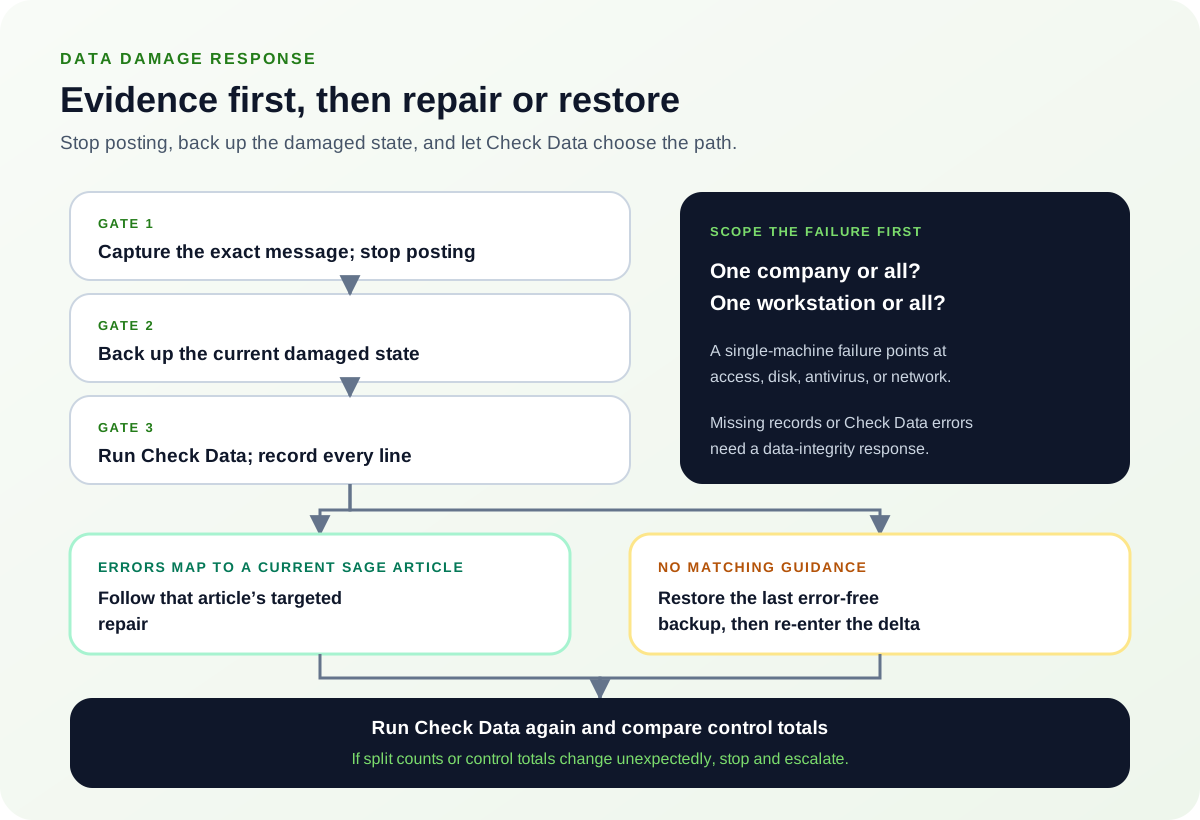
Resolution path
- Separate program access from data corruption. Test whether the issue affects one company, every company, one workstation, or all workstations.
- A single-machine failure can point to access, disk, antivirus, or network causes.
- Missing records or Check Data errors require a data-integrity response.
- Run Check Data and save the results. Use File, Maintenance, Check Data and record every error, warning, and comment.
- Do not dismiss or paraphrase the error list.
- Note the last date the data was error-free.
- Choose the lowest-risk recovery path. Follow the specific Sage article for the exact Check Data error. Restore the latest error-free backup when Sage recommends it.
- Back up the damaged current state first.
- Calculate the transactions that must be re-entered after a restore.
- Validate before resuming work. Run Check Data again, compare key control totals, and test the affected workflow.
- Stop if split counts or control totals change unexpectedly.
- Retain both the pre-repair backup and recovery notes.
Verify the result
A disappearing error is not enough. Confirm the accounting and workflow outcome:
- Check Data is clear or remaining warnings are understood.
- Control totals and key reports agree.
- The affected company opens reliably from the intended workstation or server.
What to avoid
- Deleting preference or database files based on an unverified generic fix.
- Running broad reindex or compression steps without Sage’s matching error guidance.
- Continuing to post while corruption is suspected.
When to involve product support, IT, or your accountant
Stop making changes and escalate when any of these conditions applies:
- Check Data reports errors you cannot map to a current Sage article.
- The company cannot be backed up or opened.
- A restore or repair changes control totals.
Bring the exact error, screenshots, affected record IDs, timestamps, product version or region, and a description of every change already attempted. That evidence shortens the support path and reduces repeated or conflicting fixes.
Sources checked
First-party product documentation used to verify the workflow and risk notes in this guide.