What "Client-Server Multi-User" Means
Only the server should be "hosting"; all workstations must have hosting off. This "one host, many clients" pattern is the supported topology and prevents common H-series errors (H101/H202/H505). [Intuit Documentation]
Why This Model
On a reliable LAN, keeping the live .QBW on a Windows server's local NTFS disk and sharing it to workstations is the recommended, stable approach. Hosting the live file on a generic NAS/network drive is not supported and often triggers H-errors. [Intuit Documentation]
A Typical Small-Office Scenario
| Component | Specification | Reference |
|---|---|---|
| Server | Windows Server 2016/2019/2022 (supported for QuickBooks® Desktop 2024), fully patched. Company data stored in D:\QBData. | [Intuit] |
| Workstations | Windows 11 (or Windows 10 while still supported by Microsoft) running the same QuickBooks® year as the server. 8 GB RAM ≈ up to 5 users; 12 GB ≈ up to 10. | [Intuit] |
| Network | Gigabit LAN recommended, reliable DNS, users sign in with named Windows accounts that have access to the shared data folder. | — |
Pre-Flight Checklist (Server)
Create and Share a Data Path
Create D:\QBData. Share it (e.g., \\SERVER\QBData) with Modify permissions for accounting users/groups. Also grant NTFS Modify so QuickBooks® can create/update its auxiliary files (.ND, .TLG). [Intuit Documentation]
Install QuickBooks® Database Server Manager
Run the QuickBooks® installer on the server → choose Custom or Network Options, then either:
- 1. "I'll be using QuickBooks® Desktop on this computer, and I'll be storing our company file here…" (if admins occasionally run QB on the server), or
- 2. "I will NOT be using QuickBooks® Desktop on this computer" (database-only host).
This installs the QBDBMgrN service and tools needed for LAN hosting. [Intuit Documentation]
Scan Folders in Database Server Manager
Open QuickBooks® Database Server Manager → Scan Folders → add D:\QBData. Scanning creates/maintains the .ND (Network Data) file that tells workstations where the database service is listening. [Intuit Documentation]
Confirm the Year-Specific Listening Port
In Database Server Manager, open Port Monitor and note the dynamic TCP port for your QuickBooks® year (2019+ uses dynamic ports—don't guess). You'll open this in the firewall. [Intuit Documentation]
Open the Firewall Correctly
Create Windows Firewall inbound (and, if needed, outbound) rules for the dynamic port from the previous step and allow QuickBooks® executables. QBCFMonitorService also uses TCP 8019 and must be allowed. [Intuit Documentation]
# Create firewall rules for QuickBooks®
New-NetFirewallRule -DisplayName "QuickBooks® Database Server" -Direction Inbound -Protocol TCP -LocalPort 8019,55368-55375 -Action Allow
New-NetFirewallRule -DisplayName "QuickBooks® Database Server UDP" -Direction Inbound -Protocol UDP -LocalPort 8019,55368-55375 -Action Allow

# Note: Also add the dynamic port shown in Port Monitor
Service Health
In services.msc, set QuickBooksDBXX (XX = year) to Automatic and ensure it's Running. QBCFMonitorService should also be present/running. [Intuit Documentation]
# Check if QuickBooks® services are running
sc query QuickBooksDB24
sc query QBCFMonitorService

# Start services if stopped
net start QuickBooksDB24
net start QBCFMonitorService

# Set services to automatic startup
sc config QuickBooksDB24 start=auto
sc config QBCFMonitorService start=auto
Place the Live Company File
Copy Company.qbw (and its .tlg etc.) into D:\QBData. Open it on the server once in multi-user mode, then close—this refreshes the .ND with the correct server/port info.
Turn Hosting ON (Server Only)
In QuickBooks® on the server: File ▸ Utilities should show "Stop Hosting Multi-User Access" (meaning hosting is ON). If it shows "Host Multi-User…", enable it. Never host from workstations. [Intuit Documentation]
Pre-Flight Checklist (Workstation)
Ensure Hosting is OFF
In QuickBooks®: File ▸ Utilities should show "Host Multi-User Access" (available, i.e., hosting is off). If you see "Stop Hosting…", turn it off. This avoids H-errors. [Intuit Documentation]
Open via UNC or Mapped Drive
Use File ▸ Open or Restore Company ▸ Open and browse to \\SERVER\QBData\Company.qbw. If you prefer drive letters, map a network drive to that share first. [Intuit Documentation]
Clean Build — Step-by-Step
Pro Tip
Follow these steps in order for a clean, error-free setup. This process can be handed to a technician for implementation.
On the Server (Once)
- 1Install Database Server Manager with the appropriate network option.
- 2In DBSM ▸ Scan Folders, add D:\QBData.
- 3In DBSM ▸ Port Monitor, note the dynamic port and create firewall rules for it; also allow QBCFMonitorService (TCP 8019).
- 4Verify QuickBooksDBXX/QBCFMonitorService are Automatic/Running.
- 5Share D:\QBData as \\SERVER\QBData with appropriate permissions.
Grant Modify to accounting users; ensure QBDataServiceUserXX has appropriate rights. [Intuit Documentation]
- 6Copy Company.qbw into D:\QBData. Open it once (server) in multi-user to seed the .ND.
- 7Confirm server hosting ON; workstation hosting OFF.
On Each Workstation
- 1Install the same QuickBooks® year.
- 2Ensure hosting OFF (File ▸ Utilities).
- 3Open the file from \\SERVER\QBData\Company.qbw.
Permissions That Actually Work
Intuit's guidance is to set permissions on both the share and the NTFS folder:
Share Permissions
NTFS Permissions
What the .ND File Does
The Network Data (.ND) file alongside your .QBW tells QuickBooks® which server and port to use. Re-creating it (by scanning or opening the file once on the server) is a common, safe repair step. [Intuit Documentation]
Firewall & Network Configuration
Don't Guess Ports
QuickBooks® uses dynamic ports that vary by year. Always use Database Server Manager's Port Monitor to identify the correct port. Guessing can lead to connection failures.
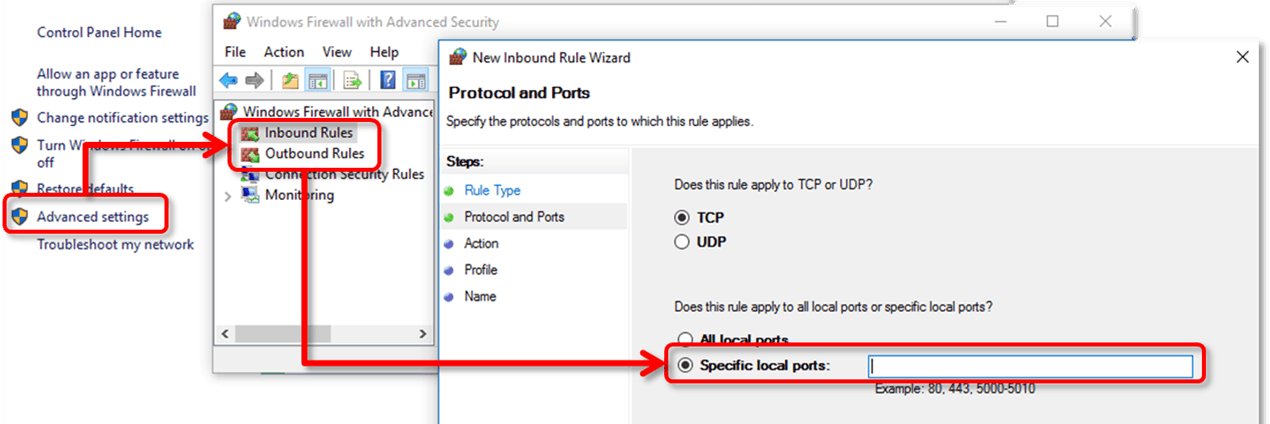
- 1QuickBooks multi-user traffic is TCP. Select TCP here, then repeat the whole wizard under Outbound Rules — an inbound rule alone leaves the return path blocked.
- 2Specific local ports takes the port list, not a range guess. Enter 8019 for QBCFMonitorService plus the dynamic port Database Server Manager reports for your release, and nothing else.
Troubleshooting H-Series Errors
Intuit's current H202/H505 article gives a concise, official checklist. The five most effective fixes are:
Error H202: Multi-User Switch to Single User
This error indicates QuickBooks® is trying to establish a connection to the company file but cannot communicate with the server.
Resolution Steps:
- 1.Host only on the server: Turn hosting OFF on every workstation. [Intuit]
- 2.DB services running: Ensure QuickBooksDBXX and QBCFMonitorService are running with proper rights. [Intuit]
- 3.Open the right ports: Use Port Monitor for the dynamic port, plus 8019. [Intuit]
- 4.Name resolution: Confirm you can ping the server by name. [Intuit]
- 5.Rebuild the .ND: Rename it, rescan in DBSM, or open the file once on the server. [Intuit]
Error H505: QuickBooks® Needs to Be Set Up
This error occurs when QuickBooks® is set up incorrectly or the computer requiring access is unable to reach the server.
Common Causes:
Prefer Automation?
Run QuickBooks® Tool Hub → File Doctor on the server; it diagnoses and suggests fixes for network/hosting/firewall issues. [Intuit Tool Hub]
Security, Stability, and Performance
Best Practices
Avoid These Pitfalls
Frequently Asked Questions
Q: How do I verify supported Windows and QuickBooks® versions for a LAN host?
A: Use Intuit's system-requirements article for the exact QuickBooks® year and release you run. Confirm the server operating system, workstation operating system, database service, and mixed-version rules before an upgrade. [Intuit]
Q: Do I really need the Database Server Manager if the file is on a server?
A: Yes. DBSM and the .ND file coordinate multi-user access, locking, and year-specific port info. Install it on the host and scan the company-file folder. [Intuit]
Q: Can we keep the live file on a NAS/Synology?
A: Intuit says a network drive (NAS) should not be used to host the live multi-user company file due to reliability/support limitations (frequent H505). Keep it on a Windows server's local disk. [Intuit Community]
Q: Which ports must be opened?
A: Use DBSM ▸ Port Monitor to get the dynamic port for your year and open it. Also allow QBCFMonitorService (TCP 8019) and the executables in Intuit's firewall table. [Intuit]
Q: Tool Hub / File Doctor—still relevant?
A: Yes. Intuit's Tool Hub (File Doctor) remains the official utility to diagnose and remediate company-file and network issues, including H-series errors. [Intuit]
Do's and Don'ts
Do
Don't
References
These sources were reviewed when the guide was updated:
- Firewall & security settings (Port Monitor, executables, 8019)
- Fix Errors H202/H505 (official checklist)
- System requirements: QuickBooks® Desktop 2024
- Enterprise tech specs (RAM guidance for multi-user)
- Folder sharing & Windows permissions
- Use QuickBooks® Database Server Manager
- Install QuickBooks® Database Server Manager
- Open a company file from a host/remote computer
- Don't host the live file on a NAS/network drive
- QuickBooks® Tool Hub and File Doctor
Conclusion
A reliable multi-user setup depends on one intended host, a stable company-file path, matching supported releases, working database services, and tested access from every workstation. Document those controls so later server or network changes do not silently break access. Use the Database Server Manager guide when you need the install, scan, and service-validation sequence.
Key Takeaways
Need Professional Implementation?
For complex deployments or enterprise implementations requiring expert assistance, Prime Connect provides professional QuickBooks® consulting services.
Contact Prime Connect for Professional Services