Export or back up the relevant data first. Do not delete, void, unreconcile, or adjust historical transactions unless you understand the accounting impact.
Menu names can change. We link current first-party instructions so you can confirm product behavior before acting.
Quick answer
Open All apps → Sales & Get Paid → Invoices and check the invoice's delivery status. If it says Undeliverable, confirm the customer email and your company customer-facing email, then resend the same invoice. If it says Sent, ask the customer to check junk or spam and send a secure invoice link or PDF from the existing transaction.
Do not create a new invoice just to send it again. A second invoice records a second receivable and can overstate sales and the customer's balance.
Workflow map
Trace invoice delivery without creating a duplicate
Delivery evidence narrows the problem; it does not justify recreating the sale or repeatedly sending an unverified message.
- 1
Invoice
Confirm the existing invoice, customer, amount, status, and email address.
Evidence: One authoritative sales transaction.
- 2
Send
Record the send time, recipient, template, attachment or link, and QuickBooks delivery status.
Evidence: Exact status and any bounce message.
- 3
Recipient
Check spam, quarantine, inbox rules, blocked links, aliases, and the receiving mail administrator.
Evidence: Recipient-side search covers the send time.
- 4
Resend
Update the verified address if needed and resend the same invoice once.
Evidence: No duplicate invoice, payment request, or receivable.
First, understand what QuickBooks is telling you
The correct fix depends on the status, not just the customer's report.
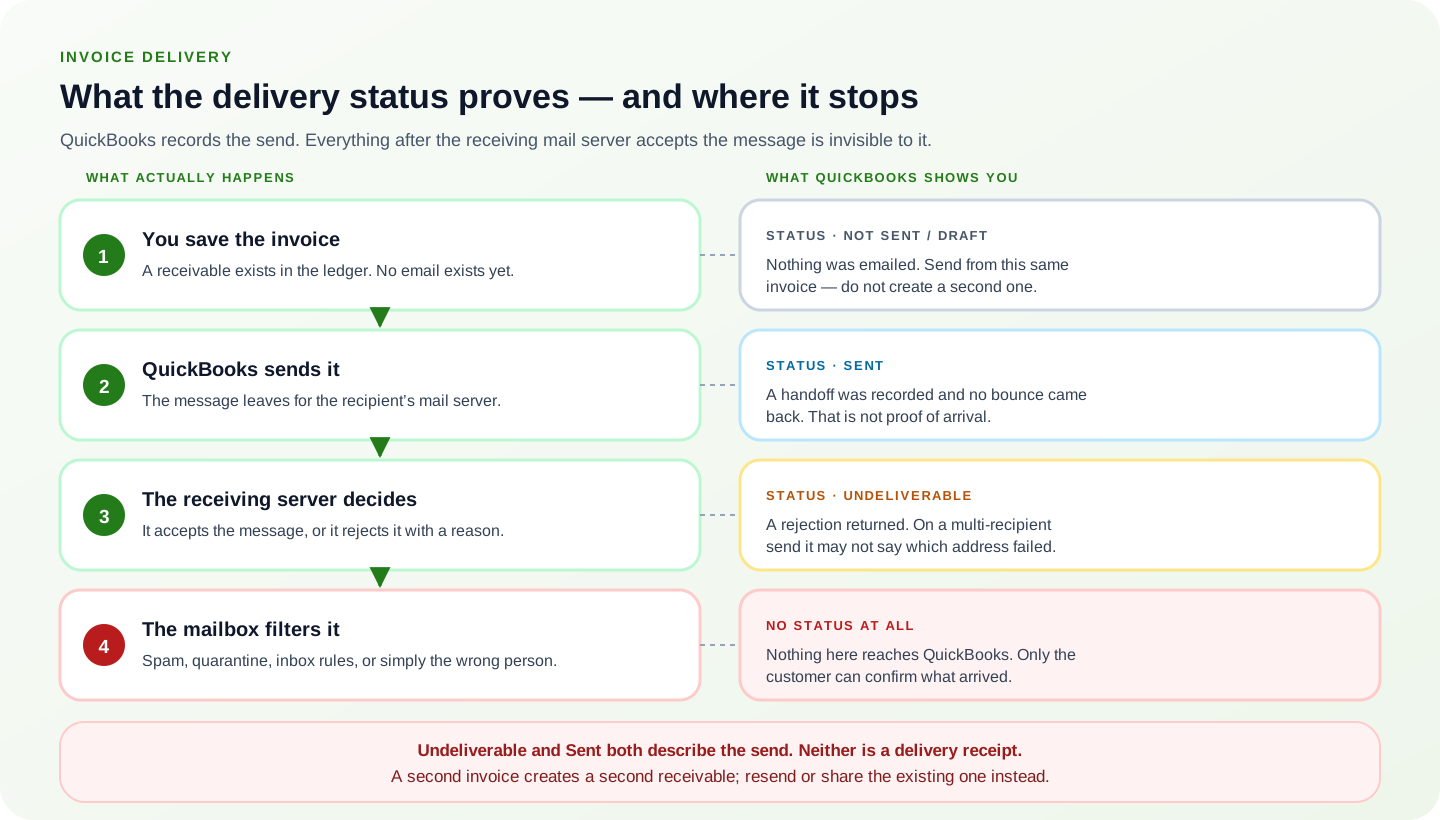
Every one of these statuses describes the send, not the arrival. QuickBooks can report what happened up to the point the recipient's mail server accepted or rejected the message, and a rejection is the only thing that comes back to it. Everything after that acceptance—spam scoring, quarantine, inbox rules, forwarding, or simply the wrong person holding the mailbox—is invisible to QuickBooks and produces no status at all.
Undeliverable
QuickBooks received a delivery failure. The address may be invalid, the receiving server may have rejected the message, or one recipient in a multi-recipient send may have failed.
Sent
QuickBooks handed off the message without recording a bounce. The recipient can still miss it because of spam, quarantine, inbox rules, or a different address.
Not sent / draft
The invoice exists but no email was sent. Open the invoice, review it, and use the send action from that same transaction.
When an invoice was sent to several recipients, Intuit notes that an Undeliverable status may not identify which recipient failed. Verify every address in the To, Cc, and Bcc fields.
Fix an invoice marked Undeliverable
- Find the flagged invoice. Go to All apps → Sales & Get Paid → Invoices. Look for Undeliverable or a Needs attention indicator.
- Confirm the existing sale. Open the invoice and note the customer, invoice number, amount, due date, and current balance. This confirms you are working with the existing sale.
- Check the customer address. Open the customer record from Customer Hub → Customers & leads, then verify spelling, spaces, punctuation, and the domain in the email address.
- Check your own sender address. Go to Settings → Account and settings → Company and verify the company's customer-facing email. A wrong reply or sender identity can confuse recipients and mail filters.
- Correct only what is wrong, then resend. Correct only confirmed errors. Save the customer or company details, reopen the original invoice, and resend it.
- Read the bounce reason. If QuickBooks exposes a task or delivery-errors list, review the bounce reason and date. This can distinguish an invalid mailbox from a temporary server rejection.
Common address problems
- A copied address contains an extra space or comma.
- The customer changed companies or domains.
- A group mailbox accepts mail only from approved senders.
- One address in a multi-recipient message is invalid.
- The invoice went to a billing contact who no longer handles the account.
If the status says Sent but the customer did not receive it
A Sent status does not prove the message reached the inbox. Work through the recipient side before repeatedly resending.
- Search the whole mailbox. Ask the customer to search all mail for your company name, invoice number, amount, and the word “invoice.”
- Check filtering and inbox rules. Ask them to check spam, junk, quarantine, clutter, focused/other tabs, and automated mail rules.
- Confirm the address out of band. Confirm the address verbally or in a separate email thread. Do not assume the customer record is current.
- Get your domain approved. Have the customer add your customer-facing email and QuickBooks delivery domain to approved senders, if their organization permits it.
- Deliver through a confirmed channel. Open the existing invoice and share its payment link or download a PDF as a fallback. Use a channel the customer has confirmed.
Resend the invoice without duplicating the sale
Open the original invoice and use its send or share action. Before sending, confirm that the invoice number, date, terms, amount, tax, email address, and payment options are correct.
If you must edit a business detail such as the email address, do so on the same invoice. Do not recreate the invoice unless the original transaction itself is invalid and your accounting process calls for voiding or deleting it.
If the invoice is already paid
Do not create another invoice or receive another payment. Share a copy of the paid invoice or payment receipt from the existing transaction. If the payment is not attached to the invoice in QuickBooks, investigate the payment and deposit workflow before changing the invoice status.
If the customer asks for a different email address
Confirm whether the new address should apply only to this invoice or become the customer's default. Updating the customer record can affect future sales forms, so document the customer's instruction.
When the recipient's email administrator needs to help
Escalate to the recipient's IT or email administrator when the address is correct, other messages reach the recipient, and repeated QuickBooks sends are blocked or quarantined.
Give the administrator:
- The approximate send time and time zone.
- The recipient address and invoice number.
- The visible sender or reply-to address.
- The QuickBooks delivery status and any bounce message.
- A link to Intuit's current undelivered-invoice guidance so they can verify approved mail-server details.
Do not publish or guess IP allowlists from an old forum post. Mail infrastructure changes; use the current Intuit support page linked in the Sources section.
Verify that the delivery problem is resolved
- The original invoice remains the only receivable for that sale.
- The customer confirms receipt through the expected address or a secure alternate method.
- The invoice status no longer shows an unresolved delivery error.
- The customer and company email fields are accurate for future forms.
- Any payment is applied once to the correct invoice and deposited through the normal workflow.
Common questions
Why does QuickBooks say Undeliverable when some recipients got it?
A multi-recipient email can be marked Undeliverable when one address fails. Check every recipient rather than assuming the whole send failed.
Can I send the invoice from my regular email?
You can download a PDF or share an invoice link from the existing transaction, subject to your privacy and payment-security process. Keep the authoritative invoice in QuickBooks and do not create a duplicate.
Will resending change the invoice date or balance?
Resending the existing invoice should not create a new sale. Still review the form before sending because editing the transaction itself—amount, date, tax, products, or payment terms—can change the books.
Sources checked
First-party product documentation used to verify the workflow and risk notes in this guide.