Export or back up the relevant data first. Do not delete, void, unreconcile, or adjust historical transactions unless you understand the accounting impact.
Menu names can change. We link current first-party instructions so you can confirm product behavior before acting.
Quick answer
Use Match when the downloaded bank item represents a transaction already recorded in QuickBooks. Use Categorize when no record exists and the downloaded item should create a new expense, deposit, or other transaction. If the same real-world event appears twice, keep the correct recorded transaction and exclude only the duplicate downloaded item after verifying it.
When QuickBooks cannot find a match, do not immediately add the bank item. Search for an existing transaction by amount, date range, customer or vendor, payment account, and status. A wrong add creates duplicate income or expense and usually appears again during reconciliation.
Match
The transaction is already in the books.
Categorize
The transaction is not yet in the books.
Exclude
The downloaded row should not create a book transaction.
Workflow map
Match, create, transfer, or exclude?
Start from whether the books already contain the real-world transaction. The bank-feed row is evidence, not automatically a new accounting entry.
- 1
Search
Look for an existing invoice payment, bill payment, expense, deposit, transfer, or other posted record.
Evidence: Date, amount, account, payee, and reference support the link.
- 2
Match
If the accounting record exists, connect the downloaded row to it instead of creating another transaction.
Evidence: No duplicate income, expense, payment, or deposit.
- 3
Create
If no record exists, categorise or add the correct transaction—with tax, class, customer, and transfer logic reviewed.
Evidence: The ledger result matches the source document.
- 4
Exclude
Exclude only a duplicate statement line or non-book activity that should not enter the ledger.
Evidence: The real transaction remains recorded and reconcilable.
Match versus categorize: the accounting difference
A downloaded bank transaction begins as evidence from the bank. It does not automatically prove how the event should be recorded. Your job is to connect that evidence to the correct record or create the missing record once.
Use Match when a record already exists
Common examples include:
- A customer payment already received against an invoice.
- A bill payment, check, expense, or credit-card payment already entered.
- A transfer already recorded between two accounts.
- A payroll, tax, QuickBooks Payments, or Bill Pay transaction QuickBooks created.
- A bank deposit that groups payments previously placed in Undeposited Funds.
Matching links the downloaded item to the existing record so QuickBooks does not add a second transaction.
Use Categorize when the event is not recorded yet
Examples include a bank fee, debit-card purchase, interest income, or owner contribution that has no existing QuickBooks record. Choose the correct payee, category, class or location, tax treatment, and memo before adding it.
Do not exclude personal spending just because it is not a business expense
If a personal transaction moved through a connected business bank account, excluding it can make the QuickBooks register fail to match the bank statement. The correct treatment may be an owner draw, distribution, loan, or another equity account. Ask your accountant which classification fits your entity.
Why QuickBooks may not find the transaction you expect
- Amount mismatch: fees, tips, currency conversion, partial payments, or edits make the amounts different.
- Date outside the search window: the bank posting date differs from the transaction or deposit date.
- Wrong bank or credit-card account: the recorded payment used a different account.
- Already matched: a record can be linked to another downloaded item.
- Already reconciled: QuickBooks may not offer a reconciled record as a normal match.
- Wrong transaction type: an invoice is not a bank deposit until a payment and deposit workflow records the money movement.
- Grouped settlement: the bank shows one net deposit for several payments and fees.
- Old transaction: the existing record is outside QuickBooks' normal suggested-match range.
These clues explain why no suggestion appears; they do not justify forcing a match. The downloaded item and the QuickBooks record must represent the same real-world event.
Fix a downloaded transaction that will not match
- Open the downloaded item. Note the bank account, posted date, amount, description, and whether money moved in or out.
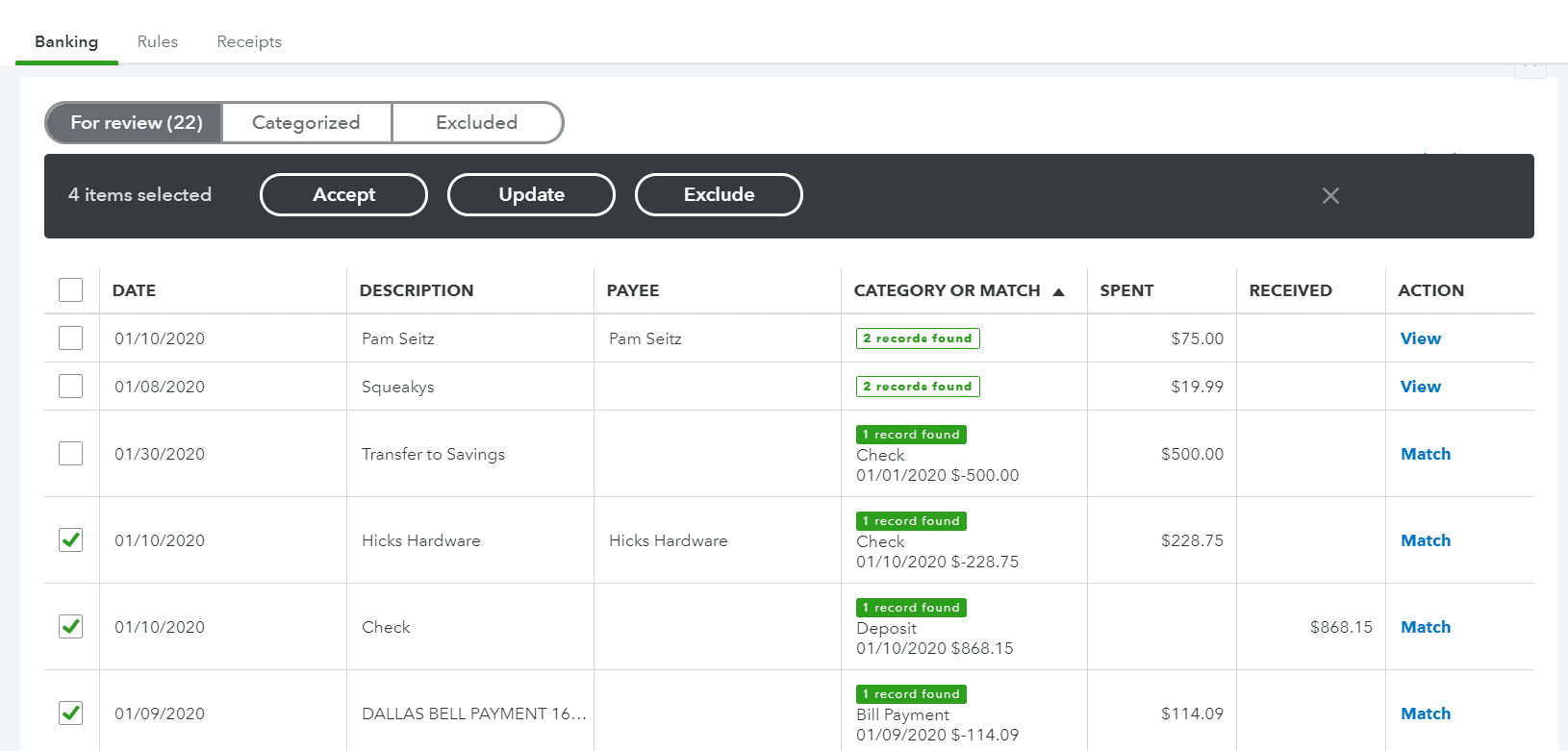
- 1DATE is the date the bank posted the item, not the date you entered anything. A record dated a few days either side of it can still be the right match, which is why the next step widens the search range.
- 2DESCRIPTION is the bank’s own text, abbreviated by the bank and sometimes truncated by the table. Treat it as a clue to the payee, never as proof of one.
- 3SPENT carries money leaving the account. Note the amount to the cent before you search: a near-miss amount is a different transaction, not the same one rounded.
- 4RECEIVED carries money arriving. Direction comes from which of these two columns holds the figure, not from the description — the row described simply as "Check" here is a deposit of $868.15.
- Search QuickBooks before adding. Look in sales, expenses, bills, checks, deposits, transfers, payroll, and the account register. Search a wider date range around the bank date.
- Compare the payment account. A transaction recorded against Cash, Undeposited Funds, or another bank account will not match this feed correctly.
- Use Find other matches. If available, broaden the date range and inspect candidate records. Select only records whose combined amount and purpose tie to the bank item.
- Resolve legitimate differences. For a processor settlement, create or correct the bank deposit so gross payments and fees produce the net deposit. Do not edit customer payments to the net amount.
- Match once the evidence agrees. Review the linked record and the effect on the invoice, bill, or account before confirming.
Fix duplicate bank transactions
Duplicates often appear when the same date range was imported manually and later downloaded automatically, or when a downloaded item was added even though a manual record already existed.
Duplicate still in For review
- Line the two records up. Open the suspected duplicate and compare it with the existing transaction.
- Check every field. Confirm the amount, payee, date, bank account, and real-world event are the same.
- Exclude the feed row. If the book transaction is correct, select the downloaded duplicate and choose Exclude.
- Check where it landed. Confirm it moved to the Excluded tab and was not added to the register.
Duplicate was already added
First determine which record carries the correct details, links, attachments, reconciliation status, tax treatment, and audit history. Undo the bank-feed action if available, then remove only the duplicate record once you understand the impact. Do not delete a paid invoice, bill payment, payroll item, or reconciled transaction merely because the bank line looks duplicated.
What exclusion does
An excluded downloaded row does not enter the books or appear in account history and reports. That is appropriate for a true duplicate feed row; it is not a substitute for recording a legitimate bank transaction.
Undo a wrong match or category
- Go to the bank feed. Open All apps → Accounting → Bank transactions.
- Switch to the reviewed queue. Select the relevant bank account and open the Posted, Categorized, or equivalent reviewed tab.
- Check what it hit. Find the transaction and review what it was matched or added to.
- Undo the review action. Select Undo to return the downloaded item to For review.
- Redo it correctly. Correct the underlying record if needed, then match or categorize the downloaded item properly.
If the transaction has already been reconciled, undoing its bank-feed review does not automatically solve the reconciliation impact. Check the register status and affected reconciliation report before changing the historical record.
Special cases: transfers, deposits, and fees
Transfers between two connected accounts
One real transfer creates a withdrawal in one feed and a deposit in the other. Record or confirm a transfer that links the two accounts; do not categorize one side as an expense and the other as income.
Customer payments grouped into one deposit
Receive each payment against the correct invoice, place it in Undeposited Funds when appropriate, then build one deposit matching the bank batch. This preserves customer balances and explains the statement deposit.
Processor deposits net of fees
The books may need to show gross sales or payments and a separate merchant fee so the resulting deposit equals the net bank amount. Do not reduce invoice payments merely to make the deposit match.
Foreign-currency transactions
Exchange rates and settlement fees can make the bank amount differ from the source document. Confirm the currencies, exchange date, gain or loss treatment, and fees. Escalate if changing the record would affect filed taxes or a closed period.
Verify the bank-feed cleanup before reconciling
- Each real-world transaction is recorded once.
- Matches connect to the correct invoice, bill, payment, deposit, transfer, or expense.
- Excluded rows are true duplicates or non-book feed items—not legitimate bank activity.
- Transfers do not create false income or expense.
- Processor deposits tie gross payments and fees to the net bank amount.
- The account register balance and transaction list make sense before reconciliation.
Then reconcile the account against the statement. Reconciliation is the independent check that catches a feed decision that still left the books incomplete or duplicated.
Optional free utilities
Tools that support this workflow
These run in your browser and can help prepare or inspect files. They do not replace reconciliation, source-document review, or an accountant’s approval.
Sources checked
First-party product documentation used to verify the workflow and risk notes in this guide.
- Match your bank and credit card transactionsIntuit QuickBooks Support · Checked August 16, 2026
- Fix downloaded bank transactionsIntuit QuickBooks Support · Checked August 10, 2026
- Exclude duplicate transactions in QuickBooks OnlineIntuit QuickBooks Support · Checked August 10, 2026
- Categorize online bank transactions in QuickBooks OnlineIntuit QuickBooks Support · Checked August 10, 2026