Export or back up the relevant data first. Do not delete, void, unreconcile, or adjust historical transactions unless you understand the accounting impact.
Menu names can change. We link current first-party instructions so you can confirm product behavior before acting.
Quick answer
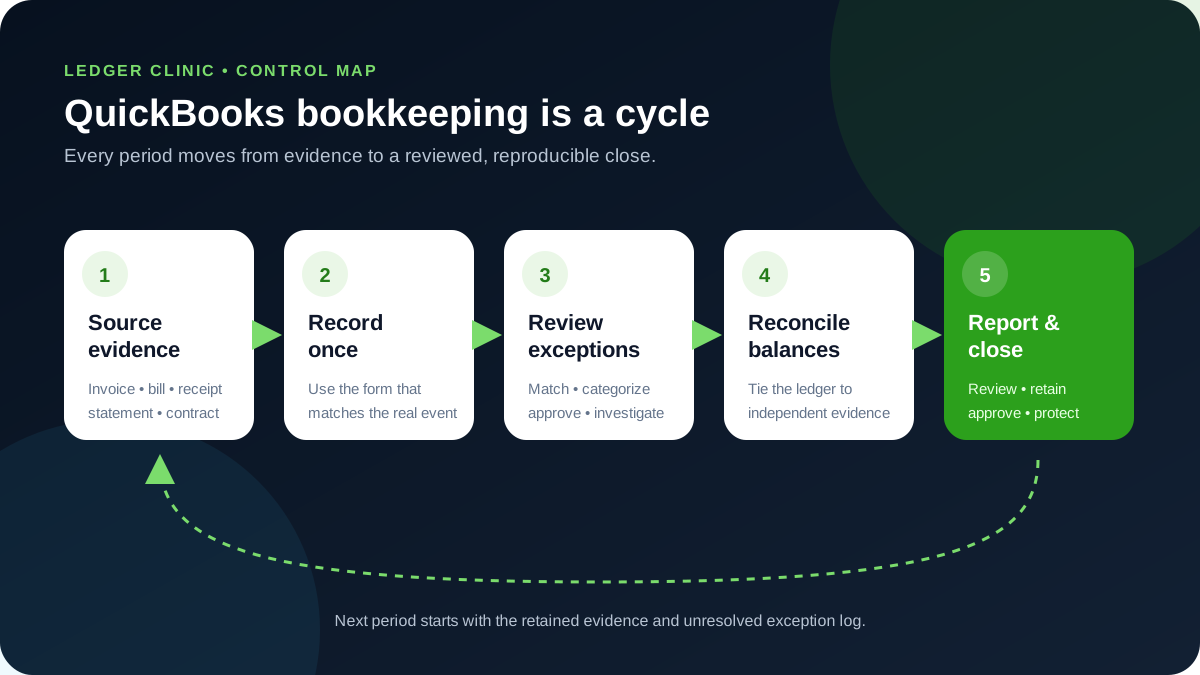
Good QuickBooks bookkeeping is a control cycle, not a data-entry marathon. Capture each real business event once, attach or retain its evidence, review downloaded bank activity against existing records, reconcile every balance-sheet account to independent evidence, investigate exceptions, then close the period and retain the approved reports.
Use a simple rhythm: daily capture, weekly exception review, monthly reconciliation and close. Automation can suggest matches and categories, but a human still has to decide whether the transaction exists already, belongs to the business, falls in the correct period, and uses the right account and customer, vendor, class, location, or project.
The bank feed is an inbox, not the general ledger. Downloaded activity should be matched to an existing transaction when one already represents the event; adding it again can double income, expense, receivables, payables, or transfers.
Understand the accounting chain before clicking
Every workflow should move through four layers that can be checked independently:
- Source evidence: contract, invoice, receipt, bill, statement, payroll register, tax notice, loan statement, or approved adjustment.
- QuickBooks transaction: invoice, sales receipt, payment, deposit, bill, bill payment, expense, check, transfer, payroll entry, or journal entry.
- Ledger and control account: the chart-of-accounts posting, customer or vendor balance, bank register, receivable, payable, tax, payroll, loan, inventory, or equity account.
- Report and reconciliation: the report total tied back to the source evidence and reviewed for period, accounting basis, filters, and completeness.
If a report is wrong, trace backward through that chain. Do not hide the symptom with a filter, delete history, or post a plug before locating the source transaction and understanding the accounting effect.
Choose the transaction form that represents what happened
Invoice
Use when a customer owes the business now and will pay later. Receive the later payment against the invoice.
Sales receipt
Use when the sale and payment happen together. Do not also create an invoice for the same sale.
Bill
Use when the business owes a vendor and will pay later. Close it with the bill-payment workflow.
Expense or check
Use for a cost paid immediately. Do not use either form to pay a bill already entered.
Transfer
Use when money moves between two balance-sheet accounts owned by the same entity. A transfer is not income or expense.
Journal entry
Reserve for an approved accounting adjustment that ordinary forms cannot represent cleanly. Include support and reviewer approval.
Daily bookkeeping: capture once and preserve evidence
- Record sales through the approved invoice or sales-receipt workflow and apply customer payments to the correct open transactions.
- Enter vendor bills that remain unpaid; record expenses only when payment happened immediately.
- Attach or retain the source document using a consistent file name and retention location.
- Enter the correct transaction date, customer or vendor, product or service, account, description, tax treatment, and tracking dimensions.
- Keep personal activity out of business accounts. Route rare owner-paid business costs through the approved equity or reimbursement process.
- Review exceptions from connected apps before allowing them to post automatically.
Batch entry is efficient only after the workflow is stable. Test imports with a small sample, retain the original file, document the date range, and compare record counts and control totals before importing the rest. The free accounting tools hub can help inspect or prepare files, but the final accounting classification still needs review.
Weekly review: clear the exception queues
- Review bank transactions. Match entries that already exist. Categorize only genuine new activity. Resolve transfers from both sides.
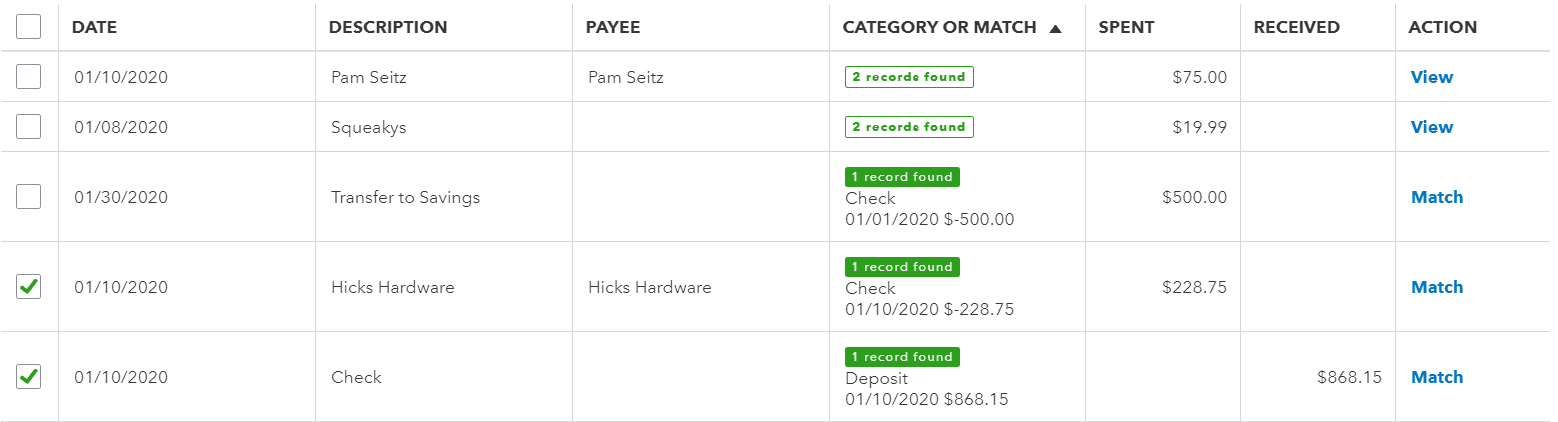
- 1Two records found means QuickBooks has two candidates and has picked neither. Open the row and choose; leaving it is how a duplicate gets created later.
- 2One record found names the exact transaction proposed, with its type, date, and amount. Agree all three against the bank line before accepting it.
- 3View appears when the choice is still open. It lists the candidates rather than committing one, so it is the safe action on an ambiguous row.
- 4Match accepts the proposed record and posts nothing new. Use it only once the named record is confirmed — an Add would create a second transaction instead.
- Review undeposited funds. Confirm grouped deposits equal actual processor or bank settlements.
- Review receivables. Investigate unapplied payments, credits, negative customer balances, overdue invoices, and deposits without customer detail.
- Review payables. Investigate duplicate bills, old credits, negative vendor balances, and bills paid with the wrong transaction form.
- Review uncategorized and suspense accounts. Assign an owner and resolution date to every material item.
- Review integrations. Compare settlement totals, fees, refunds, chargebacks, and clearing-account balances to processor evidence.
A zero inbox is not the objective. The objective is a reviewed ledger. It is safer to leave a documented exception unresolved for the responsible person than to force a category merely to clear the screen.
Month-end: reconcile, review, report, and close
- Set the cutoff and gather evidence. Confirm the period cutoff and collect every bank, credit-card, loan, merchant, payroll, and other external statement.
- Finish the period postings. Finish approved sales, purchasing, payroll, inventory, and integration postings for the period.
- Reconcile the cash accounts. Reconcile bank and credit-card accounts to the statement ending date and balance.
- Reconcile the other control accounts. Reconcile receivables, payables, payroll liabilities, sales tax, loans, fixed assets, inventory, and clearing accounts to supporting schedules as applicable.
- Read the reports. Review the Profit and Loss, Balance Sheet, aging reports, cash flow, general ledger, and comparison reports using a documented basis and scope.
- Chase the outliers. Investigate unusual, negative, stale, rapidly changing, or unsupported balances.
- Adjust and rerun. Post only approved adjustments, then rerun the reports and reconciliations affected by them.
- Save the close pack. Save the final report pack, reconciliations, schedules, exception log, and reviewer sign-off.
- Lock the period. Set or advance the close date according to company policy.
Fix messy QuickBooks books in a safe order
Do not begin cleanup by deleting duplicates or changing opening balances. Preserve the current state first, then work from evidence.
- Preserve the current state. Export the general ledger, trial balance, Balance Sheet, Profit and Loss, aging reports, and reconciliation reports for the affected periods.
- Write down the symptoms. List the observable problems: duplicate income, unreconciled accounts, stale receivables, negative payables, uncategorized activity, opening-balance equity, or unexplained clearing balances.
- Find where it starts. Identify the earliest incorrect period and determine whether tax returns, payroll filings, audited statements, or closed reports rely on it.
- Work forward before backward. Correct current open activity first, then obtain approval for historical changes.
- Change one thing at a time. Work one control account or workflow at a time and keep a change log with before-and-after totals.
- Prove the fix. Rerun every affected reconciliation and report before declaring the issue resolved.
If a correction changes a filed return, payroll filing, completed reconciliation, lender report, owner distribution, or closed financial statement, involve the responsible accountant before editing history.
Build controls around people, automation, and handoff
- Give every user an individual login and only the access needed for the role.
- Separate transaction preparation, approval, payment, bank access, and reconciliation where staffing permits.
- Document who owns each connected app, bank rule, recurring transaction, clearing account, and exception queue.
- Require source evidence and approval for manual journal entries and closed-period changes.
- Review the audit log when an unexpected change appears.
- Use a month-end checklist with preparer and reviewer sign-off rather than relying on memory.
- Invite the accountant through the accountant-access workflow instead of sharing administrator credentials.
QuickBooks bookkeeping checklist
- Every transaction represents one real event and has retained evidence.
- Invoices, payments, deposits, bills, bill payments, expenses, checks, and transfers are used for the correct purpose.
- Downloaded activity is matched before any new entry is added.
- Personal and business activity are separated.
- Receivables, payables, undeposited funds, uncategorized activity, and clearing accounts are reviewed weekly.
- Every material balance-sheet account is reconciled to independent evidence monthly.
- Reports have a recorded period, basis, scope, filters, and reviewer.
- Corrections preserve the audit trail and have appropriate approval.
- The final close pack and supporting evidence are retained before the books are closed.
The books are ready when another qualified reviewer can reproduce the reports, trace material balances to evidence, understand unresolved exceptions, and see who approved each significant adjustment.
Optional free utilities
Tools that support this workflow
These run in your browser and can help prepare or inspect files. They do not replace reconciliation, source-document review, or an accountant’s approval.
Sources checked
First-party product documentation used to verify the workflow and risk notes in this guide.
- Chart of accounts in QuickBooks OnlineIntuit QuickBooks Support · Checked August 11, 2026
- Differences between bills, checks, and expensesIntuit QuickBooks Support · Checked August 11, 2026
- Categorize and match online bank transactionsIntuit QuickBooks Support · Checked August 11, 2026
- Reconcile an account in QuickBooks OnlineIntuit QuickBooks Support · Checked August 11, 2026
- How to enter closing and password protect datesIntuit QuickBooks Support · Checked August 11, 2026