QuickBooks® H202/H505 After Server/IP Change (RDS/VPS)
Quick Answer
H202/H505 means QuickBooks® Desktop can't reach the hosting (Database Server Manager) service for your company file. Fix: On the host server, run QuickBooks® Database Server Manager to rescan your data folder and recreate the .ND file; ensure only the host has "Hosting" turned On; update Windows Firewall inbound rules for the current QuickBooks® year; then open the file via a UNC path (\\ServerName\Share\…) instead of a mapped drive letter if mapping is broken.
What are H202/H505?
Connection errors in multi-user mode. They appear when the workstation can't talk to the hosting service (QBDBMgrN.exe) or the .ND (network descriptor) points to an old IP/host, or when multiple machines are "hosting" at once.
Problem statement:
QuickBooks® can't reach the server's Database Manager at the correct address/ports after an IP/hostname/share change.
Error H202/H505: Multi-user connection failure
QuickBooks® can't reach the server's Database Manager after IP/hostname/share change.
Symptoms:
- H202 / H505 on open or when switching to multi-user
- Works locally on the server but not from workstations
- .ND file shows an old IP/hostname
- DB Server Manager shows "Not running" or wrong folders
- Mapped drive opens in Explorer, but QuickBooks® still errors
Resolution Steps:
- 1.Confirm the host (one machine only) and turn hosting off on all others
- 2.Rescan the data folder with Database Server Manager (rebuild .ND)
- 3.Fix firewall rules for QuickBooks® ports/services
- 4.Open the file via UNC and re-map drives (if needed)
- 5.Flush/refresh DNS and verify name resolution
- 6.Restart QuickBooks® services on the host
Quick Fix (≈5 Minutes)
Fastest, official-first approach
Step 1: Pick the host
- On the server (where the .QBW lives): File → Utilities → Host Multi-User Access (should show Stop Hosting if already hosting).
- On every workstation: File → Utilities → ensure it shows Host Multi-User Access (meaning NOT hosting).
Step 2: Rescan with Database Server Manager (on the host)
- Open QuickBooks® Database Server Manager (Start → type it).
- Browse to your data folder (e.g., D:\QBData) → Scan.
- Confirm your company shows "Shared" and the tool lists Correct Ports.
Step 3: Firewall quick check (on the host)
- Windows Security → Firewall & network protection → Allow an app → ensure QuickBooks® and QuickBooks® DB Manager for your year are allowed Private (and Public if needed).
- If unsure, in Tool Hub → Network Issues → QuickBooks® Database Server Manager, run Fix.
Step 4: Open via UNC
- In QuickBooks® on a workstation: File → Open or Restore Company → Open a company file → Network → navigate to
\\ServerName\Share\Company.qbw. - If that works, re-map your drive using the new path.
- If errors persist, do the detailed steps.
Detailed Solution Steps
- Verify the one-host rule.
- On the server: File → Utilities should show Stop Hosting Multi-User Access (meaning hosting is ON there).
- On every client: File → Utilities should show Host Multi-User Access (meaning hosting is OFF).
- If any client shows Stop Hosting, click it to disable.
- Rebuild the .ND file properly.
- On the host, open Database Server Manager → Add Folder → select the folder containing your .QBW.
- Click Scan. This recreates
YourCompany.qbw.ndwith the current IP/hostname. - Tip: Delete stale .ND files first (or rename to .old) in the data folder—do not touch .QBW.
- Confirm/recreate firewall rules (per QuickBooks® year).
QuickBooks® uses year-specific executables and dynamic ports. Easiest path:
- In Tool Hub → Network Issues, run the fix (creates inbound rules for QBDBMgrN.exe, QBCFMonitorService.exe, and QuickBooks® year apps).
- Or manually allow the QuickBooks® program folders:
C:\Program Files\Intuit\QuickBooks® [Year]\C:\Program Files\Common Files\Intuit\QuickBooks®\- Allow TCP in/out on the QuickBooks® year port listed in DB Server Manager (e.g., 8019 and a dynamic port range like 56xxx—use what the tool shows).
- Validate services on the host.
- Press Win + R →
services.msc. - Set these to Automatic, then Start:
- QuickBooksDBXX / QBDBMgrN (year-specific)
- QBCFMonitorService
- If the DB service won't start, repair QuickBooks® Database Server (Control Panel → Programs → QuickBooks® Database Server Manager → Repair).
- Press Win + R →
- Fix name resolution (common after IP change).
- On a workstation, test: Win + R →
cmd ping ServerName→ confirm it resolves to the new IP- If wrong:
ipconfig /flushdnson the client- Update DNS/hosts as needed (or use
\\NewServerIP\Shareas a temporary UNC). - If you use a mapped drive, re-map it to the correct UNC:
- Explorer → This PC → Map network drive → Folder:
\\ServerName\Share.
- On a workstation, test: Win + R →
- Re-join the file cleanly.
- On a workstation: File → Open or Restore Company → browse to
\\ServerName\Share\YourCompany.qbw. - Switch to Multi-user Mode.
- If a specific user still can't connect, delete their .TLG lock after a clean close (rare) and retry.
- On a workstation: File → Open or Restore Company → browse to
- VPS/RDS specifics (port & profile gotchas).
- Ensure the Windows profile running the DB service exists and has rights to the data folder.
- If the server's public IP changed and clients connect over VPN: confirm the VPN is up and the server's local IP is consistent. Consider a static local IP on the server NIC to avoid repeated breaks.
Why do H202/H505 happen after changes?
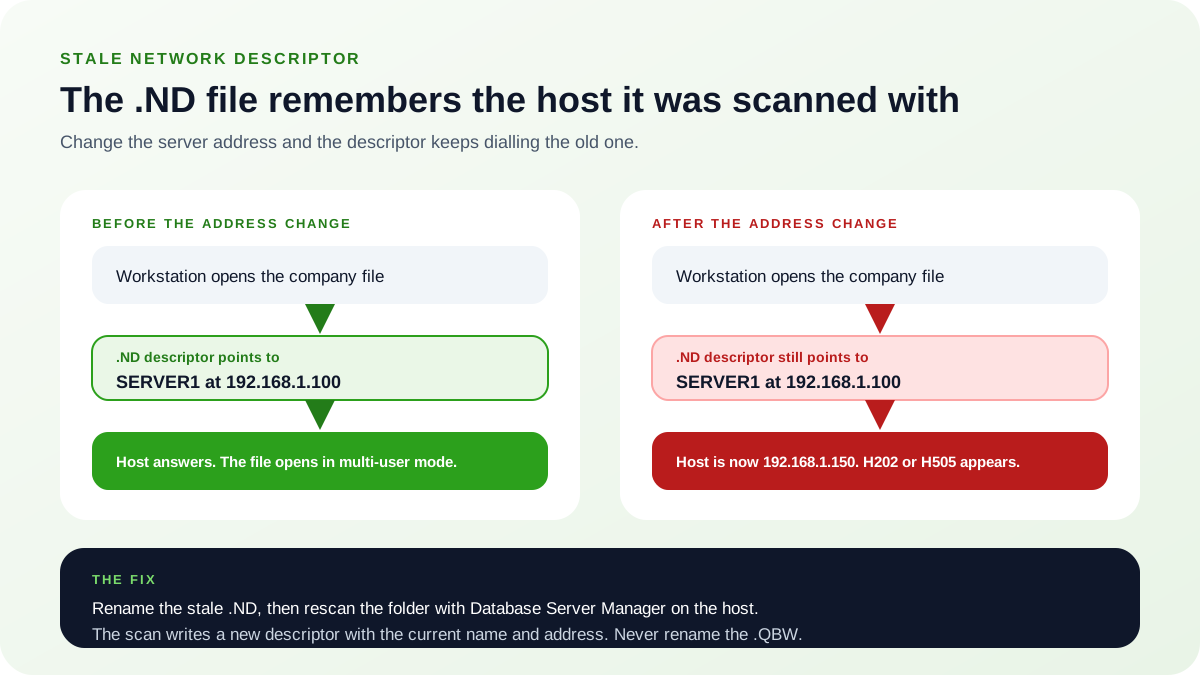
Nothing about the company file changed when the address did. The .ND network descriptor beside the file is a cached pointer: Database Server Manager writes it during a folder scan and records the host name and address it saw at that moment. Move the server, change its address, or rename it, and the descriptor keeps naming the old one — so the workstation dials an address that no longer answers and reports H202 or H505. That is why a rescan on the host fixes this and a repair of the company file does not: the scan rewrites the descriptor with the current name and address. Rename or delete only the .ND; the .QBW is never part of this fix.
Common causes
- .ND points to the old IP/host
- Multiple machines are hosting at once
- Firewall blocked the new port/exe after an update or new year install
- DB service not running or running under a user without folder rights
- Mapped drive points to an outdated path or broken DFS link
- DNS cache still has the old IP
How to Prevent It
Best Practices
- Give the host server a static local IP (and stable server name).
- After QuickBooks® upgrades, rescan folders in Database Server Manager.
- Keep one host policy; never enable hosting on workstations.
- Add Defender/AV exclusions for QuickBooks® program & data paths.
- Use UNC paths in shortcuts; map drives from UNC (not from a raw IP).
- Document the folder path and share name you standardize on (e.g., \\QB-SERVER\QBData).
Frequently Asked Questions
Do I need to touch my company file (.QBW)?
No—work only with .ND files, firewall rules, services, and paths.
Will rescanning in Database Server Manager change my data?
No. It only creates/updates .ND descriptors and registers the folder with the service.
Does every workstation need QuickBooks® installed?
Yes, for multi-user mode (unless they access via RDS on the server). Each workstation should run the same QuickBooks® year/patch.
We changed the server name—do we need to reinstall?
No. Update DNS, rescan in DB Server Manager, and re-point shortcuts to \\NewName\Share.
It works on the server but not on clients—why?
That means the DB service and data are fine; the issue is network path, firewall, or name resolution from the clients.
Related Resources
Need Professional Help?
If you're still experiencing H202/H505 errors after following these steps, our QuickBooks® network experts are here to help.
Get Expert Support