QuickBooks® Error H202: Multi-User Connection Blocked
Quick Answer:
Error H202 occurs when QuickBooks® Desktop can't reach the server hosting your company file. Fix it by restarting QuickBooks® Database Server Manager and configuring Windows Firewall to allow ports 8019, 56728, and 55378-55382.
What is QuickBooks® Error H202?
QuickBooks® Error H202 is a multi-user mode error that prevents workstations from accessing company files hosted on another computer. This error indicates that QuickBooks® Desktop is unable to communicate with the server due to network configuration issues, blocked ports, or QuickBooks® Database Server Manager problems. If your company file itself appears damaged, see our Company File Repair guide instead.
Error H202: Multi-user mode connection blocked
Your QuickBooks® company file is located on another computer, and QuickBooks® needs help connecting.
Symptoms:
- Cannot switch to multi-user mode
- Error message appears when opening company file
- Other users can access the file but you cannot
- Connection works sometimes but fails intermittently
Resolution Steps:
- 1.Verify QuickBooks® Database Server Manager is running
- 2.Configure Windows Firewall exceptions
- 3.Restart QuickBooks® services
- 4.Test multi-user connection
First Checks for Error H202
Start here
- Open Windows Services (services.msc)
- Find "QuickBooksDBXX" service
- Right-click and select "Restart"
- Open QuickBooks® Database Server Manager
- Click "Scan Folders" and wait for completion
- Try opening your company file again
Detailed Solution Steps
- Verify QuickBooks® Database Server Manager.
First, ensure the Database Server Manager is properly installed and running on the host computer:
- Go to the server computer hosting the company file
- Press Windows + R, type
services.msc - Look for "QuickBooksDB32" or "QuickBooksDB34" (number varies by version)
- If stopped, right-click and select "Start"
- Set Startup Type to "Automatic"
- Configure Windows Firewall.
Add QuickBooks® ports to Windows Firewall exceptions:
Required PortsQuickBooks® 2024: 8019, 56728, 55383-55387QuickBooks® 2023: 8019, 56727, 55378-55382QuickBooks® 2022: 8019, 56726, 55373-55377- Open Windows Defender Firewall with Advanced Security
- Click "Inbound Rules" → "New Rule"
- Select "Port" → TCP → Enter specific ports above
- Allow the connection → Apply to all profiles
- Name it "QuickBooks® Multi-User Access"
- Run QuickBooks® File Doctor.
Use Intuit's diagnostic tool to automatically fix network issues:
- Download QuickBooks® Tool Hub from Intuit's website
- Open Tool Hub → Network Issues tab
- Select "QuickBooks® File Doctor"
- Choose your company file and select "Check your file/network"
- Enter admin password when prompted
- Wait 5-10 minutes for diagnosis and repair
- Verify Multi-User Hosting.
Ensure proper hosting configuration on the server:
- On the server, open QuickBooks® Desktop
- Go to File → Utilities
- You should see "Stop Hosting Multi-User Access"
- If you see "Host Multi-User Access" instead, click it
- Confirm hosting is enabled
Why Does Error H202 Occur?
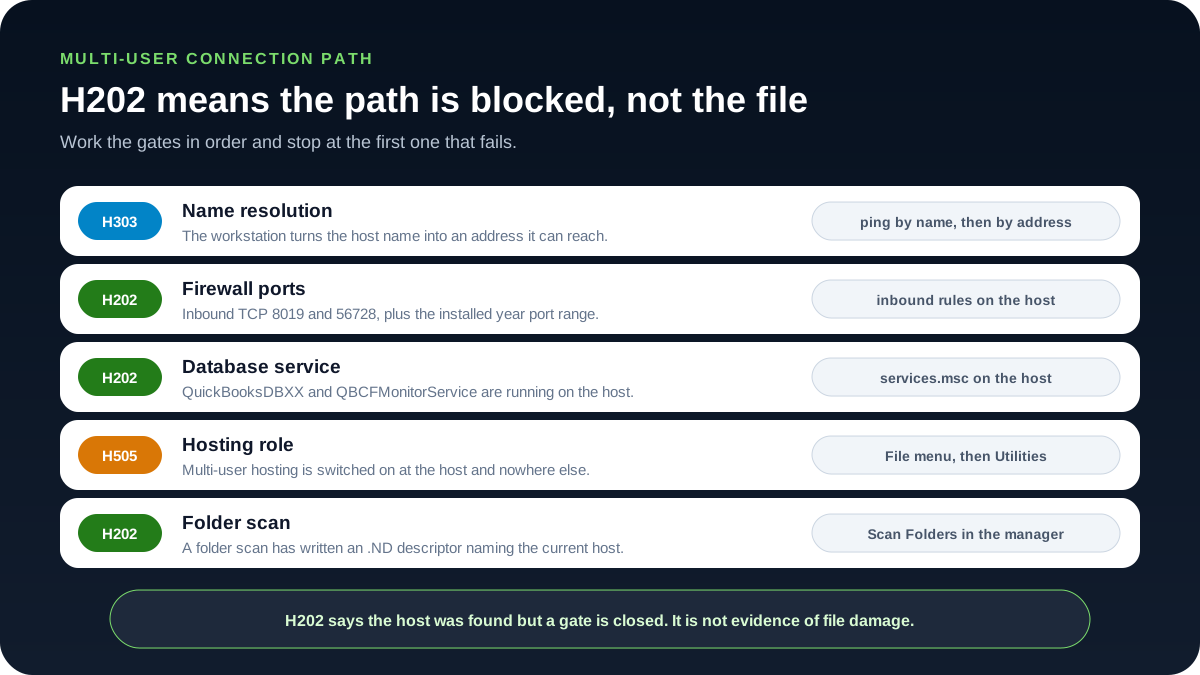
A workstation crosses five gates before multi-user mode opens, and the gate that fails decides which error number you see. First the workstation must resolve the host name to an address it can reach; a failure here is normally reported as Error H303 rather than H202. Second, inbound TCP 8019 and 56728 plus the port range for your installed QuickBooks® year must be open on the host. Third, the QuickBooksDBXX and QBCFMonitorService services must be running there. Fourth, multi-user hosting must be switched on at the host and nowhere else; a second host reports Error H505. Fifth, Database Server Manager must have scanned the company-file folder, because that scan writes the .ND network descriptor that tells workstations which host to contact. Work the gates in that order and stop at the first one that fails.
Common Causes
- Network Configuration Issues: Incorrect DNS settings or IP conflicts preventing workstation-to-server communication
- Firewall Blocking: Windows Firewall or third-party security software blocking QuickBooks® ports
- Database Server Problems: QuickBooks® Database Server Manager not running or configured incorrectly
- Hosting Mode Conflicts: Multiple computers trying to host the same company file — see Error H505 for hosting conflicts
How to Prevent Error H202
Best Practices:
- Keep QuickBooks® Database Server Manager updated with your QuickBooks® version
- Use static IP addresses for the server hosting company files
- Configure firewall exceptions proactively when installing QuickBooks®
- Regularly scan folders using Database Server Manager
- Document your network configuration for troubleshooting
Frequently Asked Questions
What causes QuickBooks® Error H202?
Error H202 occurs when QuickBooks® Desktop cannot communicate with the server hosting the company file due to network issues, firewall blocks, or incorrect hosting configuration.
How long does it take to fix Error H202?
Most users can resolve Error H202 in 5-10 minutes by following our step-by-step guide. Complex network issues may take 15-30 minutes.
Will I lose data when fixing Error H202?
No, fixing Error H202 does not affect your QuickBooks® data. This error only relates to network connectivity, not data integrity.
Can Error H202 occur with QuickBooks® Online?
No, Error H202 is specific to QuickBooks® Desktop multi-user mode. QuickBooks® Online users won't encounter this error as it's cloud-based.
Related Resources
Need Professional Help?
If you're still experiencing Error H202 after following these steps, or if you need help with complex network configurations, our QuickBooks® experts are here to help.
Get Expert Support