Overview: Data Integrity & File Structure
Company-file damage can follow an interrupted write, power loss, network interruption, storage failure, or software conflict. This guide starts by preserving the original file, then moves through diagnosis, built-in repair, recovery, and escalation. [Intuit Documentation]
What is Data Integrity?
Data integrity refers to the accuracy, consistency, and reliability of data stored in your company file. A file with good data integrity will have balanced accounts, complete transaction histories, and consistent relationships between records. Corruption breaks these relationships, causing errors, missing data, or incorrect calculations.
Repair Approach Hierarchy
Always follow this sequence when addressing company file problems, starting with least invasive methods:
| Priority | Method | Risk Level | When to Use |
|---|---|---|---|
| 1 | Verify Data | None (diagnostic only) | First step - always run to identify issues |
| 2 | Rebuild Data | Low | After Verify finds errors |
| 3 | QuickBooks® File Doctor | Low-Medium | After Rebuild fails to fix issues |
| 4 | Manual Repair Techniques | Medium | For specific known issues |
| 5 | ADR Recovery | Medium | When file won't open at all |
| 6 | Backup Restoration | Medium (data loss possible) | When repair methods fail |
| 7 | Intuit Data Services | Varies | When all other methods fail |
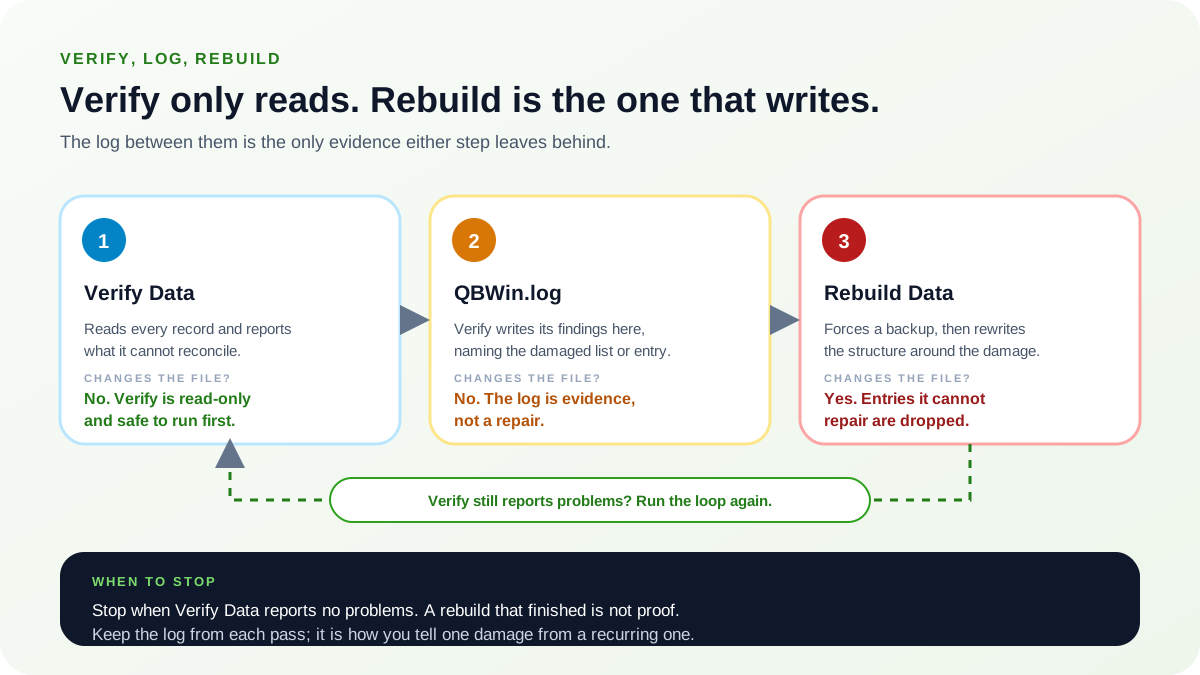
Verify, the log, and Rebuild are three different acts
The first three rows of that table are usually run as a single habit, one click after another, and the difference between them gets lost. It matters. Each one does something the other two cannot do, and knowing which is which is what decides how you read a result and what you do next.
Verify Data reads, and only reads
Verify Data walks every record in the company file and reports what it cannot reconcile. It changes nothing: no transaction is rewritten, no list is altered, no entry is dropped. That is exactly why it is safe to run first, and why there is no situation in which skipping it saves you anything. A Verify pass costs you time and tells you whether the damage is real and roughly where it sits. A repair started without one is a guess about a file you have not looked at.
QBWin.log is evidence, not a repair
Verify does not put its findings on screen in any useful detail. It writes them to QBWin.log, naming the damaged list or the individual entry it stumbled on. Reading that log is how a vague "your data has lost integrity" message turns into a fact you can act on about one customer record or one transaction. Nothing about opening the log fixes anything, and it is the only artifact either step leaves behind for you to work from afterwards.
Rebuild Data writes
Rebuild Data forces a backup before it will start, then rewrites the structure of the file around the damage it finds. It is the one of the three that writes, which is why the backup prompt is not something to click past and why the risk column stops saying "none" at this row. Entries it cannot repair are dropped rather than kept, so a rebuild can hand you a file that opens cleanly and is quietly missing something. That is a trade worth making deliberately, with the log already read.
Taken together the three form a loop, not a checklist. Verify, read the log, rebuild, verify again — and if that second Verify still reports problems, you have not finished, you have completed one pass. Run the loop again on the rebuilt file:
- Run Verify Data and let it finish without interruption.
- Open QBWin.log and note the list, item, or transaction it names.
- Run Rebuild Data, accepting the backup it insists on.
- Run Verify Data again. If problems remain, return to step 2.
The work is finished only when Verify Data reports no problems with your data. A rebuild that ran to completion is not proof of a clean file; it is proof that the rebuild completed. Only Verify can tell you whether it worked, and only a Verify run after the rebuild counts.
Keep the log from every pass
Save a dated copy of QBWin.log after each Verify before the next run buries it. Comparing the passes is how you tell one-off damage from recurring damage: an error that appears once and is gone after a rebuild was a one-off, while the same list or transaction reappearing after a clean rebuild is a recurring fault. Recurring damage is not something further rebuilds will resolve — it points at whatever keeps producing it, such as failing storage, a dropped network connection, or interrupted writes, and that is a different investigation than repairing the file.
Signs Your Company File Needs Repair
Early detection of file corruption can prevent data loss and minimize repair complexity. Watch for these warning signs that indicate your company file may need attention:
Slow Performance
- • File takes longer to open than usual
- • Reports run slowly or time out
- • Delays when saving transactions
- • Sluggish navigation between screens
- • Multi-user performance degradation
Missing Transactions
- • Transactions disappear from registers
- • Invoices or bills not showing in reports
- • Customer/vendor records missing
- • Inventory items vanished
- • Memorized transactions lost
Balance Discrepancies
- • Balance Sheet out of balance
- • A/R or A/P doesn't match aging reports
- • Bank reconciliation discrepancies
- • Inventory quantity mismatches
- • Payroll liability inconsistencies
Error Messages
- • "Data has lost integrity" messages
- • Unrecoverable errors during operations
- • C= error codes (C=43, C=47, etc.)
- • "QuickBooks® has encountered a problem"
- • Database connection errors
Behavioral Anomalies
- • Features suddenly not working
- • Unexpected crashes or freezes
- • Print issues with specific reports
- • Search function not finding records
- • Lists displaying incorrectly
Corruption Indicators
- • Verify Data finds errors repeatedly
- • File size growing abnormally
- • Backup operations failing
- • Unable to condense file
- • Third-party app integration failures
Proactive Maintenance
Run Verify Data according to your documented maintenance policy and after unusual events. Early detection gives you more backup and repair options before symptoms affect additional workflows.
QuickBooks® File Structure Deep Dive
Understanding the purpose and function of each QuickBooks® file type is essential for effective troubleshooting and repair. QuickBooks® creates and manages several file types that work together to store and protect your financial data.
.QBW - Main Company File
The .QBW file is your primary QuickBooks® company file, containing all financial data, transactions, lists, preferences, and company information. This is the file you open daily to work in QuickBooks®.
Contains:
- • All transactions (invoices, bills, checks, etc.)
- • Customer, vendor, employee lists
- • Chart of accounts
- • Item lists and inventory
- • Company preferences and settings
- • User permissions and passwords
Key Facts:
- • Database format (proprietary)
- • Size grows with transaction volume
- • Maximum recommended size: 1.5 GB
- • Should be stored on local drive
- • Requires regular maintenance
C:\Users\Public\Documents\Intuit\QuickBooks®\Company Files\YourCompany.qbw.QBB - Backup Files
QuickBooks® Backup files are compressed archives of your company file. They are created manually or through automatic backup settings and are essential for disaster recovery.
Characteristics:
- • Compressed format (smaller than .QBW)
- • Cannot be opened directly
- • Must be restored to use
- • Includes all company data
- • Does NOT include attachments by default
Best Practices:
- • Create daily backups
- • Store off-site or in cloud
- • Test restore periodically
- • Keep multiple generations
- • Verify backup completion
.QBM - Portable Company Files
Portable company files are highly compressed versions of your company file, designed for easy transfer between computers or to send to accountants. They are also useful as an alternative repair method.
Uses:
- • Sending files to accountants
- • Moving between computers
- • Email transfers (when small enough)
- • Alternative corruption repair method
- • Creating clean file copies
Limitations:
- • Excludes transaction log
- • Excludes some letters/templates
- • May lose some customizations
- • Must be restored before use
Repair Tip: Creating and restoring a portable company file can sometimes fix corruption that Rebuild Data cannot address, as the export/import process rebuilds internal data structures.
.TLG - Transaction Log Files
The Transaction Log file records all changes made to your company file since the last backup. It enables Automatic Data Recovery (ADR) and can be critical for recovering recent transactions after a file failure.
Purpose:
- • Records transactions since last backup
- • Enables ADR recovery
- • Used for crash recovery
- • Grows between backups
Management:
- • Resets after successful backup
- • Can become corrupted
- • Safe to delete if corrupt (loses uncommitted transactions)
- • Located in same folder as .QBW
Warning: Deleting the .TLG file will cause loss of any transactions entered since the last backup. Only delete if the file is preventing QuickBooks® from opening and you have a recent backup.
.ND & .DSN - Network Data Files
Network Data files contain configuration information that allows QuickBooks® to access company files in multi-user environments. They are created by QuickBooks® Database Server Manager.
.ND File:
- • Network descriptor file
- • Contains path and server info
- • Required for multi-user access
- • Auto-created by Database Server Manager
- • Safe to delete and regenerate
.DSN File:
- • Data Source Name file
- • Database connection configuration
- • Used by QuickBooks® internally
- • Can be regenerated if corrupt
1. Close QuickBooks® on all computers
2. Navigate to company file folder
3. Rename or delete .ND and .DSN files
4. Open Database Server Manager
5. Scan the company file folder
6. New .ND file will be created
Using Verify Data Utility
Verify Data is QuickBooks®' built-in diagnostic tool that scans your company file for data integrity issues. It should be your first step when troubleshooting any suspected file corruption. [Intuit Documentation]
How to Run Verify Data
1Prepare Your Environment
- Close all other applications running on the computer
- Ensure all other users are logged out of the company file
- Switch to single-user mode (File > Switch to Single-user Mode)
- Create a backup before running Verify Data
2Run the Verification
- Go to File menu
- Select Utilities
- Click Verify Data
- Wait for the verification to complete (may take several minutes for large files)
- Do NOT interrupt the process
3Interpret Results
"QuickBooks® detected no problems with your data."
Your file has no detectable integrity issues. Continue normal operations.
"Your data has lost integrity. Problem: [description]"
Issues detected. Proceed to Rebuild Data. Note the error description for reference.
"Verify completed with errors" or verification cannot complete
Serious issues present. Review QBWin.log for details. May need advanced repair methods.
QBWin.log Analysis
The QBWin.log file contains detailed diagnostic information about QuickBooks® operations, including specific error details from Verify and Rebuild Data operations. Analyzing this log provides crucial information for targeted repairs.
Locating the Log File
# Windows location (most common)
C:\Users\[Username]\AppData\Local\Intuit\QuickBooks® [Year]\QBWin.log

# Alternative location
C:\ProgramData\Intuit\QuickBooks® [Year]\QBWin.log

# To find quickly, search Windows for "QBWin.log"
Understanding Log Entries
| Log Entry Type | Example | Meaning |
|---|---|---|
| LVL_ERROR | LVL_ERROR--Verify Target: Name = "Invoice" | Specific record type with corruption |
| Item ID | Verify Item: ItemID = 12345 | Specific item with integrity issue |
| List Corruption | Verify List: Customer:Job | Customer/Job list has damage |
| Transaction Error | Verify Trans: TxnID = 98765 | Specific transaction corrupted |
Pro Tip: Log Analysis
Search the QBWin.log file for "LVL_ERROR" to quickly find all error entries. The entries immediately after running Verify Data contain the most relevant diagnostic information. Copy these entries before sharing with support or for your own reference.
Using Rebuild Data
Rebuild Data is QuickBooks®' built-in repair utility that attempts to fix data integrity issues identified by Verify Data. It reconstructs damaged data structures and resolves many common corruption issues. [Intuit Documentation]
Important: Backup Required
QuickBooks® automatically prompts for a backup before running Rebuild Data. ALWAYS complete this backup. Rebuild makes permanent changes to your file, and if something goes wrong, you'll need the backup to recover.
Step-by-Step Rebuild Procedure
1Prepare Environment
- Close all running QuickBooks® windows except the main company file
- Switch to single-user mode
- Ensure all other users have exited the file
- Close unnecessary applications to free system resources
2Run Rebuild Data
- Go to File > Utilities > Rebuild Data
- Click OK when prompted to create a backup
- Choose a backup location and save
- Wait for rebuild to complete (may take 30+ minutes for large files)
- Click OK when rebuild finishes
3Verify Results
- After rebuild completes, run Verify Data again
- If Verify finds no errors, rebuild was successful
- If errors persist, run Rebuild again (up to 3 times)
- If errors remain after 3 rebuilds, proceed to advanced repair methods
What Rebuild Data Fixes vs. Does Not Fix
Rebuild CAN Fix:
- ✓ Minor data structure corruption
- ✓ Orphaned transaction links
- ✓ List sorting and index issues
- ✓ Some balance discrepancies
- ✓ Minor list corruption
- ✓ Target/link relationship errors
Rebuild CANNOT Fix:
- ✗ Severely corrupted transactions
- ✗ Missing data (deleted records)
- ✗ Physical file damage
- ✗ Deep structural corruption
- ✗ Password encryption issues
- ✗ Damaged user preferences
QuickBooks® Tool Hub & File Doctor
QuickBooks® Tool Hub is a collection of diagnostic and repair utilities provided by Intuit. File Doctor, included in Tool Hub, provides more comprehensive repair capabilities than the built-in Verify/Rebuild utilities. [Download Tool Hub]
Installing QuickBooks® Tool Hub
1Download and Install
- Close QuickBooks® Desktop
- Download Tool Hub from the official Intuit website
- Run the installer (QuickBooksToolHub.exe)
- Accept the license agreement and complete installation
- Launch Tool Hub from the desktop icon or Start menu
C:\Program Files (x86)\Intuit\QuickBooks® Tool HubQuick Fix my File
Quick Fix my File performs rapid repairs on common file issues without the full diagnostic scan of File Doctor.
- Open QuickBooks® Tool Hub
- Select Company File Issues tab
- Click Quick Fix my File
- Wait for the process to complete (typically 2-5 minutes)
- Open QuickBooks® and test your company file
File Doctor Deep Scan
File Doctor provides comprehensive diagnosis and repair for company file issues that Quick Fix and Rebuild Data cannot resolve.
1Launch File Doctor
- Open QuickBooks® Tool Hub
- Select Company File Issues tab
- Click Run QuickBooks® File Doctor
- Wait for File Doctor to load (may take a minute)
2Select Company File
- Select your company file from the dropdown (recently opened files appear automatically)
- If your file is not listed, click Browse to locate it
- Click Continue
3Choose Repair Option
Check your file (recommended for data issues)
Full diagnostic scan and repair of company file data structures
Check your file and network
Includes network connectivity diagnosis for multi-user issues
4Complete the Scan
- Enter your QuickBooks® admin password when prompted
- Wait for the scan and repair to complete (10-30+ minutes depending on file size)
- Review the results summary
- Open QuickBooks® and run Verify Data to confirm repairs
Manual Repair Techniques
When automated tools fail to resolve corruption, manual repair techniques may succeed. These methods require careful execution and should only be attempted after backing up your files.
Renaming Auxiliary Files
Corrupted auxiliary files (.TLG, .ND, .DSN) can prevent QuickBooks® from opening the company file. Renaming these forces QuickBooks® to create fresh copies.
Procedure:
- Close QuickBooks® completely on all computers
- Navigate to the folder containing your .QBW file
- Locate files with the same name but different extensions (.TLG, .ND, .DSN)
- Rename each by adding .OLD to the extension (e.g., Company.qbw.TLG becomes Company.qbw.TLG.OLD)
- Open QuickBooks® and try to open the company file
- QuickBooks® will create new auxiliary files automatically
Company.qbw           (DO NOT rename - this is your data)
Company.qbw.TLG       → Company.qbw.TLG.OLD
Company.qbw.ND        → Company.qbw.ND.OLD
Company.qbw.DSN       → Company.qbw.DSN.OLD
Warning: Renaming the .TLG file will cause loss of any transactions entered since the last backup. Only do this if you have a recent backup or the file won't open at all.
Portable Company File Recovery
Creating and restoring a portable company file forces QuickBooks® to rebuild internal data structures, potentially fixing corruption that other methods cannot address.
1Create Portable Company File
- Open your company file in QuickBooks®
- Go to File > Create Copy
- Select Portable company file
- Click Next
- Choose a save location and filename
- Click Save and wait for completion
2Restore Portable File
- Close the current company file
- Go to File > Open or Restore Company
- Select Restore a portable file
- Browse to and select the .QBM file you created
- Choose where to save the restored file (use a NEW location/name)
- Click Save and wait for restoration
3Verify Restored File
- Open the newly restored file
- Run Verify Data to check for remaining issues
- Review key reports to verify data accuracy
- If successful, use this as your primary file going forward
Copy/Paste Data Recovery
When specific lists or data are corrupted beyond repair, you may need to export data from a backup and manually re-enter or import it into a repaired file.
Use This Method When:
- • Specific lists are corrupted but the rest of the file is intact
- • You need to merge data from multiple backup versions
- • Automated repair methods have failed for specific data types
Export/Import Process:
- Open a good backup containing the needed data
- Export the required lists (Reports > List Reports or File > Utilities > Export)
- Export to IIF format for lists, or use Excel for transaction reports
- Open your working (repaired) company file
- Import the exported data (File > Utilities > Import)
- Manually verify imported data for accuracy
Need to convert exported data between formats? Our free accounting tools can help — for example, convert IIF to CSV or convert CSV to IIF for QuickBooks Desktop data recovery workflows.
Automatic Data Recovery (ADR)
Automatic Data Recovery is a QuickBooks® feature that maintains backup copies of your company file in case of catastrophic failure. ADR can recover your data even when the main company file is completely corrupted or inaccessible. [Intuit ADR Documentation]
How ADR Works
ADR Components
QuickBooks® creates an .ADR folder in the same location as your company file. This folder contains a copy of the .QBW file and the current .TLG transaction log. These files are updated periodically while you work, providing a recovery point for recent data.
.ADR Folder Contents
Company Files\
├── YourCompany.qbw              (main company file)
├── YourCompany.qbw.TLG          (transaction log)
├── YourCompany.qbw.ND           (network data)
└── YourCompany.qbw.adr\         (ADR folder)
    ├── YourCompany.qbw          (ADR backup of company file)
    └── YourCompany.qbw.TLG      (ADR backup of transaction log)
ADR Recovery Procedure
1Option A: Recover Using ADR .QBW + Current .TLG
This method combines the ADR backup file with your current transaction log to recover the most recent data possible.
- Create a new folder on your desktop called "QBRecovery"
- Copy the .QBW file from the .adr folder to QBRecovery
- Copy the .TLG file from the ORIGINAL folder (not .adr) to QBRecovery
- Rename the copied .QBW file (e.g., add "_recovered" to the name)
- Rename the .TLG to match the new .QBW name exactly
- Open the recovered file in QuickBooks®
- If prompted about newer transactions, click OK to integrate them
2Option B: Recover Using ADR .QBW + ADR .TLG
Use this if the current .TLG file is corrupted. You may lose some recent transactions.
- Create a new folder called "QBRecovery"
- Copy BOTH files from the .adr folder to QBRecovery
- Rename both files to new names (matching base names)
- Open the recovered file in QuickBooks®
- Run Verify Data to check integrity
ADR Limitations
- • Only available in QuickBooks® Desktop Pro, Premier, and Enterprise
- • ADR files update approximately every 12 hours
- • Some very recent transactions may not be in ADR backup
- • ADR does not work for files stored on network drives
Third-Party Recovery Tools
When Intuit's built-in tools fail to repair your company file, third-party data recovery tools may provide additional options. Use these tools with caution and only from reputable sources.
Important Considerations
- • Third-party tools are not endorsed by Intuit
- • Results vary depending on corruption type and severity
- • Some tools may further damage corrupted files
- • Always work on a COPY of your company file
- • Verify recovered data thoroughly before use
| Category | Use Case | Considerations |
|---|---|---|
| QuickBooks® Data Recovery Services | Severe corruption requiring professional intervention | Most reliable third-party option; can be expensive |
| Database Repair Utilities | Low-level file structure repair | Requires technical expertise; risk of further damage |
| Data Extraction Tools | Extracting readable data from damaged files | May recover partial data when file won't open |
Backup Restoration Strategies
When repair methods fail, restoring from a backup may be necessary. Understanding which backup to use and how to minimize data loss is critical. [Intuit Backup Guide]
Choosing Which Backup to Restore
Most Recent Clean Backup
Restore the most recent backup that was created BEFORE the corruption occurred. Test by restoring to a temporary location and running Verify Data.
Data Loss: Transactions entered since that backup
Multiple Backup Strategy
If unsure when corruption started, test multiple backup generations starting with the most recent and working backward until you find a clean one.
Process: Restore > Verify Data > If errors, try older backup
Restoring from Different Backup Types
Restore from .QBB (Backup)
- 1. File > Open or Restore Company
- 2. Select "Restore a backup copy"
- 3. Choose Local backup
- 4. Browse to .QBB file
- 5. Choose save location (use NEW name)
- 6. Click Save and wait for restore
Restore from .QBM (Portable)
- 1. File > Open or Restore Company
- 2. Select "Restore a portable file"
- 3. Browse to .QBM file
- 4. Choose save location (use NEW name)
- 5. Click Save and wait for restore
- 6. Run Verify Data on restored file
Data Verification Post-Recovery
After any repair or restoration, thorough verification ensures your financial data is accurate and complete. Never assume data is correct without verification.
Verification Checklist
1. Run Built-in Verification
- • Run Verify Data (File > Utilities > Verify Data)
- • If errors found, run Rebuild Data
- • Re-run Verify until no errors reported
2. Balance Sheet Verification
- • Run Balance Sheet Standard report
- • Verify Total Assets = Total Liabilities + Equity
- • Check for unusual or unexpected account balances
- • Compare to previous period or known good report
3. A/R and A/P Reconciliation
- • A/R Aging Summary should match A/R on Balance Sheet
- • A/P Aging Summary should match A/P on Balance Sheet
- • Review customer and vendor balances for accuracy
4. Bank Account Verification
- • Compare bank account balances to bank statements
- • Review bank reconciliation status
- • Check for missing or duplicate transactions
5. List Integrity Check
- • Review Customer/Vendor lists for missing entries
- • Check Chart of Accounts for accuracy
- • Verify Item list and inventory quantities
Prevention and Best Practices
Preventing company file corruption is far better than repairing it. Follow these best practices to minimize corruption risk:
Backup Practices
- ✓ Create daily backups (minimum)
- ✓ Store backups in multiple locations
- ✓ Keep at least 2 weeks of daily backups
- ✓ Test restore process periodically
- ✓ Use automatic backup scheduling
File Management
- ✓ Store company file on local drive
- ✓ Avoid cloud sync folders (Dropbox, OneDrive)
- ✓ Maintain 20%+ free disk space
- ✓ Close QuickBooks® properly (never force close)
- ✓ Use UPS for power protection
Maintenance
- ✓ Run Verify Data monthly
- ✓ Condense file annually (if applicable)
- ✓ Keep QuickBooks® updated
- ✓ Monitor file size (under 1.5GB ideal)
- ✓ Review QBWin.log periodically
Security
- ✓ Exclude QB folder from real-time antivirus
- ✓ Add QB to firewall exceptions
- ✓ Limit users with admin access
- ✓ Log out when not actively using
- ✓ Use proper shutdown procedures
When to Contact Intuit Data Services
Some corruption scenarios require professional data recovery services. Intuit offers data recovery services for severely damaged company files. [Intuit Data Services]
Contact Intuit Data Services When:
- • File won't open after trying all repair methods
- • Verify/Rebuild cycle continues indefinitely
- • Critical business data cannot be recovered from backups
- • Corruption reoccurs immediately after repair
- • File Doctor reports unrecoverable damage
- • You suspect physical storage damage
What to Prepare Before Contacting Support:
- • Copy of your company file (.QBW) and all associated files
- • Most recent backup files (.QBB)
- • QBWin.log file contents
- • Description of when problem started
- • List of repair methods already attempted
- • QuickBooks® version and Windows version
Frequently Asked Questions
Q: How often should I run Verify Data?
A: Choose a Verify Data cadence based on file criticality and your maintenance policy, and run it after unusual events such as power loss, crashes, or unexplained QuickBooks® behavior. Early detection preserves more recovery options.
Q: Will Rebuild Data delete any of my transactions?
A: Rebuild Data does not intentionally delete transactions. However, in rare cases where transactions are severely corrupted and cannot be repaired, they may be removed. Always create a backup before running Rebuild, and verify your data afterward by comparing key reports to previous versions.
Q: My file is too large. Can this cause corruption?
A: Yes. Large files (over 1.5 GB) are more prone to corruption and performance issues. Consider using QuickBooks®' Condense Data feature to archive old transactions, or start a new file and import open balances. Regular maintenance helps prevent size-related problems.
Q: Can I prevent all company file corruption?
A: While you cannot prevent all corruption, you can significantly reduce risk through proper practices: regular backups, proper shutdown procedures, power protection, adequate disk space, avoiding network storage for single-user files, and regular Verify Data checks. Most corruption is caused by preventable events.
Q: How long does File Doctor take to scan a company file?
A: File Doctor scan time depends on file size and corruption severity. Small files may complete in 10-15 minutes, while large or heavily damaged files may take 1-2 hours or more. Do not interrupt the scan once started, as this may cause additional problems.
Q: Should I delete the old .TLG file after renaming it?
A: Keep the renamed .TLG.OLD file until you have verified that your company file is working correctly and you have a good backup. If something goes wrong, you may need to attempt recovery using the old transaction log. After successful verification and backup, you can safely delete the .OLD file.
References and Resources
Conclusion
QuickBooks® company file repair and data recovery requires a systematic approach, starting with the least invasive methods and progressing to more advanced techniques only when necessary. With proper procedures and regular maintenance, most corruption issues can be resolved without data loss.
Key Takeaways
Need Professional Data Recovery Assistance?
For critical data recovery, severe file corruption, or enterprise-level repair needs, Prime Connect provides QuickBooks® data recovery and company-file repair services.
Contact Prime Connect for Expert Support