Understanding H-Series Errors
The H-prefix categorizes these as "hosting" errors, distinguishing them from other QuickBooks® error families like 6000-series (file access) or 3000-series (QuickBooks® Online sync). Understanding the distinction between different H-errors is essential for efficient troubleshooting, as each variant points to a specific failure point in the multi-user connection process. [Intuit Documentation]
What Triggers H-Errors
H-errors occur when QuickBooks® successfully locates the company file on the network but cannot establish the required database connection through QuickBooks® Database Server Manager. The error code variant indicates which specific component of the connection process failed.
Business Impact
H-series errors have significant business impact:
Production Downtime
Multiple users unable to access QuickBooks® simultaneously, forcing single-user mode or complete work stoppage
Delayed Operations
Inability to process invoices, receive payments, or complete time-sensitive accounting tasks
IT Resource Drain
Troubleshooting can consume 1-4 hours of IT staff time if root cause is not quickly identified
Error Classification System
Each H-error code corresponds to a specific failure point in the multi-user connection sequence. Understanding these distinctions accelerates diagnosis.
H101: Server Hosting Not Configured
Meaning: QuickBooks® Database Server Manager is not properly installed or configured on the host computer, or the company file has not been scanned.
Typical Scenario: Fresh server setup, missing Database Server Manager installation, or never scanning the folder containing the company file.
H202: Cannot Communicate with Server
Meaning: The workstation can see the company file on the network but cannot establish communication with the QuickBooks® Database Server Manager service on the host.
Typical Scenario: Firewall blocking required ports, service not running, or incorrect hosting configuration (hosting enabled on workstation).
H303: Connection Lost or Service Stopped
Meaning: The workstation was previously connected but the connection to the Database Server Manager has been interrupted or the service stopped.
Typical Scenario: Network interruption, Database Server Manager service crash, server reboot, or resource exhaustion on host computer.
H505: Incorrect Setup or Unsupported Configuration
Meaning: The computer hosting the company file is not properly configured for multi-user access, or the file is stored in an unsupported location.
Typical Scenario: Company file hosted on NAS/network drive (unsupported), Database Server Manager not installed, incorrect DNS/name resolution, or corrupted .ND file.
H606 & H707: Specialized Error Variants
H606: Folder permissions issue preventing Database Server Manager from accessing the company file location.
H707: Version mismatch between Database Server Manager and QuickBooks® Desktop, or corrupted installation files.
Typical Scenario: These errors are less common and usually indicate more complex configuration or compatibility issues requiring detailed investigation.
Common Root Causes
While each H-error has specific triggers, most share these common underlying causes:
| Root Cause | Frequency | Typical Error(s) | Impact |
|---|---|---|---|
| Firewall blocking ports | Very High (40%) | H202, H303 | All workstations affected |
| Hosting enabled on workstation | High (25%) | H202, H505 | Specific workstation only |
| Service not running | High (20%) | H101, H202, H303 | All workstations affected |
| File on NAS/unsupported storage | Medium (15%) | H505 | All users, intermittent |
| Corrupted .ND file | Medium (10%) | H202, H505 | All workstations affected |
| DNS/name resolution failure | Medium (8%) | H202, H505 | Specific workstations |
| Insufficient permissions | Low (5%) | H606, H505 | Specific users |
| Version mismatch | Low (3%) | H707 | All workstations affected |
Diagnostic Priority
Start with the intended host, services, firewall rules, and company-file path before investigating less common causes. Record the result of each check so you do not change multiple layers at once.
Diagnostic Framework
Use this systematic diagnostic framework to identify the root cause efficiently:
Phase 1: Initial Assessment (5 minutes)
- 1Identify the specific error code
Note the exact H-error number and any additional error message text
- 2Determine scope of impact
Is the error affecting all workstations or only specific computers?
- 3Check if error is new or recurring
Did multi-user mode work previously? What changed recently?
- 4Document the environment
Server OS, QuickBooks® versions, network topology, recent changes
Phase 2: Quick Checks (10 minutes)
# Check QuickBooks® Database Service Status
Get-Service -Name QuickBooksDB* | Format-Table -AutoSize

# Test network connectivity to server
Test-NetConnection -ComputerName SERVER_NAME -Port 8019

# Verify firewall rules
Get-NetFirewallRule -DisplayName "*QuickBooks®*" | Format-Table -AutoSize

# Check DNS resolution
Resolve-DnsName SERVER_NAME
nslookup SERVER_NAME
Phase 3: Targeted Investigation (20-60 minutes)
Based on Phase 1 and 2 findings, proceed to the detailed resolution procedures for the specific error code in the sections below.
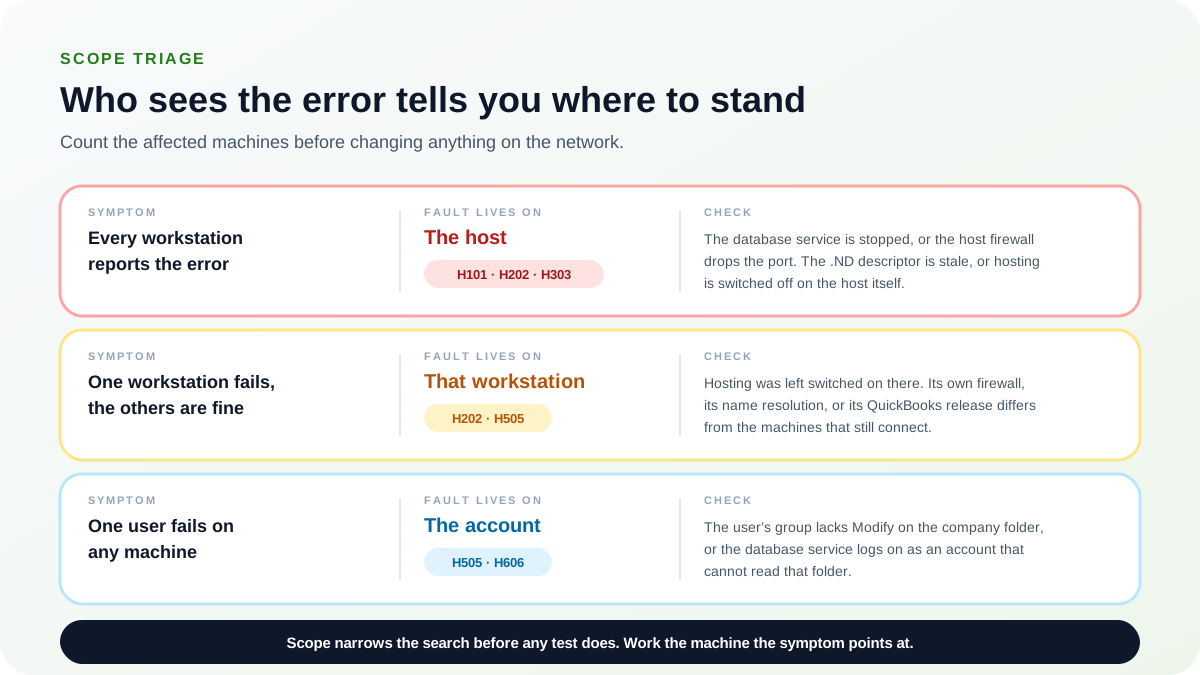
What the scope of the symptom tells you
Knowing who is affected is the cheapest diagnostic you will ever run, and it is the one that decides where to look. A shared fault and a local fault produce very similar messages on screen, but they leave completely different fingerprints in the pattern of who can still open the file. Three patterns cover almost every H-series call.
Every workstation reports the error
The fault lives on the host. The host is the only component all of those machines share, so it is the only place a single fault can reach all of them at once. Typical codes here are H101, H202 and H303.
Check on the host: the QuickBooks® database service is stopped; the host firewall is dropping the port; the .ND descriptor is stale; or hosting is switched off on the host itself.
One workstation fails while the others are fine
The fault lives on that workstation. The host is demonstrably serving the file, because its neighbours are still working from it, so nothing on the host explains why this one machine is different. Typical codes here are H202 and H505.
Check on that workstation: hosting was left switched on there; or its own firewall, its name resolution, or its QuickBooks® release differs from the machines that still connect.
One user fails on any machine they sign in to
The fault lives with the account, not the hardware. The symptom follows the person from desk to desk, which rules out any single machine as the cause. Typical codes here are H505 and H606.
Check the permissions: the user's group lacks Modify on the company folder, or the database service logs on as an account that cannot read that folder.
Establish scope first: scope narrows the search before any test does. Settle it before you change anything on the network, because once you have altered a firewall rule or a hosting setting the pattern of who fails is no longer evidence about the original fault.
H101: Complete Analysis & Resolution
H101 is the most literal of the H-series codes. The workstation found the company file exactly where it expected to find it, asked which computer is serving that folder, and got no answer. The file is visible; nothing is listening behind it. That distinction matters, because it rules out the path being wrong and points the whole investigation at the host.
Two Situations Produce H101
Either QuickBooks® Database Server Manager was never installed on the machine acting as the host, or it is installed but the folder holding the company file was never scanned, so no .ND descriptor exists to tell workstations where to connect. Both leave the file reachable and unserved.
Resolution Sequence
Work through these on the host first. There is little point testing from a workstation until the host is genuinely serving the folder.
1Confirm Database Server Manager Is Installed on the Host
Database Server Manager is what serves the file; QuickBooks® Desktop on its own does not. It must be present on the host and it must be the same year as the QuickBooks® installations on the workstations, because a 2023 server does not serve 2024 workstations. Install it from the QuickBooks® installer on the host and choose the server installation option. Full installation detail is in our Database Server Manager Guide.
2Verify the QuickBooksDBXX Service Exists and Is Running
An installation that never registered its service, or a service set to start manually after a reboot, produces the same silence a missing installation does:
- Press Windows + R, type services.msc, press Enter
- Find QuickBooksDBXX, where XX is your year (QuickBooksDB24 for 2024)
- If the service is not listed at all, the server installation did not complete: return to step 1
- Confirm Status reads "Running" and Startup Type reads "Automatic"
- Set Startup Type to Automatic if it is anything else, so the host resumes serving after a reboot
sc query QuickBooksDB24
sc config QuickBooksDB24 start=auto
net start QuickBooksDB243Add the Company File Folder to Scan Folders and Scan It
A running service still serves nothing until it has been told which folders to serve. Scanning is what writes the .ND descriptor that workstations read to find the host:
- Open QuickBooks® Database Server Manager on the host
- Go to the Scan Folders tab
- Browse to and add the folder that contains the .QBW company file
- Click Scan and let it finish
- Confirm an .ND file now sits alongside the .QBW file, with the same base name
Add the folder, not the file: Database Server Manager scans folders. Adding the parent folder also covers company files that are moved into it later, which is what stops H101 returning the next time someone reorganises the share.
4Open the File Once on the Host in Multi-User Mode
Open the company file on the host itself and switch it to multi-user mode from the File menu. This confirms the host can open its own file and puts the file into the state workstations expect to find it in. If the host cannot open it either, the problem is the file or its permissions rather than the network, and belongs in our Company File Repair Guide.
5Reconnect a Workstation
Go back to one workstation and open the company file. Test one machine rather than all of them: if it connects, the host is serving correctly and any machine that still fails has its own local fault, which is a different investigation from the one you just finished.
H202: Complete Analysis & Resolution
Error H202: Multi-user connection blocked
H202 is a common H-series code. The message indicates that QuickBooks® cannot complete the multi-user path to the company file, so verify the intended host and sharing configuration first.
Resolution Sequence
1Verify and Disable Hosting on Workstations
One possible cause of H202 is an incorrect hosting role. Confirm the intended host and workstation settings against Intuit's current topology guidance.
- On the workstation experiencing the error, open QuickBooks® Desktop
- Go to File menu and Utilities
- If you see "Stop Hosting Multi-User Access", click it to disable hosting
- If you see "Host Multi-User Access", hosting is already off (correct state)
- Repeat for all workstations
Important: After disabling hosting on all workstations, verify hosting is ENABLED on the server. The server should show "Stop Hosting Multi-User Access" in the File Utilities menu. [Intuit]
2Verify QuickBooks® Database Services are Running
On the server hosting the company file, ensure the database services are running. For a comprehensive walkthrough of service management, see our Database Server Manager Guide:
- Press Windows + R, type services.msc, press Enter
- Locate QuickBooksDBXX (XX = your year, e.g., QuickBooksDB24)
- Verify Status shows "Running"
- Verify Startup Type is "Automatic"
- If stopped, right-click and select Start
- Also verify QBCFMonitorService is running
sc query QuickBooksDB24
net start QuickBooksDB24
net start QBCFMonitorService
sc config QuickBooksDB24 start=auto3Configure Firewall Exceptions
Windows Firewall often blocks QuickBooks® ports. Use Database Server Manager to identify the correct port:
- Open QuickBooks® Database Server Manager on the server
- Navigate to Port Monitor tab
- Note the port number for your QuickBooks® version (typically 55000-55999 range)
- Create firewall rules for this specific port and port 8019
# Replace 55368 with your actual port from Port Monitor
New-NetFirewallRule -DisplayName "QuickBooks® DB 2024" -Direction Inbound -Protocol TCP -LocalPort 55368,8019 -Action Allow
New-NetFirewallRule -DisplayName "QuickBooks® DB 2024 UDP" -Direction Inbound -Protocol UDP -LocalPort 55368,8019 -Action Allow
New-NetFirewallRule -DisplayName "QuickBooks® DB 2024 Out" -Direction Outbound -Protocol TCP -LocalPort 55368,8019 -Action Allow4Rebuild Network Data (.ND) File
A corrupted .ND file can cause H202 errors. Regenerate it:
- Ensure all users close QuickBooks® completely
- Navigate to the folder containing the .QBW company file
- Locate the .ND file (same name as your company file)
- Rename it to .ND.OLD (e.g., Company.qbw.nd becomes Company.qbw.nd.old)
- Open Database Server Manager on the server
- Go to Scan Folders tab
- Click Scan to regenerate the .ND file
- Wait for scan to complete
- Open the company file on the server once in multi-user mode
- Close and have workstations reconnect
5Verify DNS and Network Connectivity
From the workstation experiencing the error:
# Test DNS resolution
ping SERVER_NAME
nslookup SERVER_NAME

# If name resolution fails but IP works, add to hosts file
# C:\Windows\System32\drivers\etc\hosts
# 192.168.1.10    SERVER_NAME

# Test specific port connectivity
Test-NetConnection -ComputerName SERVER_NAME -Port 55368
Sequence Checkpoint
If the error persists after steps 1-5, preserve the results of each check, re-read the scope of the symptom against the sections below, and use the current official Tool Hub guidance where appropriate.
H303: Complete Analysis & Resolution
H303 is not a separate mechanism from H202. It is the same connection path, failing one step earlier: the workstation cannot turn the host's name into an address it can reach. It also appears in a second and quite different situation, where a session was established successfully and then lost, usually because the host rebooted, the service crashed, or the network dropped underneath a live connection.
Those two situations are worth separating before you begin, because they have different tells. A workstation that has never connected since the last change points at name resolution. A workstation that was working ten minutes ago and is not working now points at the host or the link between them.
Resolution Sequence
1Ping the Host by Name, Then by Address
Run both tests from the failing workstation, in that order. The pair of results is what identifies the layer:
ping SERVER_NAME
ping 192.168.1.10- If the address answers and the name does not, name resolution is the fault. Nothing is wrong with the network path itself, so fix DNS on the workstation, or add a hosts file entry mapping the address to the host name as an immediate workaround
- If neither answers, the workstation cannot reach the host at all, and the problem is routing, cabling, or the host being off
- If both answer, name resolution is healthy and the fault is further up: return to the H202 firewall and service checks
A hosts entry is a workaround, not a fix: it repairs one workstation and hides the underlying DNS problem from every other machine, so record where you added it and come back to the DNS server.
2Confirm the Host Has a Static Address
A host on DHCP can be handed a different address after a reboot or a lease expiry. When that happens the .ND descriptor still points workstations at the address the host used to have, and every workstation fails at once with no visible change to anything else on the network. Give the host a static address, or a permanent DHCP reservation, then rescan the folder so the descriptor is rewritten with the current address.
This is one reason H303 can appear after an environment previously worked; prove the host role and file path before changing either.
3Restart the Database Services on the Host and Reconnect
A lost session leaves the service running but no longer serving that file cleanly. Restarting both services clears the stale state. Have every user close QuickBooks® first, then on the host:
net stop QuickBooksDB24
net start QuickBooksDB24
net stop QBCFMonitorService
net start QBCFMonitorService
Then reconnect one workstation and confirm it opens the file in multi-user mode. If the services will not start or stop again shortly afterwards, that is its own fault: see Database Server Manager Failure and QBCFMonitorService Stopped.
H505: Complete Analysis & Resolution
H505 means the workstation cannot identify a computer that is hosting the company file. Exactly one machine on the network may host a given file. If none is hosting it, there is nothing to connect to; if more than one claims to be hosting it, workstations cannot tell which claim to believe. Both states produce H505, which is why the fix is always about establishing a single, unambiguous host.
Read the Menu Label Backwards
Under File and then Utilities, QuickBooks® shows the action available, not the current state, and people routinely read it as the state. "Stop Hosting Multi-User Access" means hosting is currently ON — correct only on the host. "Host Multi-User Access" means hosting is currently OFF — correct on every workstation. Misreading this label is how a technician turns hosting on across an entire office while believing they are turning it off.
Resolution Sequence
1Switch Hosting Off on Every Workstation
Visit every machine that is not the host. Missing one leaves a second claimant on the network and the error returns:
- Open QuickBooks® Desktop on the workstation
- Go to File, then Utilities
- If the menu offers "Stop Hosting Multi-User Access", hosting is on here: click it
- If the menu offers "Host Multi-User Access", hosting is already off: leave it alone
- Repeat on every workstation before testing anything
2Confirm Hosting Is On at the Host
Turning hosting off everywhere solves nothing if it is also off on the host. On the machine that is meant to serve the file, open File and then Utilities and confirm the menu offers "Stop Hosting Multi-User Access". That wording is the confirmation you want: it means hosting is already on. If it instead offers "Host Multi-User Access", click it to turn hosting on.
3Rename the Stale .ND and Rescan on the Host
The .ND descriptor records who was hosting the file when it was last written. After the hosting roles have changed, it is describing an arrangement that no longer exists, so it has to be regenerated:
- Have every user close QuickBooks® completely
- On the host, open the folder holding the .QBW company file
- Rename the matching .ND file to end in .old, for example Company.qbw.nd becomes Company.qbw.nd.old
- Open Database Server Manager, go to Scan Folders, and scan that folder
- Confirm a fresh .ND file has been written
4Move the Company File onto the Host's Own Local Disk
If the company file lives on a NAS appliance or is reached through a mapped network drive, no amount of hosting configuration will settle H505. Intuit does not support hosting a company file from those locations, because Database Server Manager has to run on the machine that owns the disk, and on a NAS there is no such machine to run it on. Move the file onto a local NTFS disk in the host itself, then scan that folder and point workstations at the host by name.
An unsupported location can appear to work for months: it usually fails first as intermittent H505 under concurrent load, which is why this check belongs in the sequence even when the file has been on the NAS since long before the errors started.
H606 & H707: Less Common Variants
These two codes account for a small share of H-series calls between them. Both are worth knowing, and neither is worth chasing early. Because the common causes above produce the same symptoms far more often, treat H606 and H707 as conclusions you arrive at by exclusion rather than starting points.
H606: Folder Permissions the Service Account Cannot Satisfy
H606 points at permissions on the company file folder that the database service account is not able to satisfy. The service is running and the file is present, but the account the service runs as is refused when it tries to read or write there. Nothing about the network is wrong, which is why network-layer testing produces nothing useful on an H606.
- On the host, open the properties of the folder holding the .QBW file and go to the Security tab
- Grant Modify on that folder to the account the QuickBooksDBXX service logs on as, which you can read from the Log On tab of the service in services.msc
- Grant Modify to the named QuickBooks® access group as well, so the running application has the same reach as the service
- Apply the change to the folder, its subfolders, and its files
- Restart the QuickBooksDBXX service so it picks up the new access, then reconnect a workstation
Check share permissions as well as NTFS: Windows applies whichever of the two sets is more restrictive, so a folder with Modify granted on the Security tab is still read-only in practice if the share permission above it only grants Read. Correcting one and not the other is the usual reason a permissions fix appears to have no effect.
H707: Version or Installation Mismatch
H707 points at a version or installation problem rather than a configuration one. The usual cause is that the host's Database Server Manager is a different year from the QuickBooks® Desktop installed on the workstations. Those must match: a 2023 Database Server Manager does not serve 2024 workstations, and upgrading the workstations without upgrading the host is a common way to produce this error on a network that worked the day before.
- Record the QuickBooks® year in use on the workstations
- Confirm the host runs the Database Server Manager for that same year, and install it if it does not
- If versions already match, treat the installation itself as damaged
- Repair it from Programs and Features by selecting the QuickBooks® entry and choosing Repair
- Restart the host and reconnect a workstation
Use Repair rather than reinstalling over the top of the existing installation. Installing over a damaged installation preserves the damaged components it is meant to replace, which is why that approach so often changes nothing.
Quick Reference Troubleshooting Matrix
One row per code, for when you already have the error on screen and simply need the next action. The first check listed is the one that resolves the largest share of cases for that code; follow the section link for the full sequence.
| Error | What it means | First check | Section |
|---|---|---|---|
| H101 | The file was found, but no database service is serving that folder | Is Database Server Manager installed on the host, and has the folder been scanned? | H101 resolution |
| H202 | The file was found, but the workstation cannot reach the service on the host | Is hosting switched on somewhere it should not be, and is the port open? | H202 resolution |
| H303 | Name resolution failed, or an established session was lost | Does the host answer by address but not by name? | H303 resolution |
| H505 | No single computer can be identified as hosting the file | Is exactly one machine hosting, and is the file on the host's local disk? | H505 resolution |
| H606 | The database service account is refused access to the company folder | Does the service log-on account hold Modify on that folder, in both share and NTFS? | H606 and H707 |
| H707 | Version mismatch between host and workstations, or a damaged installation | Does the host's Database Server Manager year match the workstations' QuickBooks® year? | H606 and H707 |
Change One Thing at a Time
Test after each change and record the result. Applying several fixes at once will often clear the error, but leaves you unable to say which one mattered, so the same fault recurs with nothing learned from the first outage.
Frequently Asked Questions
Q: Can H-errors cause data corruption?
A: No. H-errors are connectivity problems that prevent access to the company file. They do not corrupt data. However, forcing single-user mode when multi-user issues exist can lead to sync problems if users work on different copies of the file.
Q: Why do H-errors suddenly appear in a previously working environment?
A: Common triggers include Windows Updates changing firewall rules, antivirus software updates, someone toggling hosting settings, network equipment changes, or the QuickBooks® Database service stopping unexpectedly. Always ask what changed recently when troubleshooting.
Q: Should I use QuickBooks® Tool Hub to fix H-errors automatically?
A: QuickBooks® Tool Hub File Doctor can diagnose and repair some H-error causes. Review the diagnostic framework as well so you can identify the failed layer and reduce the chance of recurrence. [Intuit Tool Hub]
Q: How long should H-error resolution take?
A: Simple causes (hosting configuration, firewall) typically resolve in 15-30 minutes. Complex issues (DNS problems, permission conflicts, corrupted installations) may take 1-2 hours. If resolution exceeds 2 hours, consider engaging Intuit support or a QuickBooks® ProAdvisor.
Q: Can I prevent H-errors from occurring?
A: Yes. Prevention strategies include: documenting firewall rules, using static IP for the server, regular Database Server Manager service monitoring, preventing users from changing hosting settings, maintaining consistent QuickBooks® versions across workstations, and creating restore points before Windows Updates.
References and Resources
These sources were reviewed when the guide was updated:
Conclusion
H-series errors require systematic diagnosis across hosting, services, firewall rules, paths, and name resolution. Use the specific code and the failed checkpoint to choose the next test instead of changing every network layer at once.
Key Takeaways
Need Expert H-Error Resolution?
For persistent H-errors, complex network environments, or enterprise deployments requiring immediate resolution, Prime Connect provides expert QuickBooks® technical support services.
Contact Prime Connect for Professional Support