Understanding 6000-Series Errors
These errors can occur in both single-user and multi-user environments, affecting one or multiple users depending on the root cause. The specific error code suffix provides critical information about the nature of the problem, ranging from benign permission issues to serious data corruption requiring immediate recovery procedures. [Intuit Documentation]
Critical First Step: Backup
Before attempting any recovery or repair procedures for 6000-series errors, always create a backup of the company file and all associated files (.QBW, .TLG, .ND). If repair attempts corrupt the file further, you will need this backup to restore your data. Do not skip this step even if backups exist.
What Triggers 6000-Series Errors
These errors typically appear in these scenarios:
File Opening Operations
- • Attempting to open a company file
- • Restoring from backup
- • Switching between company files
- • Opening file after system crash
System Environment Issues
- • File stored on network location
- • Insufficient folder permissions
- • Auxiliary files missing or damaged
- • Antivirus blocking file access
Severity Levels
| Severity | Error Variants | Data Risk | Resolution Time |
|---|---|---|---|
| Low | 6000-77, 6000-301 (permission only) | None - file intact | 15-30 minutes |
| Medium | 6000-82, 6000-83 | Low - auxiliary files only | 30-60 minutes |
| High | 6000-80 (with damage detected message) | Moderate to High - potential data loss | 1-3 hours |
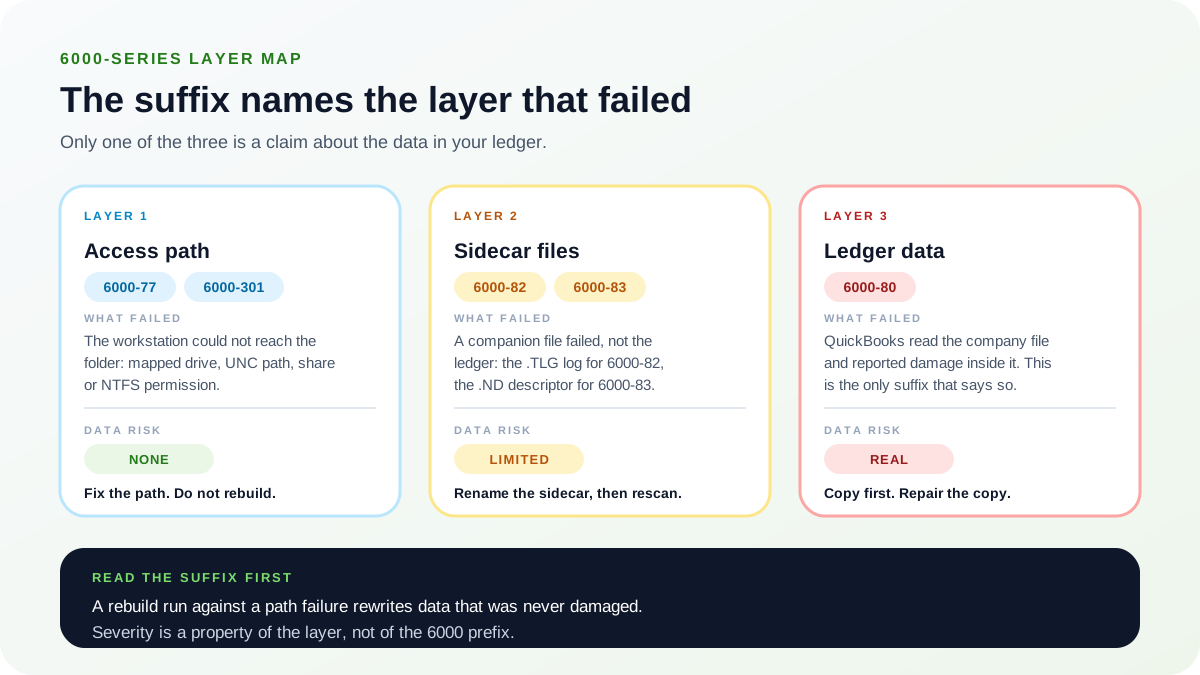
Which Layer the Suffix Names
Every 6000-series suffix names one of three layers, and the layer, not the shared 6000 prefix, determines both how much data is at risk and which repair is appropriate. The three layers are the access path a workstation uses to reach the folder, the sidecar files QuickBooks® keeps alongside the company file, and the ledger data inside the company file itself.
- Access path covers 6000-77 and 6000-301. The workstation could not reach the folder at all: a mapped drive that dropped, a UNC path that no longer resolves, a share permission set too tight, or an NTFS permission that excludes the account. The company file was never opened, so nothing inside it was touched and the data risk is none. Fix the path and the permissions; do not run a rebuild.
- Sidecar files covers 6000-82 and 6000-83. A rebuildable companion file failed rather than the ledger: the .TLG transaction log for 6000-82, the .ND network descriptor for 6000-83. Both are generated files that QuickBooks® writes again on demand, so the data risk is limited to uncommitted entries still held in the log. Rename the sidecar, then rescan the folder in QuickBooks® Database Server Manager.
- Ledger data covers 6000-80 and nothing else. QuickBooks® read the company file and reported damage inside it, and this is the only suffix in the family that makes that claim. The data risk here is real. Copy the file to a separate folder and repair the copy, never the original.
The rule that follows from this is worth stating plainly: severity is a property of the layer, not of the 6000 prefix. Two errors that share the prefix can sit at opposite ends of the risk scale, so the suffix has to be read before a tool is chosen. A rebuild run against a path failure rewrites data that was never damaged in the first place, and a rebuild discards whatever it cannot repair, which means the cost of misreading the suffix lands on the ledger rather than on the network.
Error Code Classification
Understanding the specific error code helps target the correct resolution procedure:
6000-77: Cannot Access Company File
Meaning: QuickBooks® cannot access the company file due to network location issues, file movement, or mapping problems.
Common Causes: Company file on network drive, mapped drive disconnected, file recently moved, UNC path issues, or server name resolution failures.
6000-80: Data Damage Detected
Meaning: QuickBooks® has detected potential data integrity issues in the company file that prevent it from opening safely.
Common Causes: Unexpected shutdown during save operation, storage device failures, network interruptions during write operations, file system corruption, or antivirus interference.
Warning: This error indicates potential data corruption. Use QuickBooks® File Doctor and verify data integrity after resolution.
6000-82: Transaction Log Issues
Meaning: QuickBooks® cannot access or process the transaction log (.TLG) file that accompanies the company file.
Common Causes: Missing .TLG file, corrupted transaction log, file locked by another process, or incomplete transaction rollback from previous crash.
Recovery: Typically resolved by deleting or renaming the .TLG file, though uncommitted transactions may be lost.
6000-83: Auxiliary File Corruption
Meaning: One or more auxiliary files (.ND, .TLG) are corrupted or mismatched with the company file.
Common Causes: Partial file restoration from backup, manual file copying without auxiliary files, file sync software interference, or incomplete network transfers.
Recovery: Regenerate auxiliary files by scanning folder in Database Server Manager or running QuickBooks® File Doctor.
6000-301: Permission Errors
Meaning: The Windows user account lacks necessary permissions to read, write, or modify the company file or its folder.
Common Causes: Insufficient NTFS permissions, share permissions too restrictive, folder ownership issues, or user account control (UAC) restrictions.
Root Causes Analysis
Most 6000-series errors stem from these underlying issues:
File Location Issues
- • Company file on mapped network drive
- • File on external USB drive
- • Cloud sync folders (Dropbox, OneDrive)
- • Recently moved without updating shortcuts
- • Server name changed or DNS issues
Permission Problems
- • Insufficient NTFS permissions
- • User not in correct security group
- • Folder ownership issues
- • Read-only file attribute set
- • UAC restrictions blocking access
Auxiliary File Issues
- • Missing or corrupted .TLG file
- • Outdated or mismatched .ND file
- • File copied without auxiliary files
- • Partial backup restoration
- • File sync conflicts
Data Integrity Problems
- • Unexpected system shutdown
- • Storage device failures
- • Network interruption during save
- • Antivirus quarantine or interference
- • File system corruption
Diagnostic Tip
The full error message text often provides additional clues. For example, "Error 6000-77: You do not have sufficient permissions" points to permission issues, while "Error 6000-80: An error occurred when QuickBooks® tried to access the company file" suggests file corruption. Always note the complete error message.
6000-77: Network Location Issues
Error 6000-77 typically indicates the company file is on a network location or QuickBooks® cannot properly access the file path.
Resolution Procedure
1Copy File to Local Drive
The most reliable solution is copying the company file to a local drive:
- Close QuickBooks® on all computers
- Navigate to the company file location
- Copy the .QBW file and all associated files (.TLG, .ND) to C:\Users\Public\Documents\Intuit\QuickBooks®\Company Files
- Open the file from the local location
- If successful, use this as the primary location going forward
Best Practice: Always store QuickBooks® company files on local drives, not network shares, for single-user mode. For multi-user mode, the file should be on the server's local drive and accessed via UNC path.
2Fix UNC Path Access (Multi-User)
For multi-user environments, ensure proper UNC path access:
- Open QuickBooks® File menu and Open or Restore Company
- Choose Open a company file
- Navigate using UNC path (e.g., \\SERVER\SharedFolder\Company.qbw)
- Avoid using mapped drives (Z:, Y:, etc.) as they can disconnect
# Test UNC path from command prompt
dir \\SERVER\SharedFolder\

# If path accessible, open file from UNC location in QuickBooks®3Rename .ND File
A corrupted Network Data file can cause 6000-77 errors:
- Close QuickBooks® completely
- Navigate to the folder containing the company file
- Find the .ND file (e.g., Company.qbw.nd)
- Rename it to .ND.OLD
- Open QuickBooks® Database Server Manager
- Scan the folder to regenerate the .ND file
- Attempt to open the company file
6000-80: Data Damage Detection
Error 6000-80 is the only 6000 suffix that asserts a problem inside the company file rather than around it. QuickBooks® located the file, opened it, began reading, and stopped because the structure did not match what it expected. Every step below therefore assumes the data may already be incomplete, and every step is ordered so that nothing writes to the original.
Repair the Copy, Never the Original
Every tool named below rewrites the file it is pointed at. Once the original has been overwritten by a failed repair, there is nothing left to fall back to. Make the copy first, then point the tools at the copy.
Resolution Procedure
1Preserve the Original Before Anything Else
The company file is not self-contained. Copy it together with its companions so the preserved set can be opened later without further repair:
- Close QuickBooks® on every computer that touches the file
- Create an empty folder on a drive that is not the one holding the original
- Copy the .QBW file together with its matching .TLG and .ND files into that folder
- Leave that copy untouched as the preserved set, and work on a second working copy
- Note the file size and modified date of the preserved set so you can confirm later that nothing wrote to it
2Run File Doctor Against the Working Copy
QuickBooks® File Doctor ships inside QuickBooks® Tool Hub and handles the structural faults that a manual repair cannot reach:
- Open QuickBooks® Tool Hub and select Company File Issues
- Choose Run QuickBooks® File Doctor
- Browse to the working copy, not the original and not the preserved set
- Select the option to check the file for damage, and let the scan finish without interruption
- Open the repaired working copy in QuickBooks® and see whether it loads
3Verify Data and Read QBWin.log
A file that opens is not necessarily a file that is intact. Verify Data is what decides that, and QBWin.log is where it explains itself:
- With the working copy open, go to the File menu, then Utilities, then Verify Data
- Wait for the utility to finish; large files can take a long time
- Press F2 to open the Product Information window, then F3 to open the Tech Help window
- On the Open File tab, open QBWin.log and read the entries logged by the verify run
- Record what Verify actually reported before deciding on any further action
If Verify reports no problems, the working copy is sound and can replace the original. Nothing further is required, and in particular a rebuild is not required.
4Rebuild Only When Verify Reports a Problem
Rebuild Data is a corrective write, not a diagnostic. Run it only in response to a Verify result:
- Go to the File menu, then Utilities, then Rebuild Data
- Accept the backup that QuickBooks® requires before it starts, and store it with the preserved set
- Let the rebuild run to completion without closing the window
- Run Verify Data again immediately afterwards, because a rebuild is not proof of a clean file
- Repeat the verify and rebuild pair at most once more; a file that will not come back clean needs recovery, not another rebuild
A rebuild is not lossless. Entries that Rebuild Data cannot repair are dropped from the file rather than fixed in place. That is why the preserved copy from step 1 matters, and why a rebuild is never the first thing to try.
5Fall Back to Recovery When Verify Never Comes Back Clean
If repeated verify and rebuild cycles keep reporting problems, the file is past repair and the goal changes from fixing it to losing the least amount of work:
- Check the Auto Data Recovery folder alongside the company file for a recent .ADR copy
- Restore that copy to a new folder and run Verify Data against it before trusting it
- If no usable .ADR copy exists, restore the newest backup that has itself passed Verify
- Re-enter the transactions dated after the recovery point from source documents
The full recovery procedure, including how Auto Data Recovery decides what it keeps, is covered in Company File Repair & Data Recovery.
6000-82: Transaction Log Problems
Error 6000-82 points at the .TLG transaction log, not at the ledger. The .TLG is a companion file QuickBooks® writes next to the company file to record activity between backups, and QuickBooks® will create a new one whenever it finds none. That is what makes this error recoverable by replacement rather than by repair: nothing in the accounting data has to be rewritten to clear it.
Resolution Procedure
1Close QuickBooks® on Every Machine
The log stays locked while any session holds the company file open, and a rename attempted against a locked file either fails outright or leaves a half-renamed pair behind:
- Close QuickBooks® on every workstation, not only the one showing the error
- Confirm no scheduled backup or third-party integration is holding the file open
- On the host, confirm nobody is still logged into the company file in multi-user mode
2Rename the Log Rather Than Delete It
Renaming keeps the old log on disk in case something in it is needed later, at no cost:
- Open the folder that holds the company file
- Locate the transaction log, named after the company file: Company.qbw.TLG
- Rename it to Company.qbw.TLG.old
- Leave the .QBW and .ND files alone
What is at stake: entries held only in the log, never committed to the company file, do not survive this step. That loss is usually small, but it is real, which is why the log is renamed rather than deleted. The renamed file costs nothing to keep and can be handed to a data recovery service if the missing entries turn out to matter.
3Reopen the File So a Fresh Log Is Written
QuickBooks® writes a new log the first time it opens a company file that has none:
- Open QuickBooks® on the host and open the company file
- Confirm that a new Company.qbw.TLG has appeared in the folder
- Bring the other workstations back in once the host has the file open cleanly
- Take a fresh backup, because the new log starts empty and no longer covers earlier activity
If 6000-82 survives a brand-new log, the log was not the cause. Re-read the suffix against the access path and the ledger instead, starting with folder permissions and then with Verify Data.
6000-83: Auxiliary File Corruption
Error 6000-83 usually comes down to the .ND network descriptor. That file records where the company file is hosted, naming the host machine and the port that QuickBooks® Database Server Manager listens on for the folder. It is written once and then read on every open, which means it goes stale the moment the file moves to a different folder, the host is renamed or re-addressed, or the file is restored somewhere the descriptor does not describe.
Resolution Procedure
1Close QuickBooks® Everywhere and Rename the Descriptor
As with the transaction log, the descriptor cannot be replaced while a session is holding it:
- Close QuickBooks® on every workstation and on the host
- Open the folder that holds the company file
- Locate the network descriptor, named after the company file: Company.qbw.nd
- Rename it to Company.qbw.nd.old
Never rename the .QBW itself. Only the sidecar files are safe to rename. The .QBW is the ledger, and renaming it breaks the association between the file and everything that references it.
2Rescan the Folder on the Host
A new descriptor is written by scanning the folder from the machine that actually hosts it, which is what makes the new file describe the current environment rather than the old one:
- On the host machine, open QuickBooks® Database Server Manager
- Add the folder that holds the company file if it is not already listed
- Run Start Scan and wait for the folder to report the company files it found
- Confirm a new Company.qbw.nd has appeared in the folder
- Open the company file from the host first, then from a workstation over the UNC path
3Check Whether the File Arrived Alone
A partial restore can trigger this error. When only the .QBW is copied and companion files are left behind, the folder can contain a ledger with no current descriptor or a descriptor from a different copy:
- Compare the folder against the source it was copied from, file by file
- Confirm the .QBW, .TLG and .ND all carry the same base file name
- Remove any leftover sidecar files whose base name does not match the current company file
- Rescan the folder once the contents match, so the descriptor is written against the correct set
A code-specific walkthrough of the same error, including the hosting configuration checks, is available in Fix Error 6000-83: File Opening Corruption.
6000-301: Permission and Access Issues
Error 6000-301 means Windows refused the access before QuickBooks® ever got to the ledger. The detail that makes this error persist through apparently correct fixes is that a network folder is governed by two separate permission sets, and Windows applies the more restrictive of the two. A folder shared as Read stays read-only for everyone reaching it over the network even when the NTFS permissions on the Security tab grant Modify. Checking only one of the two sets is why the error survives the first repair attempt.
Resolution Procedure
1Set Both Permission Sets on the Folder
Grant access to a named group rather than to individual accounts, so the rule stays legible as staff change:
- Create a Windows group for QuickBooks® access on the host and add the accounts that need the company file
- Right-click the folder, open Properties, then the Sharing tab, then Advanced Sharing and Permissions
- Grant that group Change on the share; Full Control is not required
- Switch to the Security tab and grant the same group Modify on the folder
- Apply the change to the folder, its subfolders and its files, then reopen the company file to test
2Give the Database Service Account the Same Access
In multi-user mode the company file is opened by the database service on the host, not by the person sitting at the workstation. The service has its own log-on account, and that account needs the folder too:
- Open the Services console on the host and find the QuickBooksDBXX service for your year version
- Open its properties and read the account shown on the Log On tab
- Grant that account Modify on the company file folder from the Security tab
- Restart the service and try the company file again from a workstation
Configuration of the service itself, including which account it should run as, is covered in the Database Server Manager Guide.
3Clear the Attributes and Sync Clients Holding the Folder
Permissions are not the only thing that can make a folder refuse a write. Two environmental conditions produce the same symptom:
- Open the folder properties and clear the read-only attribute, applying the change to subfolders and files
- Stop any offline-files caching over the share, which serves a stale local copy in place of the live folder
- Move the company file out of any cloud sync folder, since a sync client can lock the file mid-write
- Exclude the folder from real-time antivirus scanning if the error follows the file to a known-good location
Do not grant Everyone full control as a test. It almost always makes the error go away, which is exactly the problem: it proves only that the cause was somewhere in the permission set, tells you nothing about where, and leaves the folder open to every account on the network once the test is forgotten. Narrow the group instead and grant the access explicitly.
Using QuickBooks® File Doctor
QuickBooks® File Doctor is an automated diagnostic and repair tool that can resolve many 6000-series errors without manual intervention.
Installation and Usage
- 1Download and install QuickBooks® Tool Hub
Download from official Intuit site and run the installer as Administrator. [Download Link]
- 2Open QuickBooks® Tool Hub and navigate to Company File Issues
Select the Company File Issues tab from the main Tool Hub interface
- 3Run QuickBooks® File Doctor
Click Run File Doctor and follow the prompts to select your company file
- 4Allow complete scan
File Doctor will scan for common issues and attempt automatic repairs. This may take 10-30 minutes depending on file size
- 5Review results and test file access
After completion, attempt to open your company file to verify the issue is resolved
File Doctor Limitations
While File Doctor resolves many common issues, it cannot repair severely corrupted company files or recover lost data from damaged files. If File Doctor fails, you may need to restore from a recent backup or engage Intuit data recovery services for critical data.
Frequently Asked Questions
Q: Will 6000-series errors cause data loss?
A: Not necessarily. Codes such as 6000-77 and 6000-301 can be caused by access or path conditions, while other 6000-series symptoms may coexist with file damage. Preserve a backup and run Verify Data after restoring access.
Q: Can I prevent 6000-series errors?
A: Yes. Prevention strategies include: storing files on local drives for single-user mode, proper UNC path usage in multi-user environments, regular backups, proper shutdown procedures, stable storage hardware, excluding QuickBooks® folders from antivirus real-time scanning, and maintaining sufficient disk space.
Q: Should I continue using a file after a 6000-80 error is resolved?
A: Only after verifying data integrity. Run Verify Data utility (File menu, Utilities, Verify Data). If verification passes, the file is safe to use. If verification finds errors, run Rebuild Data and verify again. Consider restoring from a pre-error backup if rebuild fails or significant discrepancies exist.
Q: How often should I back up to protect against 6000-series errors?
A: Daily backups at minimum, with hourly backups for high-transaction environments. Use QuickBooks® automatic backup feature and also maintain independent backups outside QuickBooks® (file system level backups). Keep multiple generations of backups (daily for 7 days, weekly for 4 weeks, monthly for 12 months).
Q: What is the difference between .TLG and .ND files?
A: The .TLG (Transaction Log) file contains uncommitted transactions and is used for crash recovery. The .ND (Network Data) file contains network configuration information for multi-user access. Both are automatically created by QuickBooks® and can be safely regenerated if corrupted, though uncommitted transactions in .TLG will be lost if deleted.
References and Resources
Conclusion
6000-series errors, while concerning, are typically resolvable with systematic diagnosis and appropriate recovery procedures. Understanding the specific error code and following targeted resolution steps ensures quick recovery while maintaining data integrity.
Key Takeaways
Need Professional Data Recovery Assistance?
For critical data recovery, damaged files requiring advanced repair, or persistent 6000-series errors, Prime Connect provides expert QuickBooks® data recovery and file repair services.
Contact Prime Connect for Data Recovery Support