Understanding -80 Series Errors
Unlike a single local permission failure, an -80-series message can involve the company file, companion files, host service, path, permissions, or network. Test those layers in order instead of inferring severity from the code alone. [Intuit Documentation]
Before Any Repair Attempt
Copy all company files (.QBW, .QBB, .TLG, .ND) to a safe backup location before attempting repairs. Some repair procedures can cause additional data loss if the file is already damaged.
Error Severity Matrix
| Error | Severity | Data Risk | Recovery Time |
|---|---|---|---|
| 6000-80 | Critical | High - potential data corruption | 1-4 hours |
| 6000-81 | High | Medium - file access blocked | 30-90 minutes |
| 6000-82 | High | Medium - uncommitted transactions at risk | 30-60 minutes |
| 6000-83 | Medium | Low - auxiliary files only | 15-45 minutes |
| 6000-84 | Critical | High - file read failure | 1-3 hours |
| 6000-85 | Medium | None - version incompatibility | 15-30 minutes |
| 6000-86 | Critical | High - write failures cause corruption | 1-2 hours |
Error Code Reference
Each -80 series error has specific characteristics and root causes:
6000-80: Data Damage Detected
Meaning: QuickBooks® has detected internal data inconsistencies or corruption markers within the company file structure.
Common Causes: Power failure during save, storage media degradation, interrupted network transfers, antivirus interference with file operations, or file system corruption.
Warning: This error indicates actual data damage. Professional recovery may be required.
6000-81: Cannot Open File
Meaning: QuickBooks® cannot establish a connection to open the company file, despite the file being accessible at the file system level.
Common Causes: File locked by another process, incomplete previous session cleanup, corrupted file header, or conflicting file handles from backup software.
6000-82: Transaction Log Issues
Meaning: The transaction log (.TLG) file is corrupted, missing, or contains inconsistent data that cannot be reconciled with the main company file.
Common Causes: Crash during transaction commit, TLG file deleted manually, file sync conflicts, or disk space exhaustion during logging.
6000-83: Auxiliary File Corruption
Meaning: Supporting files (.ND, .DSN) that enable multi-user access are corrupted or mismatched with the company file version.
Common Causes: Partial file copy operations, backup restoration without auxiliary files, Database Server Manager not running, or version mismatch after upgrade.
6000-84: Cannot Read From File
Meaning: QuickBooks® encounters read errors when attempting to access specific portions of the company file data.
Common Causes: Bad sectors on storage device, network packet loss, file system errors, or partial file corruption in specific data blocks.
Warning: May indicate hardware failure. Check storage device health immediately.
6000-85: Version Mismatch
Meaning: The company file version does not match the QuickBooks® Desktop version attempting to open it.
Common Causes: Opening file from newer QB version in older version, mixed version environment, incomplete file upgrade, or enterprise/pro edition mismatch.
6000-86: Network Write Errors
Meaning: QuickBooks® cannot successfully write data to the company file over the network connection.
Common Causes: Network latency exceeding timeouts, firewall blocking write operations, SMB protocol issues, server disk full, or network adapter problems.
Warning: Continued write failures can corrupt the company file.
Diagnostic Methodology
Before attempting repairs, systematically diagnose the root cause to avoid unnecessary data manipulation:
1Gather Error Information
- Record the complete error message including all numbers
- Note when the error occurs (opening, saving, specific operations)
- Identify if error affects all users or specific workstations
- Check Windows Event Viewer for related system errors
2Test File Access Locally
Copy the company file to the server's local drive and test opening directly on the server:
REM Copy file to local test location
copy "\\SERVER\Share\Company.qbw" "C:\Temp\TestCompany.qbw"
copy "\\SERVER\Share\Company.qbw.TLG" "C:\Temp\TestCompany.qbw.TLG"

REM If file opens locally but not over network, issue is network-related
REM If file fails locally, issue is file corruption3Verify Network Health
REM Test network connectivity to server
ping SERVER_NAME -t

REM Check for packet loss (should be 0%)
pathping SERVER_NAME

REM Verify SMB connectivity
net view \\SERVER_NAME

REM Check current network connections
net use
What the Local Copy Tells You
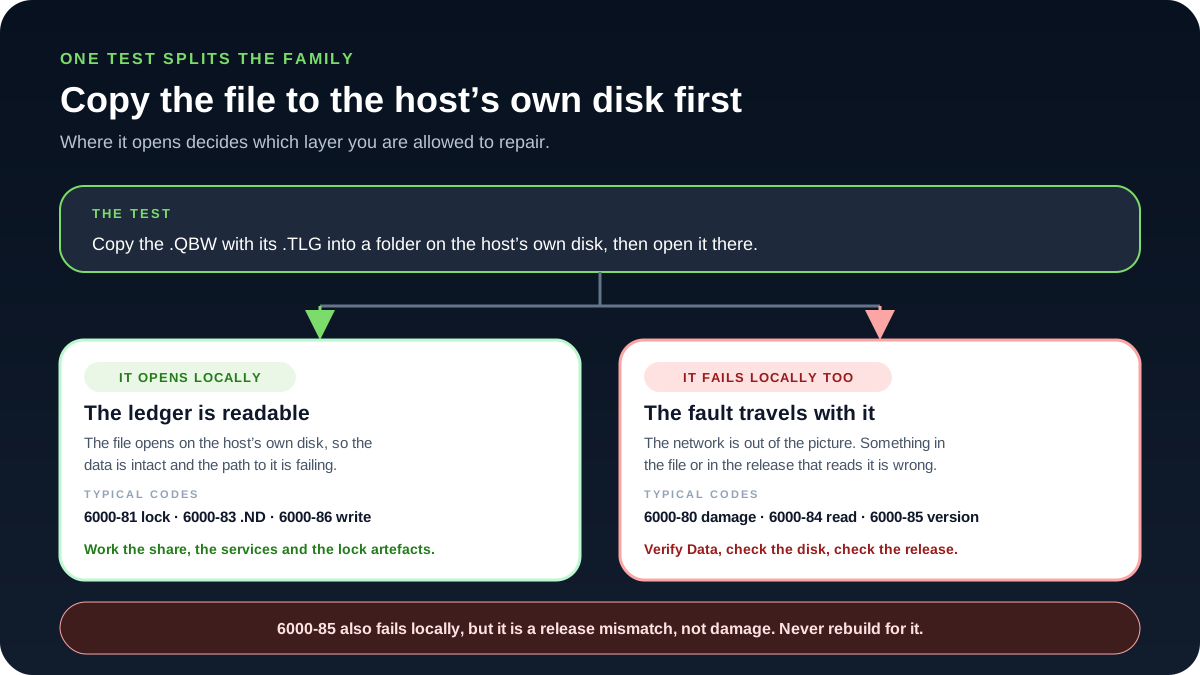
Run the local-copy test before you attempt any repair. It is the cheapest way to find out whether you are looking at a damaged ledger or a damaged path to a perfectly healthy one, and the two problems have almost nothing in common. Copy the .QBW together with its matching .TLG into an ordinary folder on the host computer's own disk — not a mapped drive, not a UNC path pointing back at the share — and open it from there. Whichever way it goes, the result decides which layer you are allowed to repair.
It opens locally
The ledger is readable, so the data is intact and the path to it is what is failing. The codes that usually land here are:
- 6000-81 — a lock, or a stale handle left behind by a session that never closed cleanly
- 6000-83 — the .ND descriptor that tells a workstation how to reach the hosting service
- 6000-86 — a network write that did not complete
The work belongs on the share, the services and the lock artefacts — not on the file. Rewriting a healthy company file adds risk without addressing anything that is actually broken.
It fails locally too
Nothing crossed a wire during that test, so the network is out of the picture and the fault travels with the file. The codes that usually land here are:
- 6000-80 — damage inside the company file
- 6000-84 — a read failure, frequently against storage that has begun to fail
- 6000-85 — a release mismatch between the file and the copy of QuickBooks® opening it
From here the next steps are Verify Data, a health check on the disk the original lives on, and a look at which QuickBooks® release last wrote the file.
One exception worth remembering: 6000-85 also fails locally, but it is a release mismatch rather than damage. Never run a rebuild for it. Open the file with the release that matches it, or upgrade every workstation to that release first — a repair cannot reconcile two versions, and it puts an undamaged ledger through a rewrite for no benefit.
6000-80: Data Damage Detected
Critical: Error 6000-80 indicates QuickBooks® detected actual data damage. Follow these steps carefully to avoid further corruption.
1Run QuickBooks® File Doctor
- Download and install QuickBooks® Tool Hub from Intuit
- Open Tool Hub and select Company File Issues
- Click Run QuickBooks® File Doctor
- Select your company file and choose Check your file and network
- Allow the scan to complete (may take 30+ minutes for large files)
2Use Verify and Rebuild Data
- If file opens, go to File menu, Utilities, Verify Data
- If errors found, run File, Utilities, Rebuild Data
- Create a backup when prompted before rebuild
- After rebuild, run Verify Data again to confirm resolution
3Restore from Auto Data Recovery
If File Doctor fails, check for Auto Data Recovery files:
REM ADR files location (same folder as company file)
dir "C:\Users\Public\Documents\Intuit\QuickBooks®\Company Files\*.adr"

REM Rename ADR file to QBW and attempt to open
copy "CompanyName.qbw.adr" "CompanyName_Recovered.qbw"
6000-81: Cannot Open File
1Close All QuickBooks® Processes
REM Close all QuickBooks® processes on all machines
taskkill /f /im qbw32.exe
taskkill /f /im qbupdate.exe
taskkill /f /im qbdbmgrn.exe

REM Verify no processes holding the file
handle.exe "Company.qbw"2Restart QuickBooks® Database Server Manager
- Open Windows Services (services.msc)
- Find QuickBooksDBXX (XX = version number)
- Right-click and select Restart
- Wait 30 seconds, then attempt to open file
3Delete Lock Files
REM Delete QuickBooks® lock files in company file folder
del "*.qbw.lock"
del "*.tlg.lock"

REM Re-scan folder in Database Server Manager after deletion
6000-82: Transaction Log Issues
Note: Deleting the TLG file may result in loss of uncommitted transactions from the last session. Ensure you have a recent backup.
1Rename Transaction Log File
- Close QuickBooks® on all workstations
- Navigate to company file location
- Find the .TLG file (e.g., Company.qbw.TLG)
- Rename to Company.qbw.TLG.OLD
- Open QuickBooks® - a new TLG will be created
REM Rename TLG file
ren "Company.qbw.TLG" "Company.qbw.TLG.OLD"

REM Verify file renamed
dir "Company.qbw.*"2Verify Data Integrity After TLG Reset
- Open the company file in QuickBooks®
- Go to File menu, Utilities, Verify Data
- Review any discrepancies reported
- Compare recent transactions against source documents
6000-83: Auxiliary File Corruption
1Regenerate Network Data Files
- Close QuickBooks® on all computers
- Delete or rename .ND and .DSN files in company file folder
- Open QuickBooks® Database Server Manager on the server
- Click Scan Folders tab and add the company file folder
- Click Scan to regenerate the auxiliary files
REM Rename auxiliary files for regeneration
ren "Company.qbw.ND" "Company.qbw.ND.OLD"
ren "Company.qbw.DSN" "Company.qbw.DSN.OLD"

REM Open Database Server Manager to regenerate
"C:\Program Files\Intuit\QuickBooks® 2024\QBDBMgrN.exe"
6000-84: Cannot Read From File
Important: Read errors often indicate storage hardware problems. Check disk health before proceeding.
1Check Disk Health
REM Check disk for errors (run as Administrator)
chkdsk C: /r /f

REM Check SMART status (if supported)
wmic diskdrive get status

REM View disk health in Event Viewer
eventvwr.msc
REM Navigate to: Windows Logs > System > Filter by Source: disk2Copy File to Known-Good Storage
- Copy company file to a different physical drive
- Attempt to open from new location
- If successful, original storage device may be failing
- Run File Doctor on the copied file
6000-85: Version Mismatch
1Verify QuickBooks® Versions
- Check QuickBooks® version on server: Help menu, About QuickBooks®
- Check version on all workstations - must match exactly
- Note the release number (e.g., R5, R12)
- Update all installations to the same release version
2Update QuickBooks® Desktop
- Close company file on all workstations
- On each computer: Help menu, Update QuickBooks® Desktop
- Click Update Now tab, select all updates
- Click Get Updates and wait for completion
- Restart QuickBooks® and verify version matches
6000-86: Network Write Errors
1Check Server Disk Space
REM Check available disk space on server
wmic logicaldisk get size,freespace,caption

REM QuickBooks® requires at least 2.5x the company file size as free space
REM For a 500MB file, ensure 1.25GB+ free2Configure Firewall Exceptions
Ensure firewall allows QuickBooks® network traffic:
REM Add firewall rules for QuickBooks® (run as Administrator)
netsh advfirewall firewall add rule name="QuickBooks®" dir=in action=allow program="C:\Program Files\Intuit\QuickBooks® 2024\QBW32.exe" enable=yes

netsh advfirewall firewall add rule name="QBDBMgrN" dir=in action=allow program="C:\Program Files\Intuit\QuickBooks® 2024\QBDBMgrN.exe" enable=yes

REM Allow QuickBooks® ports
netsh advfirewall firewall add rule name="QB Ports" dir=in action=allow protocol=tcp localport=8019,56728,55378-553823Optimize SMB Settings
For Windows Server environments, optimize SMB protocol:
REM Disable SMB2/SMB3 opportunistic locking (can cause QB issues)
REM Run in PowerShell as Administrator

Set-SmbServerConfiguration -EnableLeasing $false -Force
Set-SmbServerConfiguration -EnableOplocks $false -Force

REM Restart Server service
Restart-Service LanmanServer
QuickBooks® File Doctor Usage
QuickBooks® File Doctor is the primary automated repair tool for -80 series errors:
- 1Download QuickBooks® Tool Hub
Get the latest version from Intuit's official site
- 2Run File Doctor
Open Tool Hub, select Company File Issues, then Run QuickBooks® File Doctor
- 3Select Repair Option
Choose Check your file and network for comprehensive scanning
- 4Allow Complete Scan
Scanning may take 30-60 minutes for large files - do not interrupt
Advanced Data Recovery
Auto Data Recovery (ADR) Files
QuickBooks® automatically creates recovery files that can restore data:
- .QBW.adr - Copy of company file from last successful backup
- .TLG.adr - Transaction log with recent transactions
- Located in same folder as company file or in QuickBooksAutoDataRecovery folder
Recovery Procedure
- Create a new folder for recovery attempt
- Copy .QBW.adr file to new folder
- Rename to .QBW extension
- Copy .TLG.adr file to same folder
- Rename to .TLG extension
- Open the recovered file in QuickBooks®
- Run Verify Data to check integrity
Network Configuration
Recommended Settings
- Use UNC paths (\\SERVER\Share) not mapped drives
- Gigabit ethernet minimum for QuickBooks®
- Server and workstations on same subnet
- Disable SMB signing if causing issues
- Static IP for server recommended
Avoid These Configurations
- Company files on NAS devices (not supported)
- Files in cloud sync folders (Dropbox, OneDrive)
- VPN connections for multi-user access
- Wireless connections for hosting server
- Files on USB or external drives
Prevention Strategies
Frequently Asked Questions
Q: Can I recover data after a 6000-80 error?
A: Often yes. First try QuickBooks® File Doctor, then check for Auto Data Recovery (.adr) files, and finally restore from your most recent backup. For severe corruption, Intuit Data Recovery Services may be able to recover data directly from damaged files.
Q: Why do -80 errors occur more often in multi-user mode?
A: Multi-user mode requires constant network communication between workstations and the server. Network latency, packet loss, or interruptions can corrupt data streams. Single-user mode eliminates this network dependency, reducing error likelihood.
Q: Should I use a NAS device for QuickBooks® company files?
A: No. Intuit does not support hosting QuickBooks® company files on NAS devices. NAS systems use different file locking mechanisms that can cause data corruption. Use a Windows server or workstation with QuickBooks® Database Server Manager installed.
Q: How often should I run Verify Data?
A: Run Verify Data weekly in high-transaction environments, or at minimum monthly. Regular verification catches data inconsistencies early before they cause -80 series errors. Always run Verify Data after system crashes or unexpected shutdowns.
Q: What if File Doctor cannot repair my file?
A: If automated repair fails, options include: restoring from backup, using Auto Data Recovery files, or contacting Intuit Data Recovery Services (fee-based) for professional recovery. For critical data, do not attempt additional repairs that might cause further damage.
References and Resources
Conclusion
The -80 series network errors require systematic diagnosis and careful remediation. Understanding the specific error code helps target the correct resolution while minimizing risk to your data. Always prioritize backups before repairs and verify data integrity after resolution.
Key Takeaways
Need Expert Network Troubleshooting Assistance?
For complex network configurations, persistent -80 series errors, or critical data recovery situations, Prime Connect provides expert QuickBooks® network troubleshooting and data recovery services.
Contact Prime Connect for Expert Support