QuickBooks® Online Banking Connection Errors (102, 103, 105, 106, 108, 185, 324)
Quick Answer:
QuickBooks® online banking errors (102, 103, 105, 106, 108, 185, 324) occur due to modern bank security measures, expired credentials, multi-factor authentication (MFA) blocks, session timeouts, or firewall restrictions. Fix by deactivating and reactivating bank feeds with fresh credentials, updating QuickBooks®, and ensuring proper bank security settings for third-party access.
What are QuickBooks® Online Banking Connection Errors?
QuickBooks® Desktop online banking errors (102, 103, 105, 106, 108, 185, 324) are connection failures between QuickBooks® and your financial institution. These errors became more common in 2024-2025 as banks implemented stricter security protocols, mandatory multi-factor authentication, and OAuth-based connections. They typically indicate authentication failures, session expiration, or bank-side security blocks rather than QuickBooks® software issues.
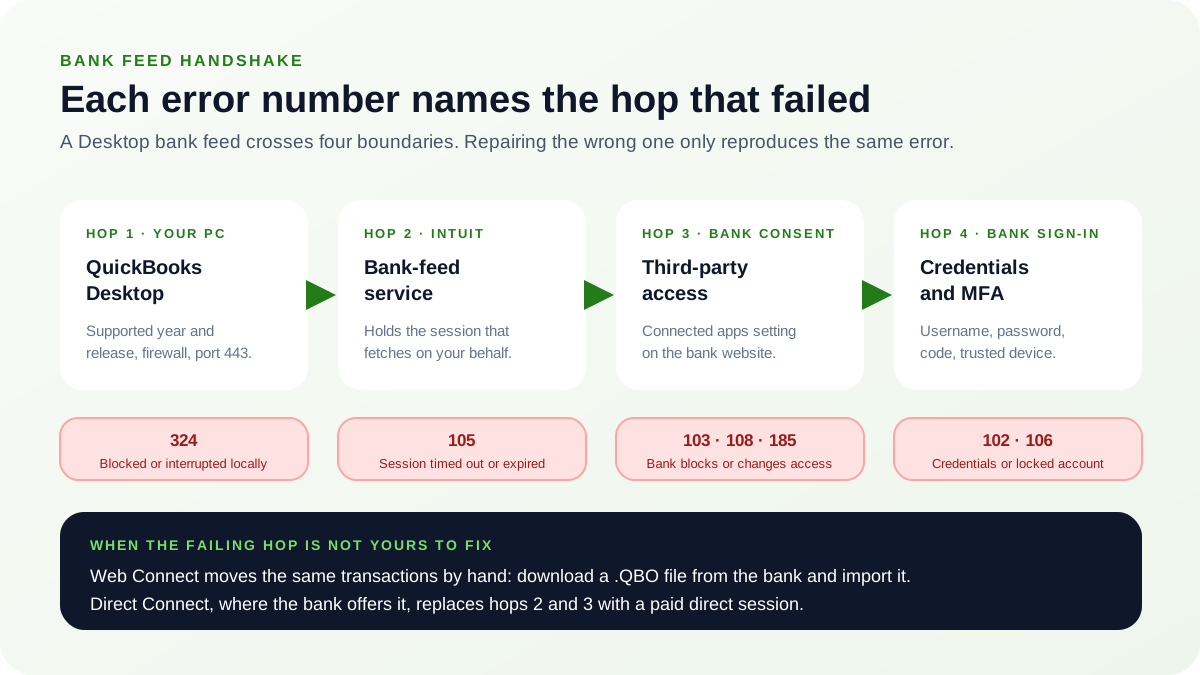
Error 102, 103, 105, 106, 108, 185, 324: Online Banking Connection Authentication Errors
QuickBooks® cannot connect to your bank due to authentication failure, expired credentials, MFA blocking, or bank security restrictions.
Symptoms:
- Error 102: Account authentication failed - invalid credentials
- Error 103: Bank temporarily unavailable or blocking third-party access
- Error 105: Bank connection timeout or session expired
- Error 106: Bank account locked or requires action at bank website
- Error 108: Bank server not responding or maintenance mode
- Error 185: Bank changed security requirements or API access
- Error 324: Connection interrupted or firewall blocking
- Bank feeds stop downloading automatically
- Transactions not importing despite being visible at bank
Resolution Steps:
- 1.Update QuickBooks® to latest release (2025 R5+)
- 2.Deactivate bank feed in QuickBooks®
- 3.Log into bank website and authorize QuickBooks® access
- 4.Reactivate bank connection with fresh credentials
- 5.Configure bank security settings for third-party apps
- 6.Add QuickBooks® URLs to firewall whitelist
First Checks for Banking Connection Errors
Start with the lowest-risk checks
- Update QuickBooks®: Help → Update QuickBooks® Desktop → Get Updates
- In QuickBooks®: Banking → Bank Feeds → Bank Feeds Center
- Select your bank account → Deactivate Account (confirm deletion)
- Go to your bank's website in a browser
- Log in and navigate to Security or Connected Apps/Services
- Find QuickBooks®/Intuit → Remove or Revoke access
- Enable third-party access if bank has this setting
- Return to QuickBooks®: Banking → Set Up Bank Feed for an Account
- Search for your bank → Click Connect
- Enter credentials (username/password) when prompted
- Complete any MFA verification (text code, app approval)
- Select accounts to connect → Done
- Test by downloading transactions: Bank Feeds Center → Download
Detailed Solution Steps
- Update QuickBooks® Desktop to Latest Version.
Ensure you have the latest banking connectivity updates:
- Open QuickBooks® Desktop
- Go to Help → Update QuickBooks® Desktop
- Click "Update Now" tab
- Check "Reset Update" checkbox
- Click "Get Updates" button
- Wait for download to complete (2-5 minutes)
- Close QuickBooks® completely
- Reopen QuickBooks® to install updates
- Follow installation prompts
- Verify version: Press F2 → Check product version is 2025 R5 or later
Why Update First?
QuickBooks® releases monthly updates that fix bank connectivity issues and add support for new bank security protocols. Banking errors 102-324 are often resolved in these updates without needing manual reconnection. - Deactivate Existing Bank Connection.
Remove the problematic bank connection completely:
- In QuickBooks®, go to Banking menu
- Select "Bank Feeds" → "Bank Feeds Center"
- Find your bank account in the list
- Click on the account name to select it
- Right-click → Select "Deactivate Account"
- QuickBooks® shows warning about losing unreviewed transactions
- If you have pending transactions, review/add them first
- Click "Yes" to confirm deactivation
- Account disappears from Bank Feeds Center
- Close Bank Feeds Center
Important: Deactivating only removes the bank feed connection, not your bank account from your Chart of Accounts. Your historical transactions remain intact.
- Enable Third-Party Access at Bank (If Required).
Some banks require explicitly enabling access for accounting software:
- While logged into your bank's website
- Go to Security Settings or Preferences
- Look for "Third-Party Access" or "Data Sharing" settings
- Check if there's a toggle for "Allow third-party financial apps"
- Enable the setting if it exists
- Some banks have specific "QuickBooks®" or "Intuit" toggles
- Enable QuickBooks®-specific access if available
- Save changes
- Some banks require 24-hour waiting period before connection works
Bank connection methods change
Banks and Intuit change supported authentication methods over time. Confirm that your bank still supports the connection type and that your QuickBooks® release is currently supported before reconnecting. - Reconnect Bank Feed in QuickBooks®.
Set up fresh bank connection with current credentials:
- In QuickBooks®, go to Banking menu
- Select "Bank Feeds" → "Set Up Bank Feed for an Account"
- In search box, type your bank's name
- Select your bank from results
- Click "Connect" or "Next"
- Enter your online banking username (NOT account number)
- Enter your online banking password
- Click "Connect" or "Sign In"
- Complete MFA verification:
- Enter text message code if prompted
- Approve from mobile app if prompted
- Answer security questions if prompted
- QuickBooks® retrieves your accounts
- Select which accounts to connect (checking, savings, credit card)
- Click "Connect" or "Done"
- QuickBooks® downloads last 90 days of transactions
OAuth Connection: Some banks redirect to their website for secure authorization. This is normal - complete the login in your browser, then QuickBooks® automatically continues setup.
- Configure Firewall and Antivirus Exceptions.
Ensure QuickBooks® can communicate with bank servers:
- Open Windows Defender Firewall or your antivirus program
- Navigate to Allowed Apps or Exceptions
- Verify these QuickBooks® programs are allowed:
- QBW32.exe or QBW64.exe (main program)
- QBWebConnector.exe
- QBCFMonitorService.exe
- Add QuickBooks® URLs to whitelist:
- *.quickbooks.intuit.com
- *.intuit.com
- *.financialservices.intuit.com
- Configure corporate firewall (if applicable):
- Allow outbound HTTPS on port 443
- Whitelist Intuit IP ranges (contact IT department)
- Save firewall changes
- Restart QuickBooks®
QuickBooks® Banking URLs to Whitelisthttps://financialservices.intuit.comhttps://webapps.intuit.comhttps://quickbooks.intuit.comhttps://static.intuit.comhttps://oauth.platform.intuit.com - Test Bank Feed Download.
Verify connection works properly:
- Go to Banking → Bank Feeds → Bank Feeds Center
- Your bank account should appear in the list
- Click "Download Transactions" button
- QuickBooks® connects to bank
- Should see "Download successful" message
- Transactions appear in Bank Feeds Center
- Review transactions for accuracy
- Add/Match transactions as needed
- If error appears, note exact error number
- Try downloading again in 1 hour (bank rate limits may apply)
Connection Successful!
If transactions download without errors, your bank feed is working correctly. QuickBooks® will automatically download new transactions daily. You can manually download anytime by clicking "Download Transactions" in Bank Feeds Center. - Alternative: Use Direct Connect or Web Connect.
If Express Web Connect continues to fail, switch connection methods:
- Direct Connect (if bank supports):
- Banking → Set Up Bank Feed → Search for bank
- Look for "Direct Connect" badge next to bank name
- More reliable but may have monthly fee ($10-30)
- Real-time connection with immediate downloads
- Web Connect (manual method):
- Log into your bank's website
- Go to transaction history or downloads
- Export as QuickBooks® format (.QBO file)
- Download the .QBO file to your computer
- In QuickBooks®: File → Utilities → Import → Web Connect Files
- Select downloaded .QBO file
- QuickBooks® imports transactions
- Requires manual download each time (no automation)
Why Do Online Banking Errors Occur?
Common root causes
- Authentication method changed: A bank may move from stored credentials to an authorised connection that an older or unsupported QuickBooks® release cannot use.
- Enhanced Bank Security: Multi-factor authentication requirements increased, blocking automated QuickBooks® connections that don't support modern MFA protocols
- Expired Credentials: Bank passwords changed without updating in QuickBooks®, or bank forced password reset for security reasons
- Third-Party Access Restrictions: Banks disabled or limited third-party app access, requiring manual reauthorization through bank's security portal
- Session Timeout Limits: Banks reduced session timeout from 30 minutes to 5-10 minutes, causing Error 105 during longer QuickBooks® operations
- Firewall/Antivirus Blocking: Corporate firewalls blocking Intuit's banking servers (financialservices.intuit.com) or antivirus quarantining QuickBooks® connection components
- Bank API Changes: Financial institutions modified their APIs without notice, requiring QuickBooks® updates to maintain connectivity
- Account Verification Required: Bank flagged account for suspicious activity or requires action (update contact info, verify identity) blocking automated access
How to Prevent Banking Connection Errors
Current best practices:
- Keep QuickBooks® Desktop updated monthly - enable automatic updates in Preferences
- Use a currently supported QuickBooks® Desktop release and confirm that the financial institution supports its connection method.
- When changing bank passwords, immediately update credentials in QuickBooks® Bank Feeds Center
- Review bank's Connected Apps monthly to ensure QuickBooks® authorization hasn't expired
- Whitelist Intuit banking URLs in corporate firewalls before errors occur
- Consider Direct Connect for critical bank accounts - more reliable than Express Web Connect
Frequently Asked Questions
What's the difference between banking errors 102, 103, 105, 106, 108, 185, and 324?
While all indicate connection failures, they have subtle differences: Error 102 = authentication failed (wrong credentials), 103 = bank blocking access, 105 = session timeout, 106 = account locked at bank, 108 = bank server unavailable, 185 = bank changed security requirements, 324 = connection interrupted by firewall. However, the same underlying connection profile can affect them. Deactivate and reconnect only after documenting the current mapping and checking for duplicate downloads.
Will I lose my transaction history if I deactivate the bank feed?
No, deactivating the bank feed only removes the connection to download new transactions. All previously downloaded and matched transactions remain in your QuickBooks® register. You only lose unreviewed transactions still sitting in the Bank Feeds Center (which is why you should review those first before deactivating).
Why do I get Error 103 even though my bank credentials are correct?
Error 103 usually means your bank is blocking QuickBooks® access for security reasons, not that your credentials are wrong. Check your bank's website under Security Settings for "Connected Apps" or "Third-Party Access" and ensure QuickBooks®/Intuit is authorized. Some banks require you to explicitly enable third-party financial app access after they implemented new security policies in 2024-2025.
Can an unsupported QuickBooks® Desktop release still use bank feeds?
Do not assume it will. Availability depends on Intuit's current discontinuation policy, your bank, and the connection method. Check both parties' current support information. Use Web Connect only when the bank offers it and your QuickBooks® release supports the downloaded file.
Related Resources
Need Professional Help?
If you're still experiencing banking connection errors after following these steps, or need help with QuickBooks® bank feed configuration, firewall setup, or upgrading to support OAuth 2.0 banking, our QuickBooks® specialists are here to help.
Get Expert Support