Export or back up the relevant data first. Do not delete, void, unreconcile, or adjust historical transactions unless you understand the accounting impact.
Menu names can change. We link current first-party instructions so you can confirm product behavior before acting.
Quick answer: one account, one statement, one controlled date range
In QuickBooks Desktop, open Banking → Reconcile, choose the correct bank or credit-card account, and enter the statement ending date and ending balance exactly as issued. Confirm that QuickBooks' beginning balance agrees with the statement. Then mark only the transactions present on that statement. Finish only when the difference is zero and the unexplained exceptions have been resolved from evidence.
Do not clear a transaction merely because its date is inside the period. Do not create a journal entry to force zero just because the amount is small. Intuit warns that reconciliation adjustments do not fix the underlying error and recommends accountant guidance.
Workflow map
Statement boundary → match → investigate → retain
The bank statement is external evidence; QuickBooks is the ledger being tested against it.
- 1
Boundary
Confirm account, full statement, beginning balance, ending date, ending balance, and currency.
Evidence: Statement header agrees with the Reconcile window.
- 2
Match
Clear only statement transactions, one side at a time; compare counts and totals as well as individual lines.
Evidence: Every cleared line has statement evidence.
- 3
Investigate
Trace missing, duplicate, changed, deleted, transposed, dated, transfer, fee, interest, and prior-period items.
Evidence: Each difference has a supported correction or open owner.
- 4
Retain
Finish at zero, save the report and statement, review later changes, and lock or close the period by policy.
Evidence: Reconciliation package supports the ledger balance.
Prepare complete evidence before opening Reconcile
- the complete statement, including blank or continuation pages, for the exact account and currency;
- the prior completed reconciliation report and unresolved-item list;
- bank-feed, check, deposit, transfer, card-payment, merchant-settlement, fee, and interest evidence;
- a current native backup of the company file before undoing or changing prior reconciliations;
- confirmation that all users have finished entering or editing activity for the statement period.
If the statement opening balance does not equal the prior statement ending balance, resolve the statement sequence first. If the bank account changed number or currency, determine whether a separate ledger account is required instead of combining unlike histories.
Enter the statement boundary exactly
- Open Reconcile. Go to Banking → Reconcile and select the intended bank or credit-card account.
- Match the period boundary. Confirm the statement date against the bank-issued ending date; do not default to calendar month-end without checking.
- Check the opening point. Compare QuickBooks' beginning balance with the statement beginning balance before entering new figures.
- Enter the closing figure. Enter the statement ending balance with the correct sign and decimal placement.
- Add bank-side charges once. Enter service charge or interest only when it has not already been recorded and the date/account/class/tax treatment are approved.
- Continue and log the inputs. Select Continue and retain a note of the opening inputs and operator.
Clear only what appears on the statement
Before marking anything, know what the number at the bottom of the window is made of. QuickBooks starts from the beginning balance carried forward by the last completed reconciliation, adds the deposits and other credits you mark cleared, subtracts the checks and payments you mark cleared, and calls the result the cleared balance. The difference is the statement ending balance you entered minus that cleared balance. Only those three values feed it, so a non-zero difference always means the beginning balance moved, the wrong items are marked, or the figure you typed is wrong.
Compare checks and payments, then deposits and credits, against the statement. Match amount, date, payee or source, reference, and transaction type. A legitimate outstanding check or deposit in transit stays uncleared until it appears on a later statement. A same-amount item is not enough evidence when several transactions share that amount.
Use the Reconcile window totals and the statement's transaction counts where available to localize a difference. Hide transactions after the statement date to reduce noise, but still investigate older uncleared items separately. For transfers, prove both sides and avoid recording a second expense or deposit. For merchant settlements, reconcile gross receipts, fees, refunds, chargebacks, timing, and the net bank deposit through the designed clearing workflow.
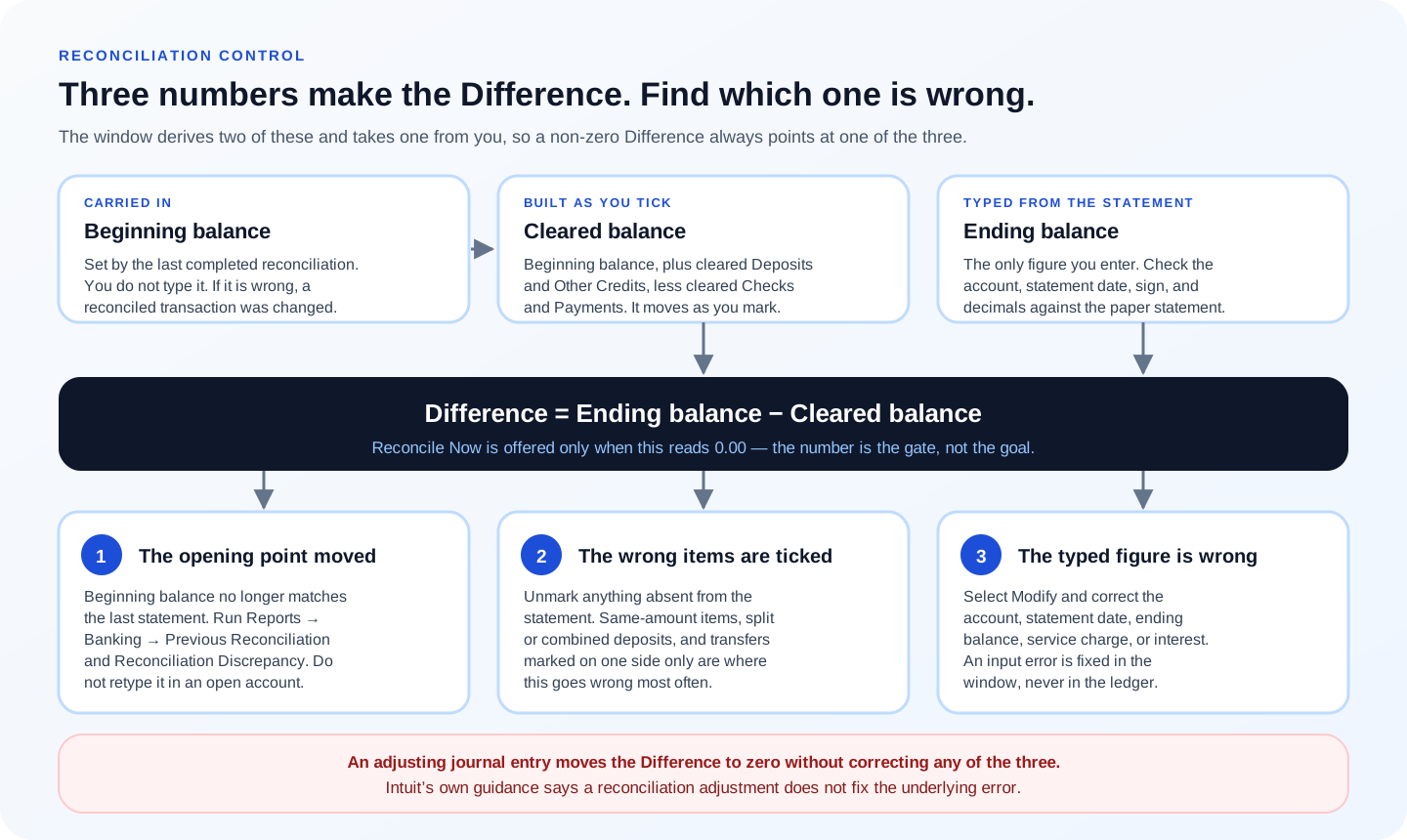
Resolve a non-zero difference by evidence category
Wrong opening input
Recheck account, statement date, ending balance, sign, service charge, and interest. Modify the reconciliation inputs rather than changing ledger transactions.
Missing or duplicate
Search by amount, date, reference, payee, memo, and transaction type. Enter a genuinely missing item once; remove a duplicate only after proving which record is authoritative.
Wrong amount or sign
Compare the source document and bank evidence. Correct the original transaction with approval; do not add a second transaction that leaves both errors in the ledger.
Wrong cleared selection
Unmark items absent from the statement and mark the exact statement item. Review same-amount transactions and partial, combined, or split deposits carefully.
Prior-period change
Run Reconciliation Discrepancy, Missing Checks, audit, register, and Previous Reconciliation reports; speak with the person who changed the transaction.
Possible file issue
If lists, registers, or reports behave inconsistently, preserve a backup and follow the company-file verification and repair path before forcing the close.
Fix an incorrect beginning balance from the prior checkpoint
QuickBooks derives the beginning balance from earlier reconciled activity. Intuit identifies edited, deleted, moved, voided, or unreconciled prior transactions, incorrect original opening balances, conversions, and possible data damage as causes. Run Reports → Banking → Reconciliation Discrepancy, review the Previous Reconciliation report and audit evidence, and identify who changed what and why.
Do not re-create an opening balance merely because the field is wrong in an established account. Intuit's opening-entry path applies to the first reconciliation or a proven missing opening balance. A correction to historical books can affect filed tax, closed periods, financial statements, and audit evidence; obtain the responsible accountant's approval and preserve the original and corrected reports.
Treat adjustments and undo operations as controlled accounting changes
QuickBooks can create an adjustment journal entry in Reconciliation Discrepancies, but Intuit states it should be used only when the records and inputs are known to be correct and separately warns that adjustments do not fix errors. Do not use an arbitrary dollar threshold. Document the exact cause, account, date, tax effect, preparer, approver, supporting evidence, and later reversal or resolution. Review all prior balance adjustments.
Undoing the last reconciliation changes cleared status and the next beginning balance. Before undoing, create a native backup, preserve the existing reconciliation report, confirm edition behavior, define which periods must be redone in sequence, and obtain approval. If years of reconciliations are affected, stop and plan the correction rather than repeatedly undoing production history without a controlled endpoint.
Finish at zero and preserve the close package
- the account, statement date, beginning balance, ending balance, and currency are correct;
- every cleared item appears on the statement and every statement item is represented once;
- the difference is exactly zero without an unexplained adjustment;
- old outstanding checks, deposits, credits, and transfers have owners and expected resolution;
- the Previous Reconciliation detail and summary are saved with the statement and exception evidence;
- bank/credit-card ledger balance, outstanding items, and statement ending balance form a documented tie-out;
- the period is reviewed and protected from unauthorized later changes according to policy.
Optional free utilities
Tools that support this workflow
These run in your browser and can help prepare or inspect files. They do not replace reconciliation, source-document review, or an accountant’s approval.
Sources checked
First-party product documentation used to verify the workflow and risk notes in this guide.
- Reconcile an account in QuickBooks DesktopIntuit QuickBooks Support · Checked August 2026
- Fix issues when reconciling in QuickBooks DesktopIntuit QuickBooks Support · Checked August 2026
- Fix beginning balance issues in QuickBooks DesktopIntuit QuickBooks Support · Checked August 2026
- Get reports for previous reconciliationsIntuit QuickBooks Support · Checked August 2026