Understanding OLSU & OL Banking Errors
The OLSU prefix indicates errors related to the Online Services Update process, while OL errors relate to the Online Banking connection itself. Understanding the distinction helps target the correct resolution approach. These errors can occur with any bank or financial institution that supports QuickBooks® connectivity, though some banks experience higher error rates due to their technical infrastructure. [Intuit Documentation]
When Do These Errors Occur?
OLSU and OL errors typically appear when downloading transactions via Bank Feeds, setting up a new bank connection, updating bank credentials, or when banks make changes to their online banking systems. They may also occur after QuickBooks® updates that modify the banking module.
Business Impact
Banking errors affect critical business operations:
Transaction Delays
Unable to download and categorize transactions, causing backlog in bookkeeping tasks
Reconciliation Issues
Bank reconciliation becomes manual and time-consuming without automatic transaction downloads
Cash Flow Visibility
Delayed transaction data affects real-time cash flow monitoring and financial reporting accuracy
Error Code Classification
Each OLSU and OL error code indicates a specific type of banking connection failure. Understanding these classifications helps target the correct resolution procedure.
| Error Code | Category | Frequency | Resolution Complexity |
|---|---|---|---|
| OLSU-1011 | Connectivity | Very High (30%) | Low to Medium |
| OLSU-1013 | Authentication | High (25%) | Low |
| OLSU-1015 | Bank Changes | Medium (15%) | Medium |
| OL-301 | Direct Connect | Medium (12%) | Medium to High |
| OL-393 | Server Error | Low (8%) | Wait or Medium |
| OL-222 | Authentication | Low (6%) | Low to Medium |
| OL-332 | Setup | Low (4%) | Medium |
Quick Resolution Tip
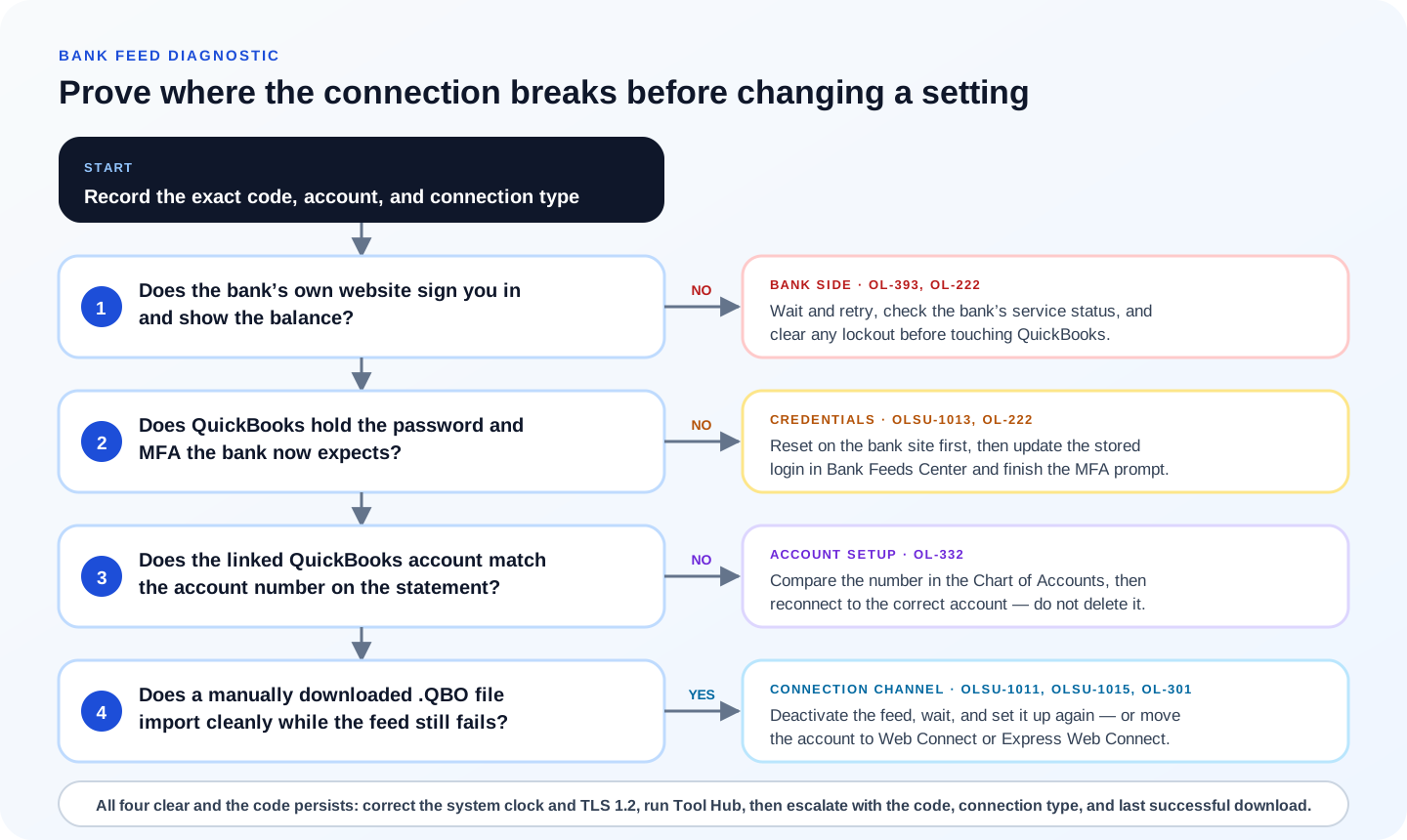
Banking errors such as OLSU-1011, OLSU-1013, and OL-222 can involve connectivity, credentials, the financial institution, or the downloaded file. Verify the bank website and current credentials before changing QuickBooks® settings.
OLSU-1011: Bank Connectivity Failure
Error OLSU-1011: Unable to Connect to Bank Server
Meaning: QuickBooks® cannot establish the expected connection to the financial institution. Treat the code as a routing clue, then check the current Intuit and bank instructions for that connection method.
Common Causes: Internet connectivity issues, bank server maintenance, firewall blocking connections, SSL/TLS certificate problems, or temporary bank website outages.
Resolution Procedure
1Verify Bank Website Accessibility
First, confirm the bank is not experiencing an outage:
- Open a web browser and navigate to your bank's website
- Log in to your online banking account
- Verify you can view account balances and recent transactions
- If the bank website is down, wait and try again later
2Test Internet Connectivity
Verify your internet connection is stable:
:: Test general internet connectivity
ping www.google.com

:: Test connection to Intuit servers
ping quickbooks.intuit.com

:: Check DNS resolution
nslookup quickbooks.intuit.com3Update QuickBooks® Desktop
Ensure QuickBooks® has the latest updates which may include banking connectivity fixes:
- Open QuickBooks® Desktop
- Go to Help menu and select Update QuickBooks® Desktop
- Click Update Now tab
- Check Reset Update checkbox to get all available updates
- Click Get Updates and wait for download to complete
- Close and reopen QuickBooks® to install updates
4Check Firewall and Security Settings
Ensure firewall is not blocking QuickBooks® banking connections:
- Open Windows Security or your firewall software
- Verify QuickBooks® executables are allowed through the firewall
- Review blocked-connection events for the failed banking attempt
- Add only a current, vendor-documented rule for a verified Intuit executable or destination
- Keep endpoint protection and the firewall enabled
Get-NetFirewallRule -DisplayName "*QuickBooks®*" | Format-Table Name, Enabled, Direction, ActionOLSU-1013: Credentials Expired
Error OLSU-1013: Banking Credentials Have Expired
Meaning: The stored banking credentials in QuickBooks® are outdated or the bank is requesting credential renewal. This commonly occurs after password changes, security updates, or when banks require periodic re-authentication.
Common Causes: Changed bank password, expired security token, bank security policy requiring credential refresh, or multi-factor authentication changes.
Resolution Procedure
1Verify Current Bank Credentials
Confirm your credentials work on the bank website:
- Log out of your bank website if currently logged in
- Clear browser cache and cookies
- Log in fresh with your current username and password
- Complete any security verification the bank requires
- Note the exact username format (some banks use email, account number, or custom ID)
2Update Credentials in QuickBooks®
Update the stored credentials in QuickBooks®:
- In QuickBooks®, go to Banking menu and select Bank Feeds then Bank Feeds Center
- Locate the bank account showing the error
- Click the account and select Edit Account Info or Update Credentials
- Enter your current username and password exactly as you use on the bank website
- If prompted for security questions, answer them correctly
- Click Connect or Save to update the credentials
3Complete Multi-Factor Authentication
Many banks now require MFA which may prompt additional steps:
- Watch for MFA prompts in QuickBooks® (text message code, email code, or app approval)
- Check your phone or email for verification codes
- Enter the code promptly as they typically expire in 5-10 minutes
- Some banks may require approving the connection in their mobile app
Note: If MFA is not working through QuickBooks®, you may need to use Web Connect instead of Direct Connect. See the Bank Connection Types section for more information.
OLSU-1015: Bank Site Changed
Error OLSU-1015: Bank Website Has Changed
Meaning: The bank has made changes to their online banking system that affect the QuickBooks® connection. This can include website redesigns, security upgrades, or changes to their data feed infrastructure.
Common Causes: Bank website upgrade, merger or acquisition changing banking systems, security protocol updates, or changes to the bank's QuickBooks® connectivity service.
Resolution Procedure
1Check for QuickBooks® Updates
Intuit regularly releases updates to accommodate bank changes:
- Close all company files
- Go to Help menu and Update QuickBooks® Desktop
- Click Update Now and check Reset Update
- Click Get Updates
- Restart QuickBooks® after updates complete
2Deactivate and Reactivate Bank Feed
Resetting the bank connection often resolves issues after bank changes:
- Go to Banking menu, Bank Feeds, then Bank Feeds Center
- Select the affected account
- Click Deactivate All Online Services
- Confirm the deactivation
- Wait 24 hours (recommended for bank system synchronization)
- Return to Bank Feeds Center and click Set Up Bank Feed for the account
- Follow the setup wizard to reconnect
3Contact Bank for Updated Connection Info
If the error persists, the bank may have specific requirements:
- Call your bank's customer service
- Ask specifically about QuickBooks® Desktop connectivity
- Inquire if they changed connection methods (Direct Connect vs Web Connect)
- Request any new setup instructions or activation requirements
- Some banks now require enabling QuickBooks® access in online banking settings
OL-301: Direct Connect Issues
Error OL-301: Direct Connect Service Unavailable
Meaning: QuickBooks® cannot connect using the Direct Connect protocol. Direct Connect requires the bank to maintain a dedicated connection service, and this error indicates that service is not responding properly.
Common Causes: Bank discontinued Direct Connect support, Direct Connect service maintenance, account not enabled for Direct Connect at the bank, or network routing issues to bank servers.
Resolution Procedure
1Verify Direct Connect Availability
Confirm your bank still supports Direct Connect:
- Log into your bank's website
- Look for settings related to "QuickBooks®" or "Direct Connect" or "Desktop Software"
- Verify Direct Connect is enabled for your account
- Some banks may require a separate enrollment for Direct Connect
- Note: Many banks have migrated away from Direct Connect in favor of Web Connect
2Refresh Direct Connect Authorization
Re-authorize the connection if the bank still supports it:
- In QuickBooks®, go to Banking menu then Bank Feeds then Participating Financial Institutions
- Search for your bank
- Note the connection type listed (Direct Connect, Web Connect, or Express Web Connect)
- If Direct Connect is listed, click through to update or refresh the authorization
- Follow any prompts to re-enter credentials and authorize
3Switch to Web Connect Alternative
If Direct Connect is unavailable, use Web Connect instead:
- Log into your bank website
- Navigate to account activity or statements
- Look for a "Download" option (often labeled QBO, QFX, or QuickBooks®)
- Download transactions in QuickBooks® format (.QBO file)
- In QuickBooks®, go to File then Import then Web Connect Files
- Select the downloaded file and import transactions
Tip: Web Connect requires manual downloads but is more universally supported. Many users find scheduling weekly downloads provides a good balance of automation and reliability.
OL-393: Bank Server Errors
Error OL-393: Bank Server Not Responding
Meaning: The bank's server is not responding to connection requests. This is typically a temporary issue on the bank's end rather than a QuickBooks® configuration problem.
Common Causes: Bank server maintenance, high traffic periods, bank system outages, or temporary connectivity issues between Intuit and bank servers.
Resolution Procedure
1Wait and Retry Later
OL-393 is often temporary. Before extensive troubleshooting:
- Wait 2-4 hours and try again
- If it occurs during business hours, try early morning or late evening
- Check your bank's website or social media for outage announcements
- Check downdetector.com or similar sites for reported bank outages
2Check Bank Status and Contact Support
If the error persists beyond 24 hours:
- Contact your bank's technical support
- Ask if they are experiencing issues with QuickBooks® connectivity
- Request confirmation that their QuickBooks® service is operational
- Some banks have dedicated support lines for business banking software integration
3Use Web Connect as Temporary Workaround
While waiting for server issues to resolve, maintain workflow with manual downloads:
- Log into your bank website directly
- Download transactions in QBO/QFX format
- Import into QuickBooks® via File then Import then Web Connect Files
- This keeps your records current while Direct Connect is unavailable
OL-222: Authentication Problems
Error OL-222: Authentication Failed
Meaning: QuickBooks® received an authentication rejection from the bank. The credentials provided were not accepted, or additional verification is required.
Common Causes: Incorrect username or password, account locked due to failed attempts, pending MFA challenge, or special characters in password causing encoding issues.
Resolution Procedure
1Verify Account is Not Locked
Multiple failed attempts may have locked your account:
- Go directly to your bank's website
- Attempt to log in with your credentials
- If locked, follow the bank's unlock procedure
- Wait for any temporary lockout period to expire
- Successfully log in to the bank website before retrying in QuickBooks®
2Reset Password if Necessary
If credentials are uncertain, reset them:
- Use your bank's "Forgot Password" feature
- Create a new password avoiding special characters that may cause issues
- Recommended: Use letters and numbers, avoid symbols like & < > " '
- Log into the bank website successfully with the new password
- Update the password in QuickBooks® Bank Feeds settings
Password Tip: Some special characters can cause encoding issues between QuickBooks® and bank servers. If authentication keeps failing, try a password with only letters and numbers as a test.
3Complete Any Pending Bank Verifications
Banks may require additional verification:
- Log into your bank website
- Check for any pending security alerts or verification requirements
- Accept any new terms of service
- Complete any identity verification steps
- Some banks require approving third-party connections in security settings
OL-332: Account Setup Issues
Error OL-332: Account Configuration Problem
Meaning: There is a mismatch between the account setup in QuickBooks® and the bank's records. The account may not be properly linked or the account type may be incorrect.
Common Causes: Account linked to wrong QuickBooks® account, bank account type changed, account closed or merged at bank, or multiple accounts with similar names causing confusion.
Resolution Procedure
1Verify Account Numbers Match
Confirm account information is consistent:
- In QuickBooks®, go to Lists then Chart of Accounts
- Right-click the bank account and select Edit Account
- Note the account number shown
- Compare with the actual account number on your bank statement
- Correct any discrepancies
2Disconnect and Reconnect Account
Reset the account linkage:
- Go to Banking menu then Bank Feeds then Bank Feeds Center
- Select the affected account
- Click Deactivate All Online Services
- Wait a few minutes for the change to process
- Click Set Up Bank Feed for Account
- Follow the setup wizard and carefully select the correct account from the list
- Verify the account number matches your bank statement
3Create New Account If Needed
If the account configuration is corrupted:
- Create a new bank account in Chart of Accounts
- Set up bank feeds for the new account
- Transfer the opening balance from the old account
- Make the old account inactive (do not delete for audit trail)
- Update any memorized transactions or rules to use the new account
Root Causes Analysis
Understanding the underlying causes helps prevent recurring banking errors:
Network Issues
- Unstable internet connection
- Firewall blocking outbound connections
- Proxy server interference
- VPN routing problems
- ISP throttling or blocking
Credential Problems
- Expired or changed passwords
- MFA configuration changes
- Security questions updated
- Account locked from failed attempts
- Special characters in credentials
Bank-Side Changes
- Website redesigns or upgrades
- Security protocol updates
- Connection method changes
- Server maintenance windows
- Bank mergers or acquisitions
QuickBooks® Issues
- Outdated QuickBooks® version
- Corrupted banking cache
- SSL certificate problems
- Damaged installation files
- Conflicting software
Diagnostic Framework
Follow this systematic approach to diagnose banking errors efficiently:
Phase 1: Quick Checks (5 minutes)
- 1Verify bank website accessibility
Can you log into your bank website directly? If not, the issue is bank-side.
- 2Test internet connectivity
Can you access other websites? Verify basic internet connection works.
- 3Check for recent password changes
Did you recently change your bank password? QuickBooks® may need updating.
Phase 2: QuickBooks® Diagnostics (10 minutes)
1. Update QuickBooks® to latest release
   Help > Update QuickBooks® Desktop > Update Now > Get Updates

2. Check Bank Feeds Center status
   Banking > Bank Feeds > Bank Feeds Center
   Note any error indicators or warnings

3. Review connection details
   Click affected account > View connection details
   Note connection type (Direct Connect vs Web Connect)

4. Test with manual download
   Download .QBO file from bank website
   File > Import > Web Connect Files
   If manual works, issue is with automated connection
Phase 3: Advanced Troubleshooting (15-30 minutes)
Based on Phase 1 and 2 findings, proceed to the specific error resolution sections above or continue with cache clearing, certificate fixes, or connection doctor procedures detailed below.
Bank Connection Types Explained
QuickBooks® supports three methods for connecting to financial institutions. Understanding the differences helps choose the right troubleshooting approach:
| Feature | Direct Connect | Web Connect | Express Web Connect |
|---|---|---|---|
| Automation Level | Fully automatic | Manual download | Automatic via Intuit |
| Bank Fee | Often charged | Usually free | Free |
| Connection Path | QuickBooks® to Bank | Bank to File to QuickBooks® | QuickBooks® to Intuit to Bank |
| Availability | Limited banks | Most banks | Many banks |
| MFA Support | Limited | N/A (manual) | Good |
| Error Frequency | Higher | Lowest | Moderate |
Safer approach
If experiencing frequent errors with Direct Connect, consider switching to Express Web Connect or Web Connect. While Web Connect requires manual downloads, it is the most reliable method. Express Web Connect offers a good balance of automation and reliability for banks that support it.
Deactivating & Reactivating Bank Feeds
Resetting the bank feed connection resolves many persistent errors. This procedure clears the existing connection and establishes a fresh link to the bank.
Complete Deactivation and Reactivation Procedure
ADeactivation Steps
- Go to Banking menu then Bank Feeds then Bank Feeds Center
- Click on the bank account you want to reset
- Click the Edit button and select Deactivate All Online Services
- When prompted, confirm the deactivation
- Note: This does NOT delete any downloaded transactions or reconciled data
- The account remains in your Chart of Accounts with all history intact
Important: Before deactivating, ensure all pending transactions have been matched or added to QuickBooks®. Unmatched transactions in the Bank Feeds window will need to be re-downloaded after reactivation.
BRecommended Wait Period
Allow time for bank systems to fully process the disconnection:
- Minimum wait: 15-30 minutes for simple resets
- Recommended wait: 24 hours for persistent errors
- After bank website changes: 48-72 hours may be needed
CReactivation Steps
- Return to Banking menu then Bank Feeds then Bank Feeds Center
- Click on the account and select Set Up Bank Feed
- Search for your financial institution
- Select the correct connection type (Direct Connect or Web Connect)
- Enter your bank credentials when prompted
- Complete any multi-factor authentication
- Link the bank account to the existing QuickBooks® account
- Choose the transaction download start date
- Click Connect to complete the setup
Reset Banking Safely
Do not delete OLB files or rename qbwuser.ini as a generic banking fix. Preserve the company file and reset only the affected connection through the current Intuit workflow.
Connection Reset Procedure
Method 1: Preserve Data and Recreate the Affected Connection
- Create and verify a company-file backup
- Record the bank name, account, connection method, last successful download, and exact OLSU code
- Update QuickBooks® to the current maintenance release
- Follow Intuit's current instructions to deactivate and reconnect only the affected bank-feed account
- Match downloaded transactions to existing entries; do not add duplicates
Bank and account:
Connection method:
Exact OLSU code:
Last successful download:
Last transaction date already in QuickBooks:
Backup file and restore-test status:
Method 2: Escalate Without Resetting Other Preferences
If reconnecting the affected account does not resolve the error, preserve the user profile and gather a clean comparison:
- Test the same account in a verified company-file copy only if Intuit support requests it
- Record whether another authorized Windows user sees the same OLSU code
- Save the connection log and the exact time of the failure
- Contact the bank to confirm its Direct Connect or Web Connect service status
- Give Intuit support the evidence without deleting shared banking or preference files
Note: Deleting banking files or resetting the entire QuickBooks® user profile can affect unrelated accounts and preferences. Use a version-specific Intuit support instruction and a rollback plan if support requires either change.
Certificate and SSL Issues
SSL/TLS certificate problems can prevent secure connections to banks. These issues often arise after Windows updates, certificate expirations, or system time discrepancies.
Common SSL Issues and Resolutions
1Verify System Date and Time
Incorrect system time causes certificate validation failures:
- Right-click the clock in Windows taskbar
- Select Adjust date/time
- Ensure "Set time automatically" is enabled
- Ensure "Set time zone automatically" is enabled (or select correct zone)
- Click "Sync now" under Additional settings
w32tm /resync /force2Update Root Certificates
Outdated root certificates can cause trust failures:
- Run Windows Update to get latest certificate updates
- Search for "Windows Update" in Start menu
- Click "Check for updates"
- Install any available updates
- Restart the computer
3Reset Internet Explorer Settings
QuickBooks® uses Internet Explorer components for secure connections:
- Open Internet Explorer (even if you use another browser)
- Click the gear icon and select Internet Options
- Go to Advanced tab
- Ensure "Use TLS 1.2" is checked
- Click Reset to reset all settings if issues persist
- Restart the computer
Using Connection Doctor
QuickBooks® Tool Hub includes diagnostic tools that can automatically identify and fix banking connection issues.
Running Connection Diagnostics
- 1Download and Install QuickBooks® Tool Hub
Download the latest version from Intuit's website and install it. [Download Tool Hub]
- 2Open QuickBooks® Tool Hub
Launch the Tool Hub from your desktop or Start menu
- 3Navigate to Program Problems Tab
Click on "Program Problems" in the Tool Hub interface
- 4Run Quick Fix my Program
This tool repairs common QuickBooks® issues including banking components
- 5Navigate to Network Issues Tab
Click "Network Issues" and run "QuickBooks® Network Diagnostic Tool"
- 6Review Results
The tool will report any issues found and attempt automatic repairs
Tool Hub Checkpoint
Use the current official Tool Hub diagnostics where they match the symptom, then retest the same connection before attempting manual changes.
Bank-Specific Troubleshooting
Some banks have unique requirements or known issues with QuickBooks® connectivity. Here are tips for common banks:
Chase Bank
- Requires enabling "QuickBooks® access" in Chase online settings
- Go to Chase.com then Profile then Linked apps and websites
- May need to re-authorize periodically due to security policies
- Uses Express Web Connect - generally reliable
Bank of America
- Direct Connect available but may require separate enrollment
- MFA prompts common - watch for text messages during connection
- SafePass token users may need to enter code in QuickBooks®
- Business accounts may have different connection options than personal
Wells Fargo
- Direct Connect requires setup through Wells Fargo online banking
- Navigate to: Transfer and Pay then More Payments then Direct Pay Services
- Some business accounts require contacting bank to enable
- Web Connect always available as fallback
Credit Unions
- Many use shared banking infrastructure (FIS, Jack Henry, Fiserv)
- Search for credit union by name first, then by processor if not found
- Direct Connect less common - Web Connect often more reliable
- Contact credit union for QuickBooks®-specific setup instructions
Prevention Strategies
Implement these practices to minimize banking connection errors:
Regular Maintenance
- Keep QuickBooks® updated (check weekly)
- Download transactions at least weekly
- Monitor bank website for change notices
- Keep Windows and browsers updated
- Maintain stable internet connection
Credential Management
- Update QuickBooks® when bank password changes
- Avoid special characters in bank passwords if issues occur
- Keep MFA contact info (phone/email) current
- Document bank username format for reference
- Renew credentials before they expire
Connection Best Practices
- Use Web Connect if Direct Connect is unreliable
- Test connections after QuickBooks® updates
- Download transactions during off-peak hours
- Keep backup manual download capability
- Document working connection settings
System Health
- Run QuickBooks® Tool Hub periodically
- Clear banking cache quarterly
- Verify system date/time accuracy
- Monitor firewall for blocking issues
- Test in safe mode if issues persist
Frequently Asked Questions
Q: Will banking errors cause data loss in QuickBooks®?
A: No. Banking errors only affect the download of new transactions. All existing transactions, reconciliations, and accounting data remain intact. The worst case is needing to manually enter transactions during an extended outage.
Q: Why do banking errors seem to occur after QuickBooks® updates?
A: QuickBooks® updates often include banking module changes. Sometimes these require you to refresh your bank connection. If errors occur after an update, try deactivating and reactivating the bank feed to establish a fresh connection with the updated software.
Q: Should I switch banks if I keep having connection errors?
A: Switching banks is rarely necessary. Most persistent errors can be resolved by switching connection methods (e.g., from Direct Connect to Web Connect). Web Connect downloads are universally supported and highly reliable, even if they require manual action. Contact your bank about their QuickBooks® support before considering a switch.
Q: How often should I download bank transactions?
A: For most businesses, weekly downloads are sufficient. High-transaction businesses may benefit from daily downloads. More frequent downloads help catch connection issues early and keep data manageable. Very infrequent downloads (monthly+) can cause larger download files that may time out.
Q: Can I use multiple connection methods for the same account?
A: No. Each bank account can only be connected using one method at a time. However, you can switch methods by deactivating the current connection and setting up with the new method. Keep manual Web Connect downloads as a backup option that does not require deactivating your primary connection.
Q: What should I do if my bank is not listed in QuickBooks®?
A: If your bank is not in the financial institution list, contact the bank to ask if they support QuickBooks® connectivity. Many smaller banks use third-party processors that may be listed under a different name. As a fallback, Web Connect downloads (QBO/QFX files) work with most banks that offer online statement downloads.
References and Resources
These sources were reviewed when the guide was updated:
Conclusion
OLSU and OL-series banking errors, while frustrating, are among the most resolvable QuickBooks® issues. With systematic diagnosis and the right approach, most errors can be cleared within 15-45 minutes. The key is identifying whether the issue lies with credentials, connectivity, or bank-side changes.
Key Takeaways
Need Expert Banking Connection Support?
For persistent banking errors, multi-account connection issues, or enterprise banking integration, Prime Connect provides expert QuickBooks® technical support services.
Contact Prime Connect for Professional Support