QuickBooks® PDF/Email Not Working (Outlook not recognized / Can't Save as PDF)
Quick Answer
When QuickBooks® Desktop can't email via Outlook or "Save as PDF" fails, fix the print/PDF pipeline and MAPI defaults. Do this: Open QuickBooks® Tool Hub → Program Problems → QuickBooks® PDF & Print Repair Tool. Then set Outlook as the default mail app, rename QBPrint.qbp, and retry. If still stuck, run reboot.bat from the QuickBooks® folder to re-register components.
What is this issue?
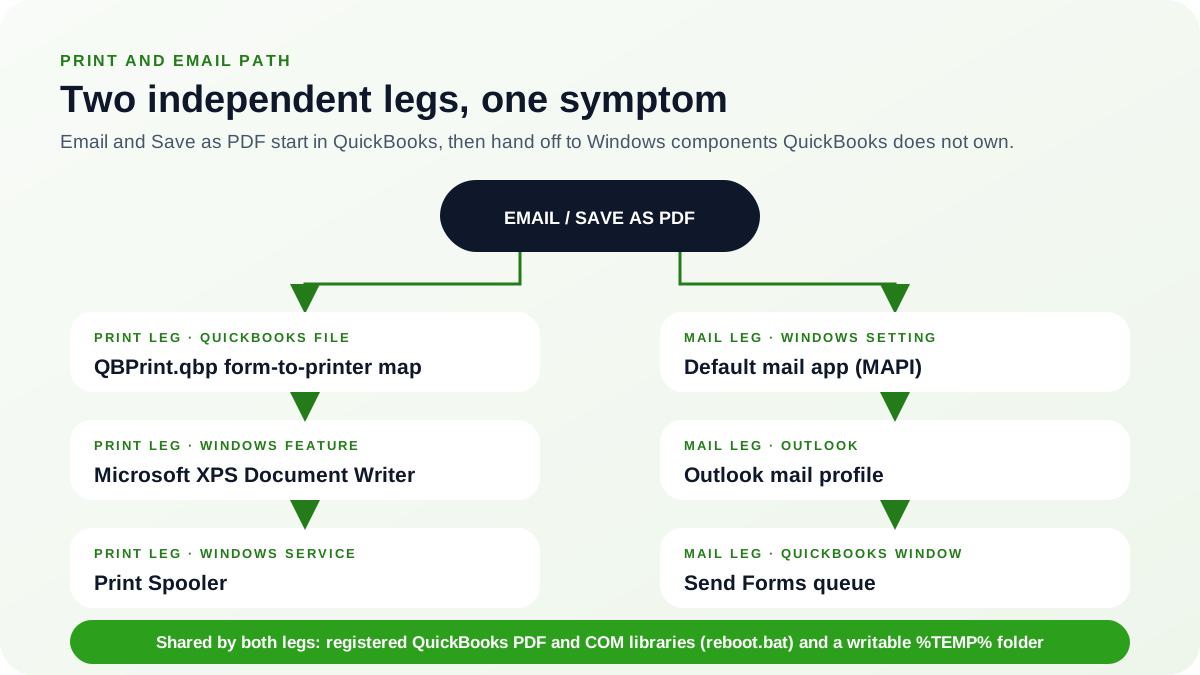
QuickBooks® relies on Windows' print subsystem (XPS) and the system's default mail client (Outlook/MAPI). If those links break—after Office/Windows updates, profile changes, or printer driver issues—QuickBooks® can't generate PDFs or hand off emails to Outlook.
Problem statement:
QuickBooks® cannot access the Windows PDF/XPS pipeline or a valid MAPI mail client (Outlook), so emailing and "Save as PDF" fail.
Error PDF/Email: PDF/Email functionality broken
QuickBooks® cannot generate PDFs or send emails through Outlook.
Symptoms:
- Email button does nothing or shows "QuickBooks® can't find your default mail program"
- Save as PDF fails or creates blank PDFs
- Dialogs freeze when choosing Email or Print
- Outlook launches but no message is created, or QuickBooks® throws a MAPI error
Resolution Steps:
- 1.Run Tool Hub → Program Problems → QuickBooks® PDF & Print Repair Tool
- 2.Set Outlook as Windows' default mail app
- 3.Reset QuickBooks®' print settings by renaming QBPrint.qbp
- 4.Verify/repair Microsoft XPS Document Writer and restart the Print Spooler
- 5.Run reboot.bat from the QuickBooks® program folder
- 6.Test email (Outlook) and Save as PDF from a sample form
Quick Fix (≈5 Minutes)
Fastest, official-first approach
Step 1: Close QuickBooks® completely
In Task Manager, end QBW32.exe if present.
Step 2: Run the PDF & Print Repair
QuickBooks® Tool Hub → Program Problems → QuickBooks® PDF & Print Repair Tool → run to completion.
Step 3: Set Outlook as default + restart Outlook
Windows Settings → Apps → Default apps → Outlook → Set default for Email.
Step 4: Reset QuickBooks® print settings
- Go to
C:\ProgramData\Intuit\QuickBooks® [Year]\ - Rename
QBPrint.qbptoQBPrint.qbp.old.
Step 5: Try again in QuickBooks®
Open a sample invoice → Email (as PDF) or Save as PDF.
If still failing, proceed to Detailed Steps.
Detailed Solution Steps
- Repair the print/PDF pipeline (XPS + Spooler).
- Tool Hub → Program Problems → QuickBooks® PDF & Print Repair Tool (re-run even if you did Quick Fix).
- Verify XPS is available:
- Windows Turn Windows features on or off → ensure Microsoft XPS Document Writer (and XPS Services, if listed) are enabled.
- Restart Print Spooler:
- Press Win + R, type
services.msc→ Print Spooler → Restart.
- Reset QuickBooks® print profile (safe).
- Path:
C:\ProgramData\Intuit\QuickBooks® [Year]\ - Rename
QBPrint.qbp→QBPrint.qbp.old. - This resets printer mappings used by QuickBooks® forms (does not affect your company data).
- Path:
- Ensure Outlook/MAPI alignment.
- Set Outlook as default mail app (Windows Default apps).
- Control Panel → Mail (Microsoft Outlook) → Show Profiles → ensure your production profile is Always use this profile.
- If Outlook is 64-bit and QuickBooks® email still fails, test with 32-bit Office (preferred by QB) when feasible.
- Clear and reset the TEMP working area (common PDF blocker).
- Press Win + R →
%TEMP%→ delete contents you can (skip locked files). - Right-click the Temp folder → Properties → Security and confirm the signed-in user has normal inherited access to create, read, write, and delete its own temporary files.
- Press Win + R →
- Re-register QuickBooks® PDF/COM components.
- Open the QuickBooks® program folder, e.g.:
C:\Program Files\Intuit\QuickBooks® 2025\(use your year).- Right-click
reboot.bat→ Run as administrator. - This re-registers QuickBooks® DLLs used for printing/emailing.
- Test with a clean scenario.
- Launch QuickBooks® → File → Open Sample Company.
- Create a test invoice → Print Preview, Save as PDF, and Email.
- In the Send Forms window, confirm the From address is the mailbox you expect and that the generated PDF is listed under Attach, then use Send Now on that single form.
- Reopen the test invoice and check its Invoice History. A dated "Emailed to" line is QuickBooks®' own record that the form left the program; without it, nothing was sent no matter what Outlook shows.
- If it works in the sample company but not yours, repeat Step 2 (QBPrint.qbp) and test from your company file again.
- (Optional) Repair Office/Outlook if email handoff still fails.
Apps & Features → Microsoft 365/Office → Modify → Quick Repair (then try Online Repair if needed).
- (Optional) Refresh per-user QuickBooks® config.
- Press Win + R →
%LOCALAPPDATA%\Intuit\QuickBooks® [Year]\ - Rename
QBWUSER.ini→QBWUSER.ini.old. - Reopen QuickBooks® (recent file list and some UI prefs will reset).
- Press Win + R →
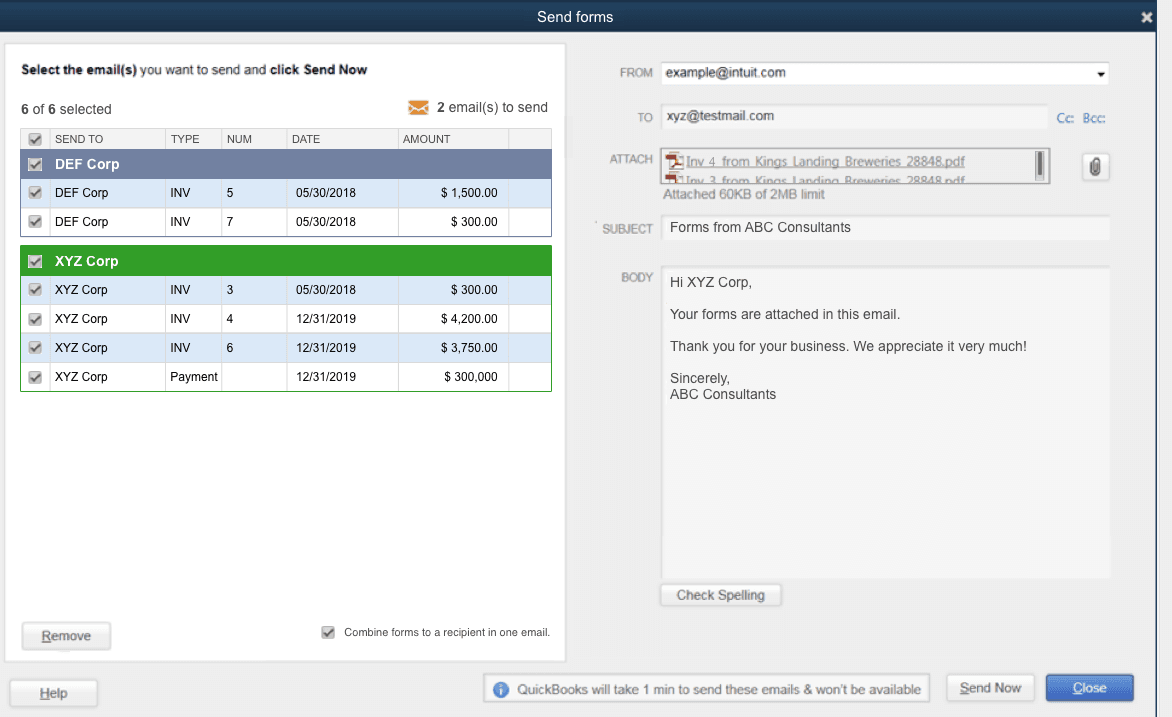
- 1The queue of forms waiting to go out, grouped by recipient. Forms marked Email Later collect here instead of sending immediately.
- 2FROM is the account QuickBooks hands the message to. If this is blank or wrong, the default mail app and Outlook profile are the things to fix, not the PDF pipeline.
- 3ATTACH lists the PDF QuickBooks generated for this form. An empty box here means the print leg failed before the mail leg was ever reached.
- 4Send Now is the retest. Run it against a single form after each repair so you know which repair worked.
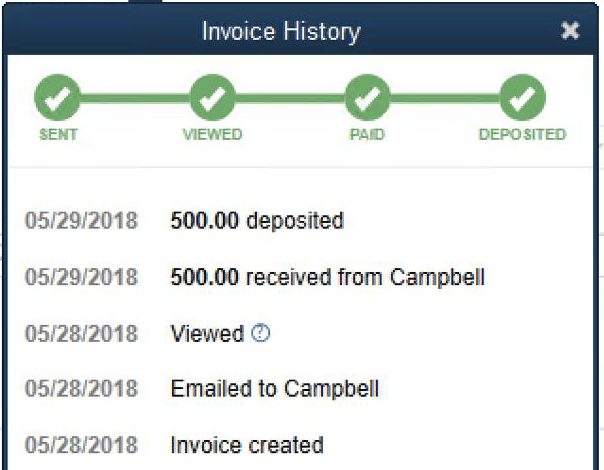
- 1SENT is the only stage in this strip that a plain emailed PDF can reach. Reaching it confirms the mail handoff completed.
- 2The dated "Emailed to" line is the evidence the form left QuickBooks. No line, no send, regardless of what Outlook appears to show.
- 3Viewed, Paid and Deposited are driven by online invoice payments, not by Outlook. Expect them to stay unlit on a form you simply emailed.
Why does this happen?
Common causes
- A Windows/Office update changed the default MAPI handler or Outlook profile
- The XPS pipeline or Print Spooler is broken/disabled
- Corrupted QBPrint.qbp mapping or per-user QuickBooks® cache
- Security products blocking QuickBooks® program/data paths during PDF generation
How to Prevent It
Best Practices
- Keep Outlook set as the default mail app (re-check after Office updates).
- Leave Microsoft XPS Document Writer enabled; avoid removing "unused" Windows features.
- Add Defender/AV exclusions for QuickBooks® program/data folders.
- Close QuickBooks® before installing Office/Windows updates; reboot after major updates.
- Periodically rename QBPrint.qbp if print/email glitches recur.
Frequently Asked Questions
Will I lose my accounting data by renaming QBPrint.qbp or QBWUSER.ini?
No. These files store print mappings and user preferences. Your .QBW company file is untouched.
Do I need admin rights?
Yes—for Tool Hub repairs, enabling Windows features (XPS), running reboot.bat, and editing ProgramData.
Where is QBPrint.qbp located?
C:\ProgramData\Intuit\QuickBooks® [Year]\QBPrint.qbp
What if I use WebMail instead of Outlook?
In Edit → Preferences → Send Forms, switch to WebMail and ensure your provider is configured. The PDF/print repairs still apply.
Related Resources
Need Professional Help?
If you're still experiencing PDF or email issues after following these steps, our QuickBooks® experts are here to help.
Get Expert Support