Export or back up the relevant data first. Do not delete, void, unreconcile, or adjust historical transactions unless you understand the accounting impact.
Menu names can change. We link current first-party instructions so you can confirm product behavior before acting.
Identify the failure before applying a fix
The statement balance in Xero differs from the bank, the same line appears more than once, or a manual import overlaps an automatic bank feed.
Record the complete message, affected organisation or company, user, date range, and last successful action. A precise symptom is more useful than trying several broad repairs at once.
Checks before changing data
- Compare the suspicious lines with the bank’s original statement; matching dates and amounts alone do not prove a duplicate.
- Check the statement-line source to see whether it came from a bank feed, a manual import, or manual reconciliation.
- Determine whether the duplicate is a bank statement line, an account transaction, or both. The correction is different for each.
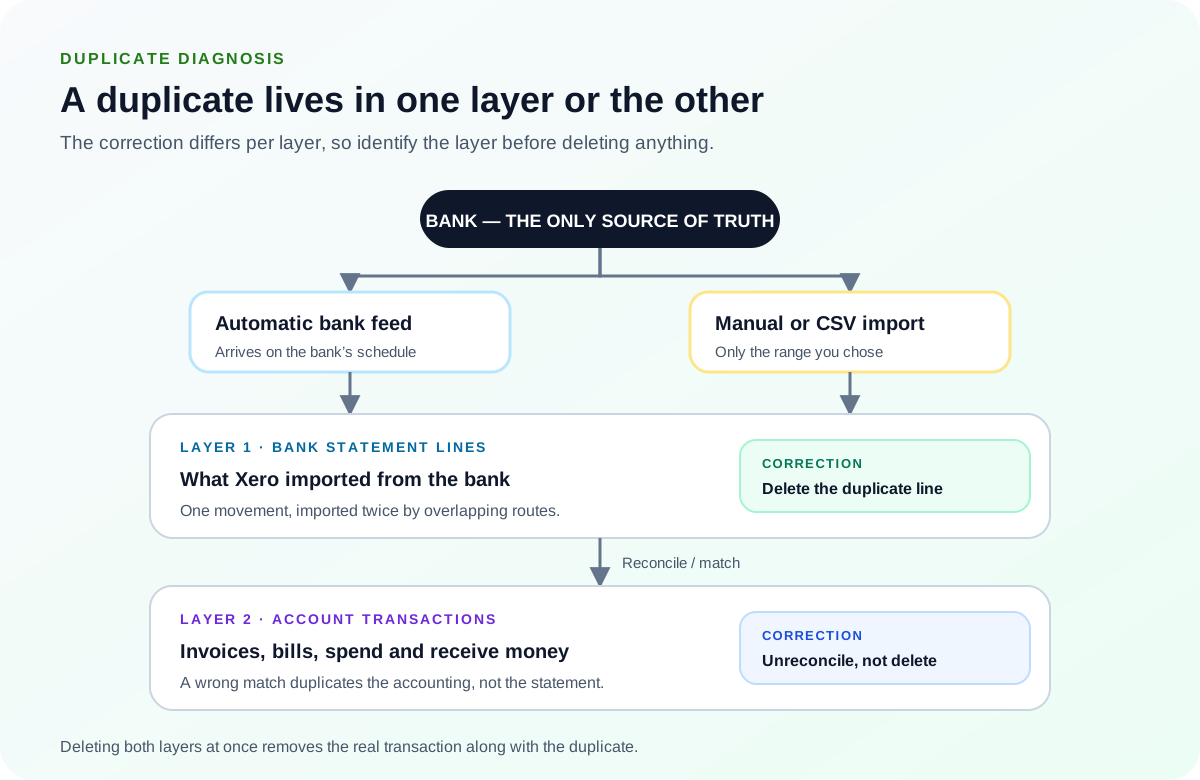
Resolution path
- Run Xero’s Duplicate Statement Lines report. Use the report for the affected account and date range, then compare every candidate with the bank’s source statement.
- Include reference, payee, amount, and date in the comparison.
- Treat partial matches as a manual-review item; the report does not catch every case.
- Delete only the confirmed duplicate statement line. Use the bank statements view to remove a duplicate line. Do not delete a legitimate line merely because an accounting transaction also exists.
- If the line is reconciled, understand which transaction becomes unreconciled.
- If an entire statement was imported twice, review Xero’s whole-statement deletion path.
- Repair any incorrect reconciliation separately. If the line was matched to the wrong transaction, use unreconcile or remove and redo according to whether the underlying transaction should remain.
- Preserve a valid invoice or bill payment when only the match is wrong.
- Do not create another spend or receive money transaction to force a match.
- Re-run the bank reconciliation reports. Confirm the statement balance, balance in Xero, and actual bank balance agree for the same date.
- Review the Statement Exceptions report.
- Document the deleted line and reason for the audit trail.
Verify the result
A disappearing error is not enough. Confirm the accounting and workflow outcome:
- Only one copy of each real bank movement remains.
- The Xero statement balance matches the bank for the same date.
- No valid invoice, bill, or payment was deleted.
What to avoid
- Deleting both the statement line and the matching accounting transaction.
- Using amount and date as the only proof of duplication.
- Re-importing the same date range before identifying the source of the first duplicate.
When to involve product support, IT, or your accountant
Stop making changes and escalate when any of these conditions applies:
- Duplicates continue arriving from the automatic feed.
- A closed or published period would be changed.
- You cannot tell which of two reconciled records is authoritative.
Bring the exact error, screenshots, affected record IDs, timestamps, product version or region, and a description of every change already attempted. That evidence shortens the support path and reduces repeated or conflicting fixes.
Optional free utilities
Tools that support this workflow
These run in your browser and can help prepare or inspect files. They do not replace reconciliation, source-document review, or an accountant’s approval.
Browse every free accounting toolSources checked
First-party product documentation used to verify the workflow and risk notes in this guide.