Understanding QuickBooks® Payroll System
The QuickBooks® Payroll system consists of several interconnected services: the payroll subscription service that validates your license, the tax calculation engine that computes withholdings, the direct deposit system that processes electronic payments, and the e-file/e-pay system that handles tax form submissions and payments to agencies. [Intuit Documentation]
Payroll Service Requirements
QuickBooks® Payroll requires an active subscription, current tax tables, stable internet connection for service validation, and proper company file configuration. Most payroll errors occur when one of these requirements is not met or when communication with Intuit servers is interrupted.
Payroll System Components
Subscription Service
Validates your payroll license with Intuit servers, manages service keys, and ensures you have access to current payroll features and tax tables.
Tax Calculation Engine
Computes federal, state, and local tax withholdings based on current tax tables, employee W-4 information, and applicable tax rules.
Direct Deposit System
Processes electronic payroll payments directly to employee bank accounts, manages bank verification, and handles payment timing.
E-file/E-pay System
Handles electronic filing of tax forms (941, 940, W-2, etc.) and electronic payment of payroll taxes to federal and state agencies.
Payroll Error Classification
QuickBooks® Payroll errors are categorized by their prefix, which indicates the affected system component:
| Error Prefix | Category | Common Causes | Severity |
|---|---|---|---|
| PS (PSXXX) | Payroll Subscription/Service | Subscription expired, validation failure, service key issues | High |
| DD (DDXXX) | Direct Deposit | Bank verification, timing issues, account problems | High |
| Tax Table | Tax Calculations | Outdated tables, download failures, version issues | Medium |
| E-file/E-pay | Electronic Filing/Payment | Agency connection, form errors, submission failures | High |
| Calculation | Paycheck Computation | Setup errors, incorrect rates, overtime issues | Medium |
PS Series: Payroll Subscription Errors
PS032, PS077, PS101, PS107, PS033 - These errors indicate problems with your payroll subscription validation, service connectivity, or billing status. They prevent payroll processing until resolved.
Impact: Cannot process payroll, update tax tables, or use any payroll features until subscription is validated.
DD Series: Direct Deposit Errors
DD001-DD099 range - These errors relate to direct deposit setup, bank account verification, payment processing, and timing issues with electronic fund transfers.
Impact: Employees may not receive direct deposit payments, requiring manual check issuance as backup.
PS032: Payroll Subscription Error
Error PS032: Payroll Subscription Validation Failed
QuickBooks® cannot verify your payroll subscription status. This error blocks all payroll functions including paycheck creation, tax calculations, and direct deposit processing until resolved.
Common Causes
- Payroll subscription has expired or been cancelled
- Billing information is outdated or payment failed
- Service key is corrupted or needs refresh
- Company file was restored from backup with old subscription data
- Multiple company files using the same EIN with different subscriptions
- Internet connectivity issues preventing validation
Resolution Steps
1Verify Subscription Status
- Log into your Intuit account at accounts.intuit.com
- Navigate to Products & Services section
- Verify your QuickBooks® Payroll subscription is active
- Check that billing information and payment method are current
- If subscription expired, renew before proceeding
2Refresh Service Key
- In QuickBooks®, go to Employees menu and select My Payroll Service
- Click Manage Service Key
- Select your payroll service and click Edit
- Verify the Service Key is correct (obtain from Intuit account if needed)
- Click Next, then Finish
- Close and reopen QuickBooks® to complete refresh
3Register Payroll Service
- Go to Employees menu and select Payroll Setup
- If prompted to register, enter your payroll service information
- Verify EIN (Employer Identification Number) matches your Intuit account
- Complete the registration wizard
- Download latest tax table after registration completes
4Clear CPS Folder (Advanced)
If steps 1-3 fail, clearing cached payroll data may resolve the issue:
- Close QuickBooks® completely
- Navigate to C:\ProgramData\Intuit\QuickBooks® [version]\Components\Payroll\CPS
- Rename the CPS folder to CPS.old
- Reopen QuickBooks® and go to Employees, Get Payroll Updates
- Click Download Entire Update
Note: Clearing the CPS folder removes cached payroll data. QuickBooks® will re-download all necessary data on next update.
PS077: Validation Error
Error PS077: Payroll Validation Error
QuickBooks® encountered a validation error while verifying your payroll subscription or data. This typically indicates a mismatch between your company file data and your Intuit account information.
Root Causes
- Company EIN does not match payroll subscription EIN
- Company name changed without updating Intuit account
- Payroll subscription transferred between company files incorrectly
- Corrupted payroll data in company file
- Firewall or security software blocking validation requests
Complete Resolution Procedure
1Verify Company Information
- Go to Company menu, then My Company
- Click pencil icon to edit company information
- Verify Legal Name and EIN are exactly correct
- Compare with your Intuit account company information
- Correct any discrepancies and save changes
2Re-validate Payroll Subscription
- Go to Employees menu, select My Payroll Service
- Click Account/Billing Information
- Sign in with your Intuit credentials
- Verify subscription details match your company
- If prompted to update, complete the validation process
3Run Verify and Rebuild
- Create a backup of your company file first
- Go to File menu, then Utilities, then Verify Data
- If errors found, run File, Utilities, Rebuild Data
- After rebuild completes, run Verify Data again
- Attempt payroll operation after successful verification
4Check Firewall Settings
Ensure firewall allows QuickBooks® to communicate with Intuit servers:
# Allow outbound connections to:
payroll.intuit.com
*.quickbooks.com
*.intuit.com

# Required ports: 443 (HTTPS), 80 (HTTP redirect)
PS101/PS107: Service Connection Errors
PS101/PS107: Cannot Connect to Payroll Service
QuickBooks® cannot establish a connection to the Intuit payroll servers. These errors indicate network connectivity issues, server unavailability, or local configuration problems.
PS101 vs PS107
PS101
Meaning: Initial connection to payroll service failed
Typically indicates network-level issues, DNS failures, or server unavailability
PS107
Meaning: Connection timeout during payroll operation
Often indicates slow network, server overload, or interrupted connection
Network Troubleshooting
1Test Internet Connectivity
# Test general internet
ping google.com

# Test Intuit servers
ping payroll.intuit.com
nslookup payroll.intuit.com

# Test HTTPS connectivity
curl -I https://payroll.intuit.com
If ping fails or shows high latency, resolve network issues before proceeding.
2Reset Internet Explorer Settings
QuickBooks® uses Internet Explorer settings for secure connections:
- Open Internet Explorer (or Internet Options in Control Panel)
- Go to Advanced tab
- Click Restore advanced settings
- Ensure TLS 1.2 is enabled under Security section
- Click Apply, then OK
- Restart QuickBooks® and retry payroll operation
3Review Security Software Without Disabling It
- Record the time and exact payroll action that fails
- Ask the security administrator to inspect block, quarantine, and firewall logs for that time
- Confirm the blocked file is Intuit-signed and belongs to the installed QuickBooks® version
- Apply only the current vendor-documented exception required for that file, service, or destination
- Retest once and record whether the same event is still blocked
Security note: Keep endpoint protection and firewalls enabled. Broad exclusions and blanket allow rules can expose payroll data and do not identify the actual blocked dependency.
4Check for Server Status
Verify Intuit services are operational:
- Visit QuickBooks Status for service status
- Check if QuickBooks® Payroll services show any outages
- If outage reported, wait for Intuit to resolve and retry later
- Subscribe to status notifications for future awareness
PS033: Billing Information Error
PS033: Billing or Payment Issue
Your payroll subscription billing information needs attention. This may indicate an expired credit card, failed payment, or billing address mismatch.
Resolution: Update billing information in your Intuit account at accounts.intuit.com
Resolution Steps
- 1Log into Intuit Account
Visit accounts.intuit.com and sign in with your credentials
- 2Navigate to Billing & Subscriptions
Find your QuickBooks® Payroll subscription under Products & Services
- 3Update Payment Method
Add a new card or update existing payment information
- 4Process Any Outstanding Payments
Clear any failed payment attempts to reactivate subscription
- 5Refresh Service in QuickBooks®
Go to Employees, Get Payroll Updates, Download Entire Update
Direct Deposit Errors (DD Series)
Direct Deposit errors prevent electronic payment of employee wages. These errors require prompt attention to ensure employees receive their pay on time.
DD001-DD020: Bank Verification Issues
Meaning: Problems verifying bank account information for direct deposit
Common Causes:
- Incorrect routing number or account number
- Bank account closed or frozen
- Account holder name mismatch
- Bank does not accept ACH transactions
Resolution:
- Verify routing and account numbers with employee
- Confirm account is open and accepts ACH deposits
- Update employee record with correct information
- Request new prenote verification if needed
DD021-DD040: Timing and Cutoff Issues
Meaning: Payroll submitted too late for requested pay date
Direct Deposit Cutoff Times:
| Pay Date | Submit By |
|---|---|
| Monday | Thursday 5:00 PM PT (previous week) |
| Tuesday | Friday 5:00 PM PT (previous week) |
| Wednesday | Monday 5:00 PM PT |
| Thursday | Tuesday 5:00 PM PT |
| Friday | Wednesday 5:00 PM PT |
Resolution: Process payroll earlier or select a later pay date to meet cutoff requirements.
DD041-DD060: Funding Account Issues
Meaning: Problems with your company bank account used to fund payroll
Common Causes:
- Insufficient funds in funding account
- Funding account information changed
- Bank declined ACH debit
- Account requires re-verification
Resolution:
- Ensure adequate funds available before payroll date
- Verify funding account details are current in QuickBooks®
- Contact bank if ACH debits are being blocked
- Re-verify account through Employees menu if needed
Tax Table Update Errors
Tax Tables Must Be Current
Outdated tax tables result in incorrect withholding calculations, potentially causing compliance issues with the IRS and state agencies. Download updates at least weekly during payroll processing periods.
Common Tax Table Errors
Tax Table Download Failed
QuickBooks® cannot download tax table updates from Intuit servers.
Resolution Steps:
- Check internet connectivity
- Verify payroll subscription is active
- Go to Employees menu and Get Payroll Updates
- Select Download Entire Update (not just changes)
- If fails, clear CPS folder and retry (see PS032 section)
Tax Table Version Mismatch
QuickBooks® version is incompatible with current tax tables.
Resolution Steps:
- Check your QuickBooks® Desktop version (Help, About QuickBooks®)
- Update QuickBooks® to latest release (Help, Update QuickBooks® Desktop)
- After update, download payroll updates again
- Older QuickBooks® versions may no longer receive tax table updates
Note: Intuit typically supports tax tables for the current year plus two previous years of QuickBooks® Desktop. Older versions require upgrade.
Manual Tax Table Download
If automatic download fails repeatedly, you can manually download tax tables:
- Visit Intuit Tax Table Download Page
- Select your QuickBooks® version and year
- Download the tax table file
- In QuickBooks®, go to Employees, Get Payroll Updates
- Click Import and select the downloaded file
E-file/E-pay Errors
E-file and E-pay errors prevent electronic submission of tax forms and payments to federal and state agencies. These errors must be resolved promptly to avoid penalties.
Form Filing Errors
Common E-file Form Errors:
- Invalid EIN: Employer Identification Number does not match IRS records
- Name Mismatch: Company name differs from IRS registration
- Missing Information: Required fields not completed
- Duplicate Filing: Form already submitted for this period
Resolution:
- Verify company EIN and name match IRS Letter 147C
- Complete all required form fields
- Check filing history to avoid duplicate submissions
- Contact IRS Business Line (800-829-4933) for EIN issues
Payment Submission Failures
E-pay Error Types:
- EFTPS Enrollment: Not enrolled in Electronic Federal Tax Payment System
- PIN Required: EFTPS PIN not configured in QuickBooks®
- Bank Account Error: Payment account not verified
- Amount Mismatch: Payment does not match liability
Resolution:
- Enroll in EFTPS at eftps.gov if not enrolled
- Enter EFTPS PIN in QuickBooks® (Employees, Payroll Taxes)
- Verify bank account for tax payments
- Review liability reports to ensure correct payment amounts
Agency Connection Issues
QuickBooks® cannot connect to state or federal agency servers for e-filing or e-payment.
Resolution:
- Check the official QuickBooks Status page
- Verify internet connectivity
- Try again during off-peak hours
- If agency site is down, retry later or file manually as backup
- Document error for records if deadline may be missed
Paycheck Calculation Errors
Calculation errors result in incorrect employee pay, wrong tax withholdings, or improper deductions. These issues require careful review and correction.
Tax Calculation Issues
- - Federal withholding too high or low
- - State tax not calculating
- - Social Security/Medicare incorrect
- - Local tax missing or wrong
Check: Employee W-4 settings, tax table version, work location
Deduction Problems
- - 401(k) not deducting correctly
- - Health insurance wrong amount
- - Garnishments miscalculated
- - Pre-tax vs post-tax errors
Check: Payroll item setup, employee deduction settings
Overtime Calculation
- - Overtime not triggering at 40 hours
- - Wrong overtime rate applied
- - Double-time not calculating
- - State-specific OT rules ignored
Check: Employee overtime settings, state OT preferences
Pay Rate Issues
- - Hourly rate not updated
- - Salary amount incorrect
- - Commission not calculating
- - Bonus taxed incorrectly
Check: Employee pay rate settings, payroll item types
Troubleshooting Calculation Errors
- 1Review Employee Record
Go to Employees, Employee Center, double-click employee. Check Payroll Info tab for pay rates, deductions, and tax settings.
- 2Verify Payroll Items
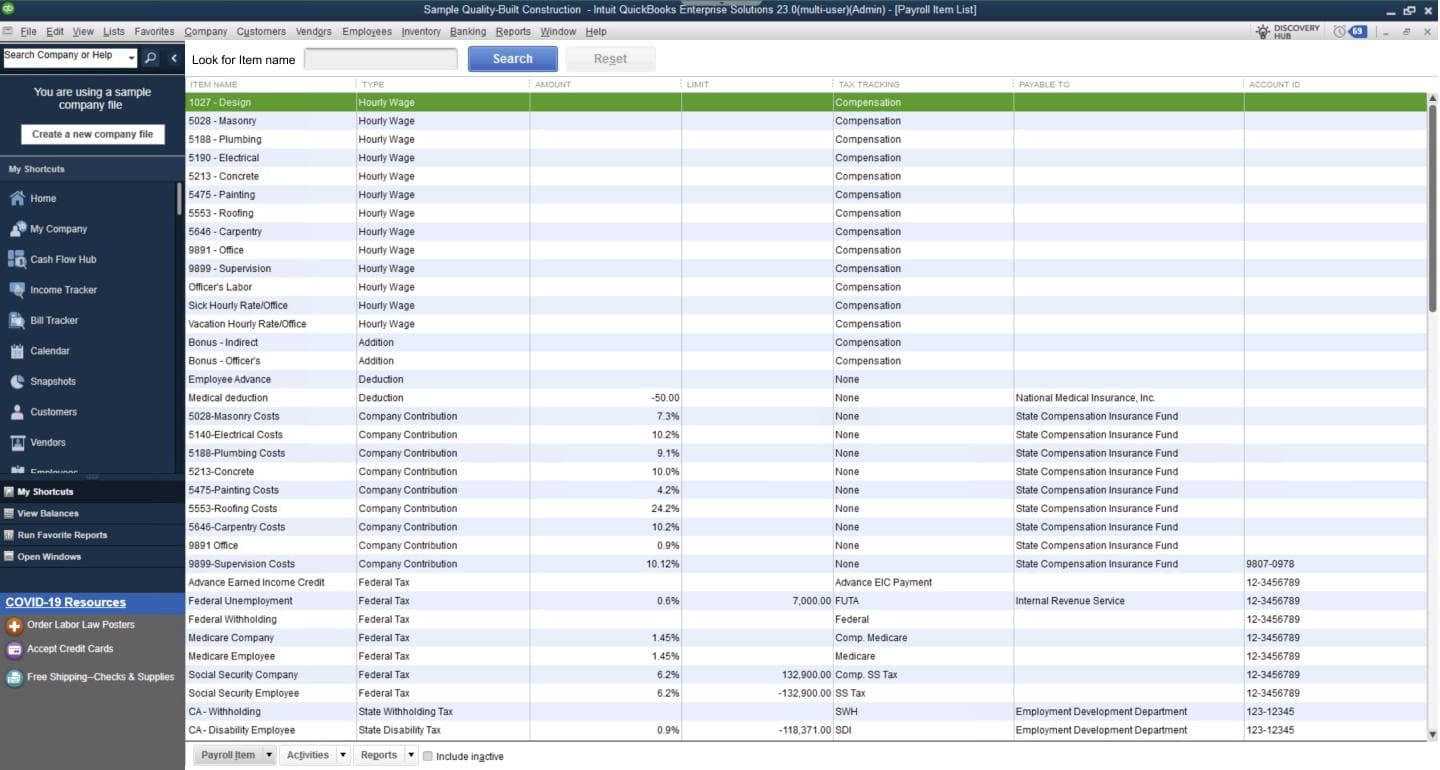
Go to Lists, Payroll Item List. Review setup of items used in paycheck to ensure correct types and rates.
- 3Check Tax Tables
Ensure tax tables are current (Employees, Get Payroll Updates, check version date).
- 4Run Payroll Checkup
Go to Employees, My Payroll Service, Run Payroll Checkup to identify and fix common issues.
Employee Setup Issues
Incorrect employee setup causes recurring payroll errors. Proper configuration at the time of hire prevents most calculation issues.
Employee Setup Checklist
Required information: Legal name, SSN, address, W-4 filing status and allowances, state tax forms, pay rate and type, pay frequency, direct deposit info, deductions setup, and work location for multi-state employers.
Common Setup Errors
| Setup Error | Symptom | Fix |
|---|---|---|
| Wrong filing status | Federal tax too high/low | Update W-4 info in employee record |
| Missing state setup | No state tax withheld | Add state tax item to employee |
| Wrong pay frequency | Incorrect annual calculations | Correct pay schedule assignment |
| Deduction not added | Missing 401k, insurance | Add deduction items to employee |
| Exempt status error | Tax withheld for exempt employee | Update exemption settings |
Using Payroll Setup Wizard
The Payroll Setup Wizard guides you through initial payroll configuration and can help identify setup issues in existing payroll.
- 1Access the Wizard
Go to Employees menu, then Payroll Setup to launch the wizard
- 2Company Setup
Verify company information, EIN, and tax filing status
- 3Compensation and Benefits
Set up pay types (salary, hourly, commission) and benefits (insurance, retirement)
- 4Employee Setup
Add employees with tax information, pay rates, and deductions
- 5Tax Setup
Configure federal and state tax accounts and deposit schedules
- 6Year-to-Date Payroll
Enter YTD amounts if switching mid-year from another system
Verifying Payroll Data
Regular verification of payroll data helps identify errors before they cause problems with paychecks or tax filings.
Payroll Verification Reports
Payroll Summary Report
Shows totals by employee for wages, taxes, and deductions
Reports menu, Employees & Payroll, Payroll Summary
Payroll Liability Balances
Shows unpaid tax liabilities by type
Reports menu, Employees & Payroll, Payroll Liability Balances
941/940 Preview
Preview quarterly tax form data before filing
Employees menu, Payroll Tax Forms & W-2s
Employee Earnings Summary
Detailed breakdown of each employee's earnings
Reports menu, Employees & Payroll, Employee Earnings Summary
Run Payroll Checkup
QuickBooks® Payroll Checkup analyzes your payroll data for common errors:
- Go to Employees menu
- Select My Payroll Service
- Click Run Payroll Checkup
- Review identified issues and follow resolution steps
- Re-run after corrections to verify fixes
Prevention and Best Practices
Before Each Payroll
- - Download latest tax table updates
- - Review employee changes (new hires, terminations)
- - Verify hours and salary data
- - Check for pending direct deposit deadlines
Monthly Tasks
- - Reconcile payroll liability accounts
- - Verify tax deposits made on time
- - Review payroll reports for anomalies
- - Backup company file after payroll
Quarterly Tasks
- - File 941 federal tax return
- - File state quarterly returns
- - Run Payroll Checkup utility
- - Review YTD totals for accuracy
Annual Tasks
- - Verify W-2 data before printing
- - File 940 annual FUTA return
- - Update employee W-4s as needed
- - Review benefit and deduction limits
Key Prevention Tips
Keep your payroll subscription active, maintain current tax tables, process payroll with enough lead time for direct deposits, and back up your company file before and after each payroll run.
Quick Reference Troubleshooting Matrix
| Error | Quick Fix | Time |
|---|---|---|
| PS032 | Refresh service key, verify subscription | 15-30 min |
| PS077 | Verify EIN, re-validate subscription | 15-30 min |
| PS101/PS107 | Check internet, firewall, server status | 10-20 min |
| PS033 | Update billing info in Intuit account | 10-15 min |
| DD errors | Verify bank info, check timing | 15-45 min |
| Tax table | Download entire update, clear CPS | 10-20 min |
| E-file/E-pay | Verify EIN, check EFTPS enrollment | 20-60 min |
| Calculation | Review employee setup, payroll items | 15-45 min |
When to Contact Payroll Support
Contact Intuit Payroll Support when standard troubleshooting does not resolve the issue:
Contact Immediately
- - Direct deposit funds withdrawn but not delivered
- - Tax payment made in error
- - Duplicate payroll processed
- - Suspected fraud or unauthorized access
Contact Within 24 Hours
- - PS errors not resolved by standard steps
- - Cannot process payroll with deadline approaching
- - E-file rejection with unclear error message
- - Subscription issues preventing payroll
Intuit Payroll Support Contact
- Phone: 1-800-446-8848
- Hours: Monday-Friday 6:00 AM - 6:00 PM PT, Saturday 6:00 AM - 3:00 PM PT
- Online: quickbooks.intuit.com/learn-support
Have ready: Company file, EIN, error message screenshots, steps already attempted
Frequently Asked Questions
Q: What happens if I miss a direct deposit deadline?
A: Employees set up for direct deposit will not receive electronic payment for that pay period. You will need to issue manual checks or select a later pay date. To avoid this, always process payroll at least 2 business days before the direct deposit cutoff time for your desired pay date.
Q: How often should I download tax table updates?
A: Download tax table updates at least weekly during periods when you process payroll. Critical updates are released when tax rates change (typically January, July for some states). QuickBooks® displays a notification when updates are available.
Q: Can payroll errors cause IRS penalties?
A: Yes. Incorrect tax withholding, late tax deposits, or erroneous tax filings can result in IRS penalties. The IRS may assess penalties for failure to deposit (up to 15%), failure to file (5% per month up to 25%), and accuracy-related penalties. Maintaining current tax tables and meeting filing deadlines is essential.
Q: What if my payroll subscription expires mid-payroll?
A: You cannot process new paychecks or file/pay taxes electronically without an active subscription. Renew immediately through your Intuit account. In emergencies, you may need to calculate payroll manually and file taxes directly with agencies while resolving the subscription issue.
Q: How do I fix a paycheck that was already issued with errors?
A: You cannot edit a paycheck after it is created. Instead, void the incorrect paycheck (Employees, Edit/Void Paychecks) and create a new correct paycheck. For direct deposits already submitted, contact Intuit immediately. Adjust year-to-date amounts if needed for accurate W-2 reporting.
Q: Why is my employee's federal tax withholding zero?
A: Check the employee's W-4 settings. They may have claimed exempt status, or their earnings may be below the withholding threshold based on their filing status and allowances. Review their Payroll Info tab and verify the Federal Withholding settings match their submitted W-4 form.
References and Resources
These sources were reviewed when the guide was updated:
Conclusion
QuickBooks® Payroll errors require prompt attention due to their direct impact on employee compensation and tax compliance. Understanding the error classification system, following systematic troubleshooting procedures, and maintaining preventive practices ensures reliable payroll processing.
Key Takeaways
Need Expert Payroll Error Resolution?
For complex payroll issues, tax filing problems, or urgent payroll errors affecting employee pay, Prime Connect provides expert QuickBooks® Payroll support and troubleshooting services.
Contact Prime Connect for Payroll Support