Export or back up the relevant data first. Do not delete, void, unreconcile, or adjust historical transactions unless you understand the accounting impact.
Menu names can change. We link current first-party instructions so you can confirm product behavior before acting.
Quick answer
Start by defining the legal entity, tax registrations, fiscal year, accounting method, reporting needs, users, sales cycle, purchasing cycle, bank accounts, payroll, inventory, projects, and integrations. Choose the QuickBooks product and plan only after that requirements list is complete.
For a small QuickBooks Online company, configure the company identity and accounting settings first, design a compact chart of accounts, select a clean conversion date, enter reconciled opening balances, then add customers, vendors, products, services, sales, purchasing, banking, and users. Test one complete transaction cycle before importing history or connecting automation.
Workflow map
The first clean month in QuickBooks
Choose by required workflow, configure from approved facts, prove the opening position, then turn on automation.
- 1
Choose
Confirm entity, users, features, transaction limits, integrations, payroll, inventory, and reporting needs.
Evidence: Requirements scorecard, not a price-only decision.
- 2
Configure
Set company, tax, accounts, products, customers, suppliers, users, and document controls.
Evidence: Responsible accountant reviews accounting settings.
- 3
Open
Enter reconciled balances and open documents at one controlled conversion date.
Evidence: Source close equals QuickBooks opening.
- 4
Operate
Connect banks and apps, process transactions, reconcile, review reports, and close the period.
Evidence: First-month control pack is signed off.
Choose QuickBooks around the business model, not the plan name
Product names, feature bundles, limits, and prices change. The official Intuit documentation reviewed for this guide currently describes these important boundaries:
- QuickBooks Solopreneur: designed for a one-person business with Schedule C-oriented organization and predefined categories. Intuit points users who need a customizable chart of accounts toward QuickBooks Online Simple Start.
- QuickBooks Online Simple Start: currently supports one billable user, two accounting-firm users, up to 250 chart-of-accounts entries, and one custom field per transaction. It does not include class or location tracking.
- Essentials: adds capacity and features useful when more users, bill management, recurring transactions, or multicurrency are required.
- Plus: is the first current Online tier documented for inventory, classes and locations, Projects, and budgets.
- Advanced: expands user and list capacity and adds higher-control or higher-volume capabilities.
Confirm the current first-party plan documentation before purchase or downgrade. Do not target the cheapest plan if the business requires job costing, budgets, inventory, departments, locations, more users, or controls that the plan cannot support.
Use a requirements test
- How many employees, owners, bookkeepers, approvers, and accountants need access?
- Does the business sell now and get paid later, or collect at the point of sale?
- Does it buy now and pay later?
- Does it need inventory, project profitability, budgets, recurring transactions, multicurrency, classes, or locations?
- Which payroll, tax, payment, ecommerce, bank, and operational systems must connect?
- What reports must be produced by entity, department, location, project, fund, customer, or product?
Design the accounting model before creating lists
Document these decisions with the responsible accountant:
- Legal name, tax identity, entity type, home currency, fiscal year, and accounting method.
- Conversion date and the last closed period in the prior system.
- Chart-of-accounts structure and account-number convention.
- Customer, vendor, product, service, class, location, and project naming rules.
- Sales tax, payroll tax, payment processing, inventory, fixed assets, loans, owner equity, and intercompany treatment.
- Who prepares, approves, pays, reconciles, reviews, closes, and administers each workflow.
- What history will migrate and what will remain in a read-only archive.
Avoid copying every legacy account and list entry. Keep the chart compact enough to review, but detailed enough to support financial statements, tax preparation, operating decisions, and required controls.
Configure company and accounting settings first
- Enter the company identity. Enter the legal and customer-facing company information in the appropriate fields.
- Confirm the entity and tax form. Confirm tax form or entity settings with the tax professional.
- Set the year and basis. Set the fiscal-year start and default accounting method.
- Review the transaction settings. Review invoice, sales, expense, bill, payment, tax, and time settings before turning features on.
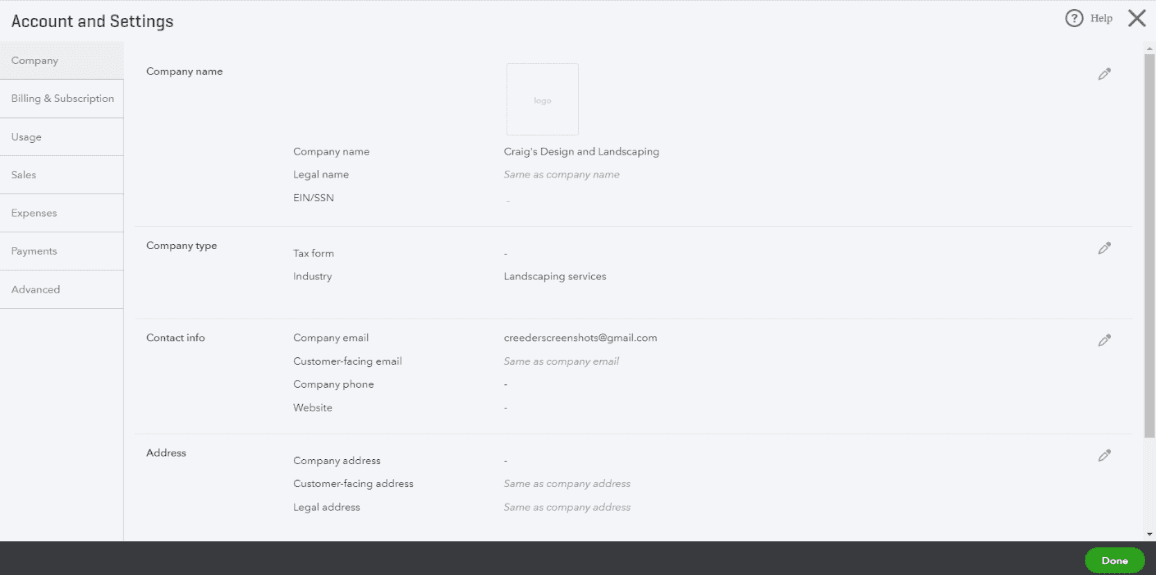
- 1Company is the tab open here, and it holds none of the transaction settings. Everything on the right of this frame is identity and contact detail, which is why reviewing "settings" from this screen alone misses most of them.
- 2Sales carries invoice content, terms, numbering, progress invoicing, and the sales-form fields. Expenses, directly beneath it, carries the bill, purchase-order, and vendor-side equivalents. These two tabs are the transaction settings this step asks for.
- 3Advanced holds the fiscal year, accounting method, close-the-books date, and the feature switches. Several of its options are one-way doors, so read it before turning anything on.
- 4Each block is opened for editing by its own pencil. Reviewing means reading these values against registration documents and the tax adviser’s instruction; changing one is a separate, deliberate act.
- Define terms and numbering. Define customer terms, vendor terms, numbering conventions, and duplicate-number warnings.
- Turn on only what is needed. Turn on classes, locations, projects, inventory, multicurrency, custom fields, or other features only when the plan and accounting design require them.
- Note the one-way doors. Document any setting that cannot be reversed or that blocks a later downgrade.
Menu names can vary as Intuit updates navigation. Use in-product search and the current first-party instructions linked below instead of relying on screenshots alone.
Build a chart of accounts that explains the business
The chart of accounts determines how transactions reach the Balance Sheet and Profit and Loss. Account type and detail type affect reporting, so select them for accounting meaning rather than convenience.
A practical starting structure
- Assets: bank accounts, receivables, inventory if used, prepayments, deposits, fixed assets, and accumulated depreciation.
- Liabilities: payables, credit cards, payroll and sales-tax liabilities, loans, customer deposits or deferred revenue where appropriate.
- Equity: entity-appropriate owner capital, contributions, draws or distributions, retained earnings, and current-year earnings.
- Income: meaningful revenue streams that management can explain and reconcile.
- Cost of sales: direct materials, labor, subcontractors, merchant or fulfillment costs, and other direct costs where appropriate.
- Operating expense: payroll, occupancy, technology, insurance, professional fees, marketing, travel, supplies, and other controllable categories.
Do not post ordinary transactions directly to control accounts such as accounts receivable, accounts payable, payroll liabilities, sales-tax payable, inventory, or retained earnings unless the product workflow and responsible accountant require it. Use the free Chart of Accounts Generator to prototype a structure, then review every account, type, and mapping before import.
Enter opening balances from a reconciled conversion package
- Close the prior system. Close and reconcile the prior system through the selected conversion date.
- Keep the conversion package. Save the final trial balance, Balance Sheet, Profit and Loss, bank reconciliations, receivable aging, payable aging, inventory, fixed-asset, loan, payroll, tax, and equity schedules.
- Map the old chart. Map old accounts to the approved new chart and document every merge, split, or discontinued account.
- Enter the balances in detail. Enter opening balances using the correct detail workflow for customers, vendors, inventory, payroll, sales tax, loans, and other control accounts.
- Tie back to the package. Reconcile the opening trial balance and each supporting schedule to the signed conversion package.
- Clear Opening Balance Equity. Resolve any Opening Balance Equity amount before normal operations begin.
Do not force a bank opening balance to match by changing prior reconciled transactions. The bank register, external statement, outstanding items, and conversion date must agree as one reconciliation.
Test the complete sales and purchasing cycles
Sales cycle
- Set up the test records. Create a test customer and product or service with the approved income and tax mapping.
- Raise the sales form. Create an invoice for pay-later sales or a sales receipt for an immediate sale.
- Take the payment once. Receive the payment against the invoice only once.
- Build the deposit. Group payments or processor settlements so the deposit matches the bank.
- Check the sales result. Review customer balance, receivables, revenue, tax, undeposited funds, deposit, and reports.
Purchasing cycle
- Set up the test vendor. Create a test vendor and confirm expense, cost, item, tax, customer, project, and approval fields.
- Raise the purchase form. Enter a bill for a cost paid later or an expense/check for an immediate payment.
- Pay through the bill workflow. Pay an existing bill through the bill-payment workflow, not a second expense.
- Check the purchasing result. Review vendor balance, payables, expense or asset classification, payment, and reports.
Run these tests before connecting apps or importing live history. A mapping defect repeated by automation can affect hundreds of transactions before the first month-end review.
Connect banking only after the ledger is ready
- Confirm the legal account owner, last reconciled date, statement balance, and existing register balance.
- Select a non-overlapping download start date.
- Connect or import one account at a time.
- Match downloaded activity to existing invoices, payments, deposits, bills, expenses, checks, and transfers before adding anything new.
- Test bank rules with review enabled and a narrow scope.
- Reconcile to the first external statement after conversion.
Preserve every original import file and record its date range and control totals. The free Duplicate Transaction Detector, Bank CSV Cleaner, and File Format Detector can support file review, but they do not replace a statement reconciliation.
Set named access and close controls before handoff
- Keep the primary administrator identity controlled and recoverable.
- Give every person an individual login and least-privilege role.
- Invite the accountant through the accountant-user workflow instead of sharing credentials.
- Separate preparation, approval, payment, banking, reconciliation, and administrator duties where staffing permits.
- Review connected apps and revoke unused access.
- Use a month-end checklist with preparer and reviewer sign-off.
- Set or advance the close date after the approved reporting pack is retained.
Intuit currently states that invited accountant users do not count toward the normal subscription user limit. Confirm the current role behavior and review accountant access whenever firms or staff change.
Do not go live until the setup passes these checks
- Legal company, fiscal year, accounting basis, and tax settings are approved.
- The plan supports the required users, lists, dimensions, inventory, projects, budgets, and integrations.
- The chart of accounts is mapped and reviewed.
- Opening trial balance and every control-account schedule agree to the conversion package.
- Sales, payment, deposit, purchasing, bill-payment, bank, refund, and credit workflows pass end-to-end tests.
- Bank downloads begin after the last imported or reconciled transaction.
- Users and apps have only approved access.
- Profit and Loss, Balance Sheet, receivable aging, payable aging, bank reconciliation, and audit log have been reviewed.
- The first month-end close has an owner, due date, checklist, evidence folder, and reviewer.
A setup is complete when a qualified reviewer can trace opening balances to the prior system, follow one transaction through every step, reproduce the core reports, and understand who controls each exception and approval.
Optional free utilities
Tools that support this workflow
These run in your browser and can help prepare or inspect files. They do not replace reconciliation, source-document review, or an accountant’s approval.
Sources checked
First-party product documentation used to verify the workflow and risk notes in this guide.
- Learn about usage limits in QuickBooks OnlineIntuit QuickBooks Support · Checked August 11, 2026
- Introduction to QuickBooks SolopreneurIntuit QuickBooks Support · Checked August 11, 2026
- Chart of accounts in QuickBooks OnlineIntuit QuickBooks Support · Checked August 11, 2026
- Add and manage users in QuickBooks OnlineIntuit QuickBooks Support · Checked August 11, 2026
- How to enter closing and password protect datesIntuit QuickBooks Support · Checked August 11, 2026