Performance isolation map
Measure before and after every performance change
Slow startup, reports, lists, and multi-user work can come from different layers. A timed baseline prevents guesswork.
- 1
Baseline
Time one repeatable task and record file, user, workstation, and release.
Evidence: Use the same report, date range, and company file for each comparison.
- 2
Isolate
Compare local versus network, sample versus live file, and another workstation.
Evidence: Identify whether the bottleneck follows the file, path, user, or machine.
- 3
Correct
Apply the lowest-risk change to the measured layer.
Evidence: Preserve backups and change one variable at a time.
- 4
Validate
Repeat the baseline and check accounting integrity.
Evidence: Record improvement and verify reports, balances, and multi-user behavior.
QuickBooks® Performance Issues Overview
Common Performance Problems
Searching the List Takes Forever
10+ minutes to find customers or items
Slow Report Generation
Reports take minutes to load
General Sluggishness
Everything feels slow
Root Causes
Large Company Files (> 200MB)
File size directly impacts performance
As transactions accumulate over years, company files can grow to 500MB-2GB. Large files slow down every operation. Solution: Condense data or create year-end archives.
Huge Lists (10,000+ Items/Customers)
List searches become exponentially slower
Each additional list item increases search time. Companies with 20,000+ customers or items experience the dreaded "Searching the List" delay. Solution: Merge duplicates, make items inactive, optimize list structure.
Network Latency in Multi-User Mode
Remote users experience severe lag
Network-hosted files require constant server communication. WiFi, VPN, or slow networks amplify delays. Solution: Optimize network settings, use wired connections, implement caching.
Establish a Performance Baseline
Measure the same startup, search, report, and save actions before changing the workstation or company file. A repeatable baseline shows which change actually helped.
- 1Record a Repeatable Baseline
Measure the slow actions without deleting application or Windows data
Use a representative company file and record:
Baseline Checklist1. Time QuickBooks startup to No Company Open2. Time opening the same company file3. Time one list search and one saved report4. Record active users, file location, file size, CPU, memory, and disk latency5. Repeat each measurement after one controlled changeExpected result: A before-and-after record that identifies whether a change improved the actual slow operation.
- 2Disable Auto-Update During Work Hours
Prevent background updates from consuming resources
- 1. Open QuickBooks® → Edit → Preferences
- 2. Select "Update QuickBooks® Desktop" → "Options" tab
- 3. Uncheck "Automatic Update"
- 4. Click OK
Manual Updates
Schedule manual updates during off-hours (evenings/weekends) to avoid performance impact during work. - 3Optimize Display Settings
Reduce visual effects for better performance
- 1. Edit → Preferences → Desktop View → My Preferences
- 2. Set "View" to "1 Window" (not Multiple Windows)
- 3. Uncheck "Show Home page when opening company file"
- 4. Edit → Preferences → Reminders → My Preferences
- 5. Uncheck all reminder types you don't need
- 6. Click OK
Retest Each Change
Fix "Searching the List" Delays
The Most Complained About Issue:
"Searching the List" that takes 5-10 minutes when trying to enter a customer or item is the #1 performance complaint from QuickBooks® users. This section solves it.
Why This Happens
QuickBooks® loads entire lists into memory when you access dropdown menus. With 10,000+ customers or items, this creates massive delays. The more inactive or duplicate entries, the worse it gets.
- 1Make Inactive Items/Customers Inactive
Reduce active list sizes dramatically
QuickBooks® searches only active entries by default. Making old customers/items inactive speeds up searches:
- 1. Lists → Customer:Job List
- 2. Identify customers with no activity in 12+ months
- 3. Right-click customer → Make Inactive
- 4. Repeat for Items (Lists → Item List)
- 5. Repeat for Vendors (Lists → Vendor Center)
Massive Impact
Large inactive lists can slow search and selection. Make only genuinely unused customers inactive. This is the single most effective optimization. - 2Merge Duplicate Entries
Eliminate redundant customers and items
Duplicates bloat lists and confuse searches:
- 1. Lists → Customer:Job List
- 2. Look for duplicates (same name, slight variations)
- 3. For each duplicate:
- Edit the entry you want to keep
- Note the exact name
- Edit the duplicate entry
- Change name to exactly match the keeper
- QuickBooks® will prompt to merge → Click Yes
- 4. Repeat for items and vendors
Example:
Duplicate: "ABC Company", "ABC Co", "ABC Company Inc"Merge all to: "ABC Company" - 3Optimize List Display Settings
Reduce what QuickBooks® loads during searches
- 1. Edit → Preferences → Desktop View → Company Preferences
- 2. Under "Windows Settings":
- Uncheck "Show Tooltips for clipped text"
- Uncheck "Show Account Numbers"
- 3. Edit → Preferences → Items & Inventory → Company Preferences
- 4. Uncheck "Show quantity available" (if not using inventory)
- 5. Click OK
- 4Use Type-Ahead Search Properly
Use QuickBooks® built-in quick search
Instead of opening full dropdown lists, use type-ahead search:
Technique:
- 1. In Customer field, start typing name immediately
- 2. Don't click dropdown - just type first few letters
- 3. QuickBooks® will filter results as you type
- 4. Press Tab or Enter when match appears
This avoids scrolling the entire list. Compare the same search before and after other changes to measure whether it improved.
Company File Optimization
- 1Run Verify and Rebuild Data Utilities
Fix internal file corruption and optimize structure
QuickBooks® includes built-in utilities to check and repair company file integrity:
- 1. Backup your company file first!
- 2. File → Utilities → Verify Data
- 3. Wait for verification to complete (2-10 minutes)
- 4. If problems found: File → Utilities → Rebuild Data
- 5. QuickBooks® will create automatic backup → Click OK
- 6. Wait for rebuild (10-60 minutes depending on file size)
- 7. When complete, run Verify Data again and save any remaining messages
Important
Verify and Rebuild can take a long time on large files. Schedule during off-hours. If Rebuild gets stuck at 99%, see our dedicated guide on this issue. - 2Condense Company File Data
Remove old transactions to reduce file size
CAUTION: Condense Data is irreversible. You cannot undo this operation. Create multiple backups before proceeding.
Condense removes old transaction details while preserving summaries:
- 1. Create backup: File → Create Backup
- 2. File → Utilities → Condense Data
- 3. Select "Transactions before a specific date"
- 4. Choose date (recommend: 7 years ago for tax compliance)
- 5. Select what to remove:
- Transactions (keeps summary)
- Unused list entries
- Old audit trail
- 6. Click "Begin Condense"
- 7. Wait for process (1-4 hours on large files)
Measure Before Replacing the File:
Condensing changes historical detail and its effect varies by file. Use a verified backup, review Intuit's current limitations, test a copy, and compare both reports and performance before replacing a production file. - 3Clean Up Audit Trail
Remove excessive audit trail entries
- 1. Edit → Preferences → Accounting → Company Preferences
- 2. If "Use Audit Trail" is unchecked, skip this section
- 3. If checked and file is slow, consider unchecking
- 4. Note: Audit trail helps track changes but adds overhead
- 5. For compliance environments, keep it enabled but condense regularly
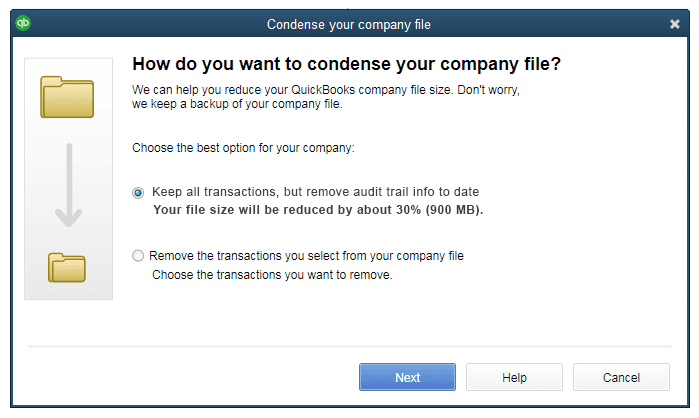
- 1The backup this dialog promises is QuickBooks protecting its own operation. It is not your backup regime — take and verify your own copy before you start.
- 2The first option removes only audit trail detail. Transactions survive, but the record of who changed what does not, which matters if the file is ever examined.
- 3The estimated reduction is what makes the trade measurable. Compare it against the actual complaint — a file-size gain of this size rarely explains a slow report or a slow network.
- 4The second option removes transactions themselves. Test it on a copy and compare reports before letting it near a production file.
System-Level Optimizations
- 1Increase Virtual Memory (Pagefile)
Give QuickBooks® more memory to work with
QuickBooks® Desktop is a 32-bit application with memory limitations. Increasing virtual memory helps:
- 1. Press Windows key + Pause/Break (or search "System")
- 2. Click "Advanced system settings" on left
- 3. Under Performance, click "Settings"
- 4. Go to "Advanced" tab → click "Change" under Virtual Memory
- 5. Uncheck "Automatically manage paging file size"
- 6. Select C: drive
- 7. Choose "Custom size":
- Initial size: 4096 MB
- Maximum size: 8192 MB (or 2x RAM)
- 8. Click "Set" → OK → Restart computer
- 2Add QuickBooks® to Antivirus Exclusions
Prevent real-time scanning from slowing operations
Add these folders to antivirus exclusions:
Antivirus ExclusionsC:\Program Files\Intuit\QuickBooks® [Year]\C:\Program Files (x86)\Intuit\QuickBooks® [Year]\C:\ProgramData\Intuit\QuickBooks® [Year]\C:\Users\Public\Documents\Intuit\QuickBooks®\Company Files\[Your actual company file folder]Antivirus exclusions reduce a security control. Do not add them solely for speed; use the security vendor's and Intuit's current guidance, scope any exception narrowly, and have the responsible administrator approve it.
- 3Disable Windows Search Indexing on Company File Folder
Stop Windows from constantly indexing QuickBooks® files
- 1. Right-click company file folder → Properties
- 2. Click "Advanced" button (under attributes)
- 3. Uncheck "Allow files in this folder to have contents indexed"
- 4. Click OK → Apply
- 5. Select "Apply changes to this folder, subfolders and files"
- 6. Click OK
- 4Set QuickBooks® Process Priority
Give QuickBooks® more CPU resources
Set High Priority on Startup# PowerShell - Run as Administrator# Set QBW32.exe to High priority automatically$action = New-ScheduledTaskAction -Execute "PowerShell.exe" -Argument '-Command "Get-Process QBW32 -ErrorAction SilentlyContinue | ForEach-Object { $_.PriorityClass = ''High'' }"'$trigger = New-ScheduledTaskTrigger -AtStartupRegister-ScheduledTask -TaskName "QuickBooks® High Priority" -Action $action -Trigger $trigger -RunLevel Highest
Network Performance Optimization
For multi-user environments, network performance is critical. These optimizations reduce latency:
- 1Enable SMB Optimization
Optimize Windows file sharing protocol
SMB Optimization# PowerShell - Run on Server as Administrator# Enable SMB3 features for better performanceSet-SmbServerConfiguration -EnableSMB2Protocol $true -ForceSet-SmbServerConfiguration -EnableMultiChannel $true -ForceSet-SmbServerConfiguration -EncryptData $false -Force# Increase SMB credits for large file operationsSet-SmbServerConfiguration -MaxChannelPerSession 32 -Force - 2Disable Offline Files (Workstations)
Prevent caching delays on network shares
- 1. On each workstation: Control Panel → Sync Center
- 2. Click "Manage offline files" on left
- 3. Click "Disable offline files"
- 4. Restart workstation
- 5. Repeat on all workstations
Why: Offline files can cause sync delays and file locking issues that slow QuickBooks®.
- 3Compare Wired and Wireless Results
Measure whether the connection type contributes to the symptom
Measure the Actual Environment:
Wireless conditions vary by environment. Measure latency, packet loss, roaming, and disconnects from each affected workstation; use a wired comparison to determine whether the network medium contributes to the symptom.
Comparison checklist:
- Wired baseline: test the same file operation from a known-stable link
- Wireless comparison: repeat from the affected location and workstation
- Packet loss: investigate any repeatable loss rather than relying on a generic threshold
- Roaming or drops: correlate timestamps with QuickBooks® errors and server logs
Database Tuning
- 1Optimize Database Server Manager Settings
Configure DB service for maximum performance
- 1. On server: Start → QuickBooks® Database Server Manager
- 2. Go to "Database Server" tab
- 3. Click "Stop Service"
- 4. Wait 10 seconds
- 5. Click "Start Service"
- 6. Verify "Database Server is Running" message appears
Service Configuration: Ensure set to Automatic startup and running as LocalSystem account.
- 2Disable Database Monitoring (If Not Needed)
Reduce overhead from monitoring services
Disable Monitoring Service# PowerShell - Run as Administrator on Server# Stop and disable QBCFMonitorService (only if single-user or small environment)Stop-Service -Name "QBCFMonitorService" -ForceSet-Service -Name "QBCFMonitorService" -StartupType Disabled# Note: Only do this if you don't need database monitoring# For multi-user environments, keep this service running
Hardware Recommendations for Optimal Performance
Performance-Optimized Hardware
| Component | Minimum | Recommended | Optimal |
|---|---|---|---|
| CPU | Intel i5 / Ryzen 5 | Intel i7 / Ryzen 7 | Intel i9 / Ryzen 9 (server) |
| RAM | 8 GB | 16 GB | 32 GB (multi-user server) |
| Storage | HDD 7200 RPM | SATA SSD | NVMe SSD |
| Network | 100 Mbps Ethernet | Gigabit Ethernet | Gigabit+ with managed switch |
Confirm a Storage Bottleneck First
Troubleshooting Slow Performance
Diagnostic Checklist
Check File Size
Files > 500MB are candidates for condensing. Files > 1GB are severely oversized.
Count Active List Entries
Lists → Item List → View → Include Inactive. If you have 5,000+ active items, make old ones inactive.
Test Network Speed
Copy 100MB file to/from server. Should complete in < 10 seconds on Gigabit network.
Check Disk Performance
Run CrystalDiskMark. HDD should be > 100 MB/s. SSD should be > 500 MB/s sequential read.
Ongoing Maintenance for Peak Performance
Monthly Maintenance Checklist
Annual Maintenance Checklist
Need to inspect or convert an accounting export as part of your workflow? Browse our free accounting tools and review every output before importing it into live books.
Summary
QuickBooks® Desktop performance doesn't have to be a constant source of frustration. By implementing these checks systematically, you can identify which changes produce a measurable improvement in the operations that were slow.