Company File Opens Read-Only on Network Share
Quick Answer
If your .QBW opens Read-Only from a network share, fix permissions, hosting mode, and offline caching. Do this: Ensure only the server is hosting, confirm the data folder has Modify rights for users (share and NTFS), remove the read-only attribute, and disable Offline Files/Sync Center for that path. Then reopen via a UNC path like \\Server\QBData\Company.qbw.
What is this issue?
QuickBooks® needs write access to the company folder and its sidecar files (.ND/.TLG/.LGB). If Windows treats the path as read-only—because of permissions, attributes, or caching—QuickBooks® forces read-only mode.
Problem statement:
Windows share/NTFS settings or caching prevent write access to the QB data folder, so the .QBW opens read-only.
Error Read-Only: Company file opens in read-only mode
Windows permissions, attributes, or caching prevent write access to QuickBooks® company file.
Symptoms:
- Title bar shows (Read-Only) or you can't switch to Multi-user Mode
- Can open on the server but not from workstations
- Folder opens in Explorer, but saving changes fails
- .ND and .TLG update timestamps don't change when opening from a client
Resolution Steps:
- 1.Enforce one host only (server hosts; workstations do not)
- 2.Fix share & NTFS permissions (grant Modify on the folder)
- 3.Remove Read-only attribute on the folder and unblock file streams
- 4.Disable Offline Files/Sync Center (and third-party sync) for the data path
- 5.Open the file via UNC (not a stale mapped drive) and test multi-user
Quick Fix (≈5 Minutes)
Fastest, official-first approach
Step 1: One-host rule
- On the server (where .QBW lives): File → Utilities should show Stop Hosting Multi-User Access (meaning hosting is ON there).
- On every workstation: File → Utilities should show Host Multi-User Access (meaning hosting is OFF there).
Step 2: Grant folder rights (share + NTFS)
- Data folder example:
D:\QBData(orC:\Users\Public\Documents\Intuit\QuickBooks®\Company Files\). - Share permissions: add a managed QuickBooks® access group → Change.
- Security (NTFS): add the same principals → Modify (propagates to files/subfolders).
- Apply → OK.
Step 3: Clear read-only & unblock
- Right-click the data folder → Properties → uncheck Read-only → Apply to all files/folders.
- If files were copied from another PC, right-click the .QBW → Properties → click Unblock (if shown).
Step 4: Disable Offline Files / Sync
- Control Panel → Sync Center → Manage Offline Files → Disable (reboot if asked).
- Ensure OneDrive/Dropbox are not syncing the QB data folder.
Step 5: Open via UNC
- In QuickBooks®: File → Open or Restore Company → Open a company file → browse to
\\ServerName\QBData\YourCompany.qbw. - Switch to Multi-user Mode and test saving.
Detailed Solution Steps
- Confirm folder ownership and propagation.
- Folder → Properties → Security → Advanced → Owner should be Administrators or a service admin.
- Check "Replace all child object permission entries with inheritable permissions from this object." Apply.
- Ensure the DB service account has access (if applicable).
- On the server,
services.msc→ QuickBooksDBXX / QBDBMgrN → Log On tab. - If it runs as a domain/local service account, ensure that account has Modify on the data folder.
- On the server,
- Purge stale locks (only after clean close).
- Make sure all users are out of the file.
- In the data folder, if
YourCompany.qbw.ndlooks stale, rename to.nd.old(DB Manager will recreate it). - Do not delete .QBW. Leave .TLG alone unless directed by a backup/rebuild workflow.
- Re-map the drive from UNC (optional).
- This PC → Map network drive → Folder:
\\ServerName\QBData→ Reconnect at sign-in. - Update any old shortcuts to the new mapping.
- This PC → Map network drive → Folder:
Why does this happen?
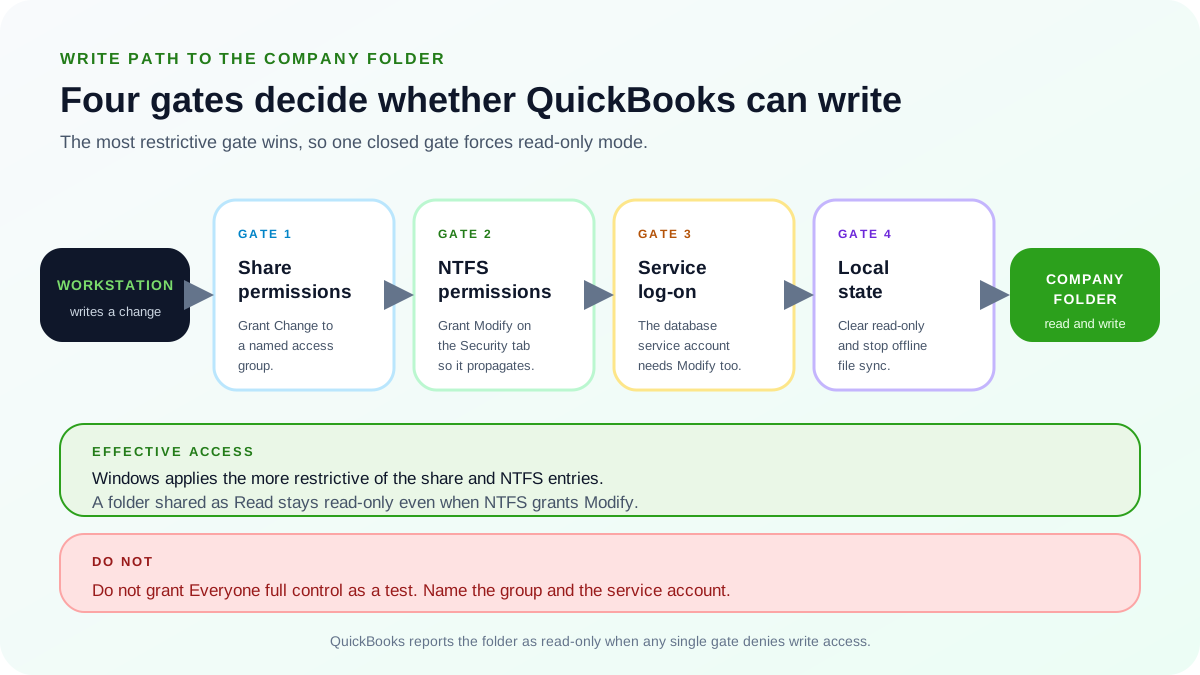
A write from a workstation crosses four independent gates before it reaches the company folder, and the most restrictive gate decides the outcome. The share permission on the folder must allow Change for a named QuickBooks® access group. The NTFS permission on the Security tab must grant Modify and propagate to files and subfolders. The account the database service logs on as needs Modify on that same folder, because the service — not the signed-in user — is what writes on a hosted file. Finally the local state of the folder must permit writing at all: the read-only attribute cleared, the .QBW unblocked, and Offline Files or cloud sync kept away from the data path. Windows applies the more restrictive of the share and NTFS entries, so a folder shared as Read stays read-only even when NTFS grants Modify — which is why fixing one list alone often changes nothing. Grant the named access group and the service account rather than widening access to Everyone.
Common causes
- Only Read rights on share or NTFS, or rights granted to files but not folder (no create/modify).
- The data path is cached offline by Sync Center or synced by OneDrive/Dropbox.
- Folder copied from another PC inherited read-only + blocked streams.
- Wrong machine hosting (multiple hosts), stale .ND, or opening via an old mapped drive.
How to Prevent It
Best Practices
- Standardize on a dedicated folder like D:\QBData and share as \\QB-SERVER\QBData.
- Grant Modify to your QBUsers group at both Share and NTFS levels.
- Keep one host policy and rescan with Database Server Manager after changes.
- Keep the data folder out of OneDrive/Dropbox; disable Offline Files for it.
- Use UNC for shortcuts; map drives from UNC to avoid stale paths.
Frequently Asked Questions
Which permission should an authorized user receive?
Use a managed QuickBooks® access group and grant only the share and NTFS operations required by Intuit's current guidance. Administrative control is not a troubleshooting shortcut.
Will changing permissions affect my data?
No—permissions don't alter the .QBW contents; they just allow writes.
It's still read-only even after fixing permissions—now what?
Test opening the Sample Company from the same workstation to isolate. If sample works, rename your .ND to .old, rescan the folder in Database Server Manager (on the server), then reopen via UNC.
Can I store the company file in OneDrive/Dropbox?
Not recommended. Sync engines lock/replace files and can corrupt multi-user sessions. Keep the live file on a server share only; sync backups elsewhere.
Related Resources
Need Professional Help?
If you're still experiencing read-only issues after following these steps, our QuickBooks® network experts are here to help.
Get Expert Support