Export or back up the relevant data first. Do not delete, void, unreconcile, or adjust historical transactions unless you understand the accounting impact.
Menu names can change. We link current first-party instructions so you can confirm product behavior before acting.
Quick answer
For QBWC1085, determine whether the connected app is still required. Intuit states that this error commonly occurs when Web Connector cannot access or write to its QWCLog.txt file. If no connected app uses Web Connector, remove it from startup. If an app still depends on it, preserve the log and follow the current Intuit path to rename the damaged log so Web Connector can create a new one.
For QBWC1039, the words after the code determine the fix. Common branches include the Web Connector and company file being in different locations, the application lacking permission to the company file, a moved company file, an outdated QuickBooks installation, an invalid QWC configuration, or a user-denied connection. Do not remove and re-add the app until the QWC file, application credentials, sync history, and vendor instructions are available.
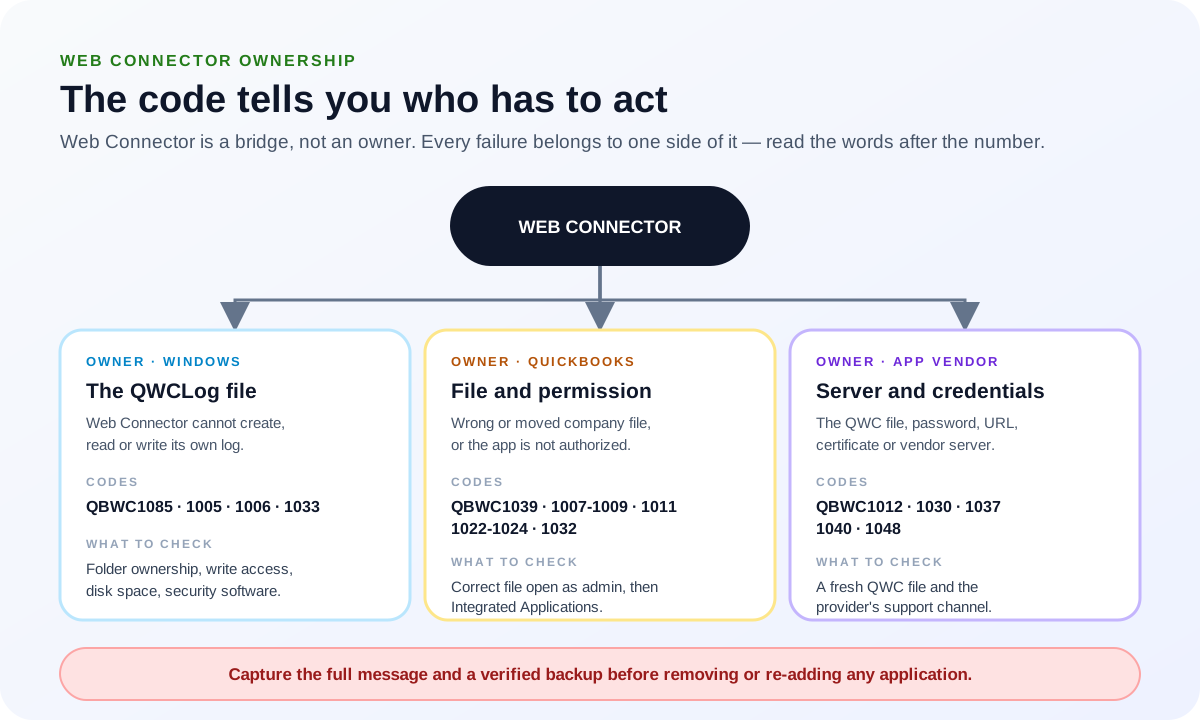
Capture evidence before changing the integration
- The complete QBWC code and every line of the message.
- QuickBooks Desktop product, edition, year, release, Windows version, and company-file path.
- Web Connector version and whether it starts with Windows.
- Connected-application name, vendor, account, application URL, and support contact.
- Time of the last successful sync and the date range or objects affected.
- Whether the company file moved, QuickBooks was upgraded, Windows changed, credentials changed, or the app was reauthorized.
- A current verified company-file backup and export of any critical unsynced source data.
A Web Connector failure can leave the source application and QuickBooks with different records. Protect both sides before retrying, especially if the integration creates invoices, payments, inventory adjustments, payroll time, or other financial transactions.
Fix QBWC1085 by protecting and restoring the log path
If no application uses Web Connector
Confirm with the business owner and app inventory that no active integration depends on it. Then follow the current Intuit instructions to remove Web Connector from the Windows startup process. Do not uninstall a component solely because the owner does not recognize its name.
If an active application uses Web Connector
- Close QuickBooks Desktop and Web Connector after confirming no sync is running.
- Locate and preserve the existing QWCLog.txt file and its directory permissions.
- Follow the current Intuit QBWC1085 procedure to rename the damaged or inaccessible log rather than deleting all integration configuration.
- Restart Web Connector so it can create a new log.
- Open QuickBooks and the correct company file, then perform a controlled manual update for one application.
- Review the new log and compare source and destination record counts or totals.
If the log cannot be created, investigate Windows folder ownership, write permission, security software, disk space, profile corruption, and the installed Web Connector version. Do not grant broad Everyone/Full Control permissions as a shortcut.
Fix QBWC1039 from the exact message branch
Company file and Web Connector are in different locations
Confirm the current .QBW path and the path authorized when the app was added. If the file moved or was renamed, obtain the application-vendor procedure for updating or recreating the connection. Preserve the old path, file identity, and last sync before reauthorization.
The application does not have permission
- Open the intended company file as the QuickBooks administrator and use single-user mode if the vendor or Intuit procedure requires it.
- Review Edit → Preferences → Integrated Applications → Company Preferences.
- Confirm that applications are allowed and that the correct connected app appears with the intended access.
- If access was denied or the entry is invalid, obtain a fresh QWC file and setup instructions from the application provider before removing the old entry.
- Authorize only the access and unattended mode required by the approved integration design.
A newer QuickBooks version was removed
Intuit documents a QBWC1039 branch where installed-version dependencies remain after a newer QuickBooks release is uninstalled. Follow the current Intuit version-specific procedure and update the relevant releases. Do not randomly delete registry entries or shared components.
The QWC file, password, or service is wrong
A QWC file and application password come from the third-party provider. Confirm that both belong to the correct company, environment, and account. If the message points to authentication, certificate, URL, or server processing, collect the log and contact the provider; Intuit cannot repair a vendor server or credential.
Route other common QBWC codes by evidence
- QBWC1005 or 1006: Web Connector cannot create or find a required file; inspect user access and QWCLog permissions.
- QBWC1007, 1008, 1009, 1022, 1023, or 1024: confirm QuickBooks is open, the correct company file is open, and no modal window blocks the connection.
- QBWC1011: the application entry is missing from the registry or did not install correctly; restart, then use the provider QWC file if the app is absent.
- QBWC1012: the third-party server could not process the request; preserve the log and contact the application provider.
- QBWC1030 or 1040: the application password is unavailable or invalid; obtain or reset it through the provider.
- QBWC1032: the scheduled application is missing; preserve the QWC file, remove and re-add only the affected app if the documented retry fails.
- QBWC1033: QWCLog initialization failed; check administrator access, file presence, folder permissions, and free disk space.
- QBWC1037: the application expects a newer Web Connector version; follow the vendor and Intuit update guidance.
- QBWC1048: Web Connector cannot verify the application server certificate; obtain a current QWC file and escalate certificate issues to the provider.
Repair or reinstall only after the narrow checks fail
- Export the app inventory, preserve QWC files, credentials through the approved password process, logs, schedules, and last-sync evidence.
- Confirm the connected-app vendor supports the intended Web Connector version.
- Close QuickBooks and Web Connector and verify no integration job is running.
- Use the official uninstall and reinstall procedure for QuickBooks Web Connector.
- Re-add one approved application using a fresh vendor-provided QWC file.
- Authorize it against the correct company file and test a narrow update.
- Compare the source, Web Connector log, QuickBooks transactions, and control totals before restoring schedules.
Verify more than a green status message
- The exact QBWC error no longer appears after restart and a controlled update.
- Web Connector points to the intended application and company file.
- The log is writable and records the successful request and response.
- No duplicate application entry or duplicate scheduled job exists.
- Source and QuickBooks record counts, dates, amounts, taxes, customer or vendor identities, and key statuses agree.
- No duplicate invoices, payments, time entries, items, or other transactions were created by retries.
- The next scheduled sync completes under the normal Windows user and access model.
Escalate with the right evidence
Contact the third-party application provider when the message involves its server, URL, certificate, password, QWC file, request data, or application-specific processing. Contact Intuit when the supported Web Connector installation, QWCLog behavior, QuickBooks integrated-app permission, or current product release remains at fault after the official path.
Provide the complete code and message, relevant log excerpt with secrets removed, timestamps and time zone, QuickBooks and Web Connector versions, company-file path, last successful sync, changes since then, actions already tried, and whether source and destination records differ. Never send passwords, tokens, Social Security numbers, bank credentials, or an unrestricted company file through an unapproved support channel.
Sources checked
First-party product documentation used to verify the workflow and risk notes in this guide.
- QuickBooks Web Connector Error QBWC1085 or Exception TypeErrorIntuit QuickBooks Support · Checked August 11, 2026
- Fix Web Connector error QBWC1039Intuit QuickBooks Support · Checked August 11, 2026
- Fix common Web Connector errors in QuickBooks DesktopIntuit QuickBooks Support · Checked August 11, 2026
- Set up QuickBooks Web ConnectorIntuit QuickBooks Support · Checked August 11, 2026