Export or back up the relevant data first. Do not delete, void, unreconcile, or adjust historical transactions unless you understand the accounting impact.
Menu names can change. We link current first-party instructions so you can confirm product behavior before acting.
Quick answer
In QuickBooks Online, go to All apps → Expenses & Bills → 1099s and begin the preparation workflow. If a contractor or payment is missing, check five things in order: the person is marked as a contractor, tax details are complete, the payment falls in the correct calendar year, the expense account is mapped to the correct 1099 box, and the payment method is reportable by you rather than a card or third-party network.
Do not “fix” the form by changing a real transaction to a different account without understanding the bookkeeping effect. Correct the source records only when they are actually wrong, then refresh the 1099 preparation results.
Confirm the payment year and current threshold first
A form filed in January normally reports payments from the prior calendar year. That means the threshold for the payment year controls, not the date you happen to prepare the form.
Payments made in 2025
The IRS states the pre-2026 Form 1099-NEC threshold is $600, subject to form-specific rules and exceptions.
Payments made in 2026
The IRS states the Form 1099-NEC threshold is $2,000. Backup withholding can trigger reporting regardless of payment amount.
10+ information returns
The IRS generally requires electronic filing when the filer has 10 or more aggregated information returns, including Forms W-2 and 1099.
Form 1099-MISC, legal and medical payments, backup withholding, state filing, entity type, and other exceptions have their own rules. This guide explains QuickBooks data preparation; it does not determine your filing obligation.
Workflow map
The 1099 evidence chain
A contractor appears with the right amount only when identity, tracking, account mapping, payment method, period, and form rules all align.
- 1
Contractor
Validate legal name, tax classification, address, taxpayer information, and W-9 evidence securely.
Evidence: Approved contractor master record.
- 2
Accounts
Map only the expense accounts and boxes supported by the form instructions and business activity.
Evidence: Transactions use the intended mapped accounts.
- 3
Payments
Separate payment methods and amounts handled under different reporting rules.
Evidence: Payment detail reconciles to source and processor evidence.
- 4
Forms
Review period, threshold, exclusions, corrections, recipient copies, filing, and ledger totals.
Evidence: Prepared forms tie to the approved workpaper.
Before preparing 1099s in QuickBooks
- Obtain a completed Form W-9 or other appropriate tax documentation from each contractor.
- Confirm the legal name, business name, tax classification, taxpayer identification number, and mailing address.
- Choose the correct payment year and review transactions from January 1 through December 31.
- Reconcile the payment accounts used for contractor payments.
- Review contractor expense accounts and decide which 1099 box each reportable account belongs to.
- Separate payments made by check, ACH, cash, direct deposit, card, and third-party payment network.
- Resolve voided, duplicated, refunded, or reclassified payments before preparing forms.
Keep W-9 data secure. Do not attach an unredacted taxpayer identification number to a general support ticket or ordinary email thread.
Set up and review 1099s in QuickBooks Online
- Open the 1099 workspace. Go to All apps → Expenses & Bills → 1099s, then start the preparation or e-file workflow available in your subscription.
- Confirm company information. Match the legal name, address, email, and tax ID to IRS records and tax notices—not merely the name customers see on invoices.
- Review contractors. Confirm each reportable person or business is marked for 1099 tracking and has complete tax information.
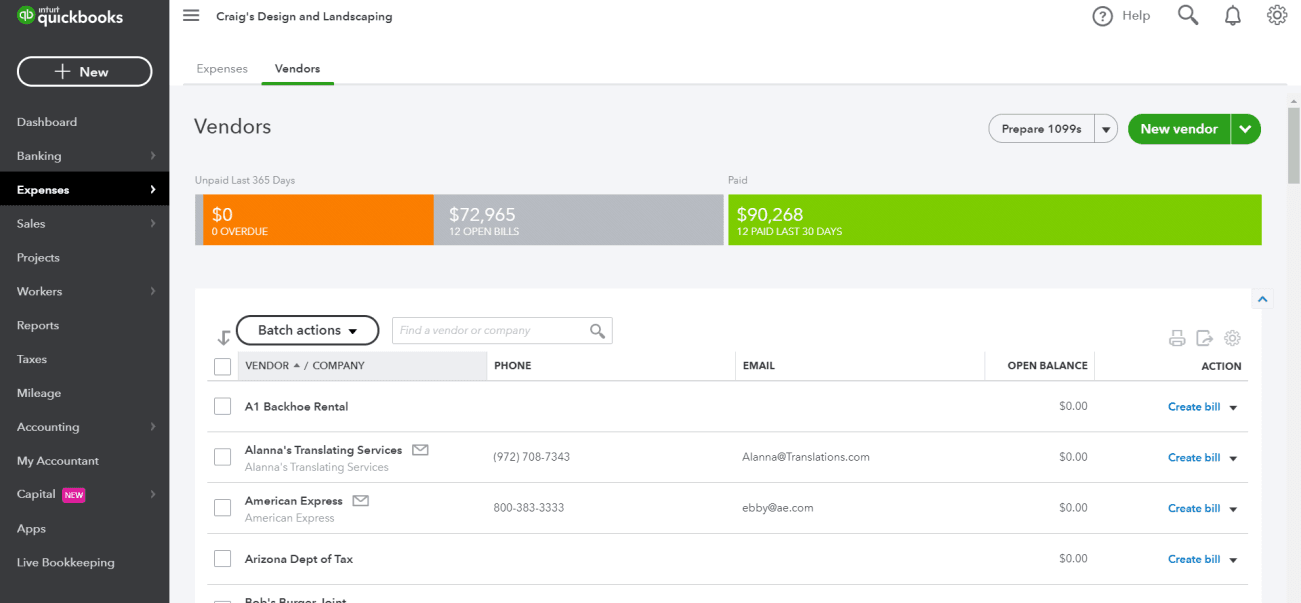
- 1Prepare 1099s opens the separate reporting workspace. This vendor list is not the contractor list — a vendor only becomes reportable when its own record is set to track payments for 1099, and no column here shows that setting.
- 2The display name sits above the company name. A 1099 needs the legal name and tax identification the contractor gave you on Form W-9, which is neither of the two strings shown in this column.
- 3Several vendors here have no email at all. That is irrelevant to eligibility: what a reportable contractor record must hold is the taxpayer identification number and address, and this list does not display either.
- 4Open balance is what you still owe, not what you paid. Reportable totals come from calendar-year payments, so a contractor at 0.00 here can still cross the threshold and one with a large balance may have been paid nothing.
- Map accounts to boxes. Select the expense accounts that contain reportable payments and assign them to the appropriate 1099 category. An unmapped account can make a valid payment disappear from the preview.
- Review included and excluded payments. Compare the preview with the vendor transaction list, payment methods, and reconciled bank activity.
- Resolve exceptions at the source. Edit a vendor, account mapping, or transaction only when the underlying record is wrong. Refresh the 1099 results after each correction.
- Export and retain a review copy. Before filing, save the contractor list, detail by account, form preview, and filing confirmation according to your records policy.
Why a contractor is missing from QuickBooks 1099s
Work through this checklist in order:
- Contractor tracking: Open the vendor or contractor profile and confirm the option to track payments for 1099 reporting is enabled.
- Tax information: Confirm the legal identity and tax classification. A missing W-9 should be resolved with the contractor, not guessed.
- Payment date: Confirm the payment occurred in the selected calendar year. The bill date alone does not prove when the contractor was paid.
- Mapped account: Open the payment's expense or item detail and identify the account. Confirm that account is mapped to the correct 1099 box.
- Payment method: Determine whether you paid by cash, check, ACH, direct deposit, credit card, debit card, or a third-party payment network.
- Reportable total: Compare the included total with the current threshold and form-specific rules for that payment year.
- Entity or payment exception: Confirm whether corporation, legal, medical, rent, royalties, backup withholding, or another exception changes the reporting treatment.
Use a transaction-detail report, not only the 1099 preview
Run vendor transaction detail for the calendar year and group or filter it by account and payment method. This creates a trace from the source transactions to the 1099 result and makes missing account mappings visible.
Why the 1099 amount is wrong
- Unmapped account: some contractor payments use an expense account not included in the 1099 mapping.
- Over-mapped account: an account contains both reportable and nonreportable payments but all of it is mapped.
- Wrong vendor: payments were recorded under two vendor profiles for the same contractor.
- Bill versus payment timing: the bill falls in one year and the payment in another.
- Card or third-party payments: payments may be excluded from your 1099-NEC/MISC total because the payment settlement entity has a separate reporting role.
- Voids, refunds, and credits: the net economic payment differs from the gross checks or expenses.
- Duplicate bank-feed entries: the same payment was recorded manually and added again from the feed.
- Journal entries: reclasses or opening entries affect an expense account but may not behave like a normal contractor payment.
Reconcile the total without changing correct books
- Export the contractor's transaction detail for the calendar year.
- Separate payments by account and payment method.
- Mark each line included or excluded and document the reason.
- Compare the supported included total with the QuickBooks 1099 preview.
- Correct only genuine source-data or mapping errors.
Credit card, debit card, PayPal, and third-party payment treatment
Intuit's 1099 workflow states that QuickBooks Online excludes certain credit-card, debit-card, gift-card, and PayPal payments because payment settlement entities report applicable transactions separately. This helps avoid reporting the same payment under both Form 1099-NEC/MISC and Form 1099-K.
The payment method recorded in QuickBooks must reflect how the contractor was actually paid. Do not relabel a check as a card payment to remove it from a form, and do not include a card payment merely because it appears in a mapped expense account.
Pre-filing verification checklist
- The filing year and current IRS threshold are correct.
- Company legal information and taxpayer ID match IRS records.
- Each contractor's name, address, tax ID, and classification come from valid documentation.
- Mapped accounts correspond to the correct form boxes.
- Every displayed total ties to a reviewed transaction-detail schedule.
- Card and third-party payments are treated consistently with current IRS instructions.
- Voids, refunds, duplicate payments, and reclassifications are resolved.
- State filing and recipient-copy requirements have been checked.
- The filing method complies with the aggregated 10-return e-file rule when applicable.
- You saved the filed forms, submission confirmation, and review workpapers securely.
QuickBooks can prepare data and transmit forms, but the filer remains responsible for accurate information reporting. Pause before filing if the product preview conflicts with current IRS instructions.
Optional free utilities
Tools that support this workflow
These run in your browser and can help prepare or inspect files. They do not replace reconciliation, source-document review, or an accountant’s approval.
Sources checked
First-party product documentation used to verify the workflow and risk notes in this guide.
- Create and file 1099s with QuickBooks OnlineIntuit QuickBooks Support · Checked August 10, 2026
- Am I required to file a Form 1099 or other information return?Internal Revenue Service · Checked August 10, 2026
- E-file information returnsInternal Revenue Service · Checked August 10, 2026
- Publication 1099 (2026), General Instructions for Certain Information ReturnsInternal Revenue Service · Checked August 10, 2026