Export or back up the relevant data first. Do not delete, void, unreconcile, or adjust historical transactions unless you understand the accounting impact.
Menu names can change. We link current first-party instructions so you can confirm product behavior before acting.
Quick answer
For a project-based contractor, use one customer record for the client and one project for each separately managed job. Assign project income, bills, expenses, checks, time, and other direct costs consistently through the Customer/Project field. Review project profitability against the general ledger and external evidence every month.
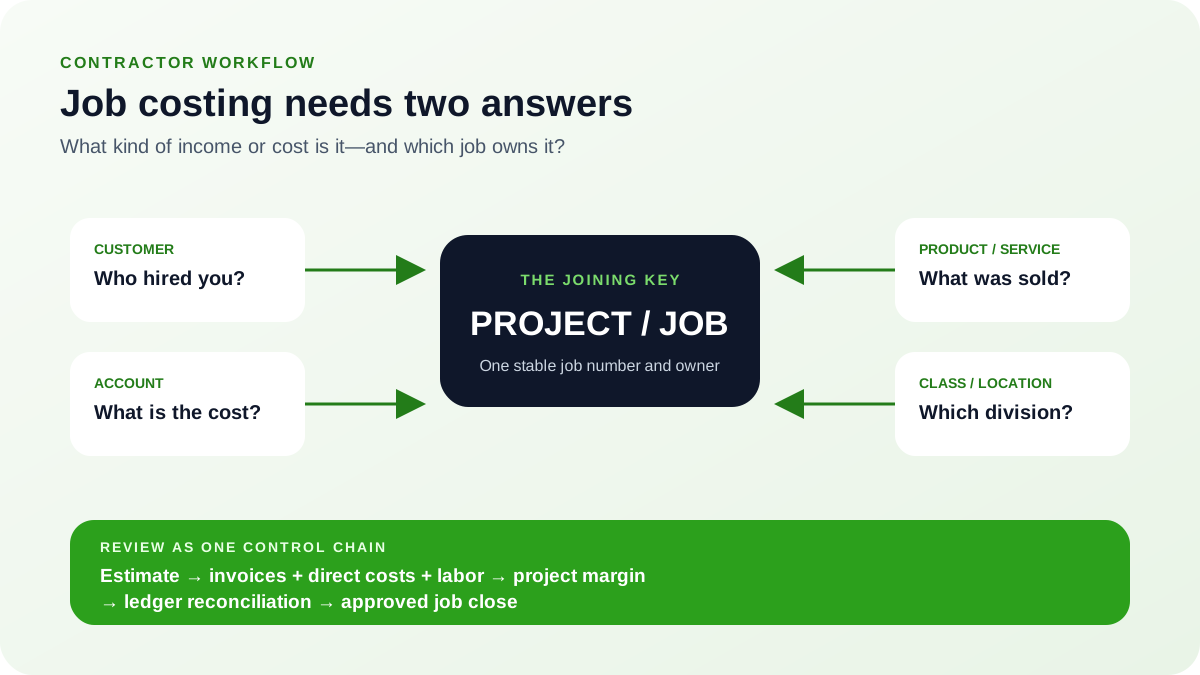
The project tag answers which job. The chart-of-accounts category answers what kind of income or cost. Products and services can add operational detail. Keep those dimensions separate so the same cost structure works across every job and company reports remain readable.
Start with the two meanings of “QuickBooks for contractors”
This search can describe two different businesses. Choose the path that matches the operating model.
- A contracting business with jobs: construction, trades, field service, agencies, consulting, or other work that needs project revenue, direct costs, labor, and margin.
- An independent contractor or freelancer: a one-person business that primarily needs business income, expenses, estimated-tax records, invoices, and perhaps a Schedule C-oriented workflow.
This guide focuses on job and project profitability. A solo operator without separate jobs may need only the small-business setup and recurring bookkeeping workflow. A business that pays subcontractors also needs a distinct 1099 process; being a contractor and paying contractors are not the same workflow.
This page owns the contractor operating model: direct materials, field labor, equipment, subcontractors, estimates, billing, and job-margin review. For the product feature itself—including generic project creation, transaction assignment, estimate-to-actual review, unallocated activity, and close—use the QuickBooks Projects guide.
Check product and subscription fit before designing the books
Intuit currently documents the Projects feature for QuickBooks Online Plus and Advanced. Labor-cost tracking for project profitability is also documented for those plans. Advanced has additional estimate-versus-actual capabilities. Product availability changes, so verify the current official feature page inside the account before committing the operating process to a plan.
Write down the required outcomes before selecting or changing a subscription:
- Profitability by job and across active jobs.
- Direct materials, labor, equipment, subcontractor, and other cost detail.
- Estimates, progress billing, retainage, change orders, purchase commitments, or work-in-progress reporting.
- Employee and subcontractor time by project.
- Inventory, classes, locations, or cost groups.
- Budget or estimate compared with actual cost and income.
Standard QuickBooks Projects may not fully support every construction accounting requirement, especially formal work-in-progress schedules, committed cost, retainage, certified payroll, or specialized change-order controls. Test the complete workflow with representative jobs before migration.
Design the job-cost structure before creating projects
Account
Economic category such as contract revenue, direct labor, materials, subcontractors, equipment, permits, or overhead.
Customer
The client, owner, general contractor, or other party responsible for the commercial relationship.
Project
The separately estimated, billed, managed, and reviewed job.
Product/service
Operational detail used on estimates, invoices, bills, expenses, and project reporting.
Class or location
A separate management dimension such as division, department, branch, or trade when the subscription supports it.
Avoid creating a new income and cost account for every project. That makes the chart unmanageable and prevents consistent comparison. Use projects for job identity and a governed account or item list for comparable cost types.
Set up every project from an approved job record
- Confirm the client record. Create or confirm the customer record and the legal billing name.
- Create the project. Create the project using a stable naming convention such as job number, client, and short description.
- Record the job terms. Record the project owner, approved estimate, contract type, start date, expected completion, tax treatment, and billing method outside or inside QuickBooks as the workflow permits.
- Fix the income and cost coding. Confirm the income items and direct-cost items or accounts that the project will use.
- Decide who can charge the job. Confirm which employees and subcontractors can charge time or costs to the project.
- Test the whole cycle first. Test one estimate, invoice, bill, expense, time entry, payment, and profitability report before opening the workflow to the team.
A naming convention should survive staff turnover and sorting. Do not rely on free-form customer names or job descriptions to carry critical scope, phase, or contract information.
Capture project income and direct costs consistently
Income
- Create estimates only when the estimate is part of the approved sales process.
- Use products and services mapped to the intended income accounts.
- Assign each estimate, invoice, credit memo, and other project sale to the correct project.
- Receive payments against the existing invoice and group deposits to match the bank settlement.
- Track unbilled work, retainage, deposits, and contract liabilities under an accountant-approved policy.
Costs
- Use bills for vendor costs paid later and expenses or checks for costs paid immediately.
- Assign the project on each relevant line, not only in a memo or attachment.
- Use item detail when the product or service structure is required for job-cost reporting; use category detail according to the approved design.
- Separate direct job costs from general overhead consistently.
- Record credits, returns, rebates, and refunds against the original project and cost classification.
Track labor and subcontractors without mixing workflows
Intuit documents project labor-cost tracking for QuickBooks Online Plus and Advanced. Define which time is billable, which time contributes to internal job cost, the cost rate source, who approves time, and how approved time reaches payroll or invoicing.
- Require the project on every job-related time entry.
- Review missing-project and unapproved-time exceptions before payroll and project reporting.
- Reconcile labor shown on project reports to payroll or contractor cost evidence.
- Keep indirect supervision, training, leave, and administrative time under a documented overhead policy.
Subcontractor job cost and 1099 reporting overlap but are not identical. Project assignment determines the job. Expense-account mapping, vendor tracking, payment method, calendar-year totals, and current filing rules determine the information-return workflow. Review both independently.
Review project profitability as a reconciliation, not a dashboard glance
- Set the reporting boundary. Confirm the project start and end dates and the reporting cutoff.
- Clear unassigned activity. Review unassigned income, expenses, bills, checks, credits, and time.
- Tie income to the contract. Compare project income to invoices, approved changes, payments, and the contract schedule.
- Tie costs to source evidence. Compare direct materials, subcontractor, labor, and other costs to vendor, payroll, inventory, and purchasing evidence.
- Reconcile to the general ledger. Reconcile the total project income and costs to the relevant general-ledger accounts.
- Explain every material variance. Compare estimate or budget to actual by meaningful cost type, then document the cause and owner of each material variance.
- Separate timing from margin. Separate timing differences from real margin changes.
Project profit is not automatically cash flow. Customer collections, vendor terms, retainage, deposits, payroll timing, taxes, and equipment purchases can make cash move differently from reported job margin.
Close each completed job deliberately
- Confirm final approved revenue, change orders, credits, and retainage.
- Collect or accrue remaining supplier, subcontractor, labor, and closeout costs according to accounting policy.
- Resolve unbilled time and expenses.
- Confirm all customer payments and vendor credits are applied correctly.
- Reconcile the project report to the ledger and the final contract or estimate summary.
- Document final margin, major variances, claims, warranty exposure, and lessons for future estimates.
- Mark the project complete only after the financial close is approved.
QuickBooks contractor setup checklist
- The subscription supports the required project, labor, inventory, class, and budget features.
- Customer, project, account, product or service, class, and location each have one defined purpose.
- Project names follow a stable job-number convention.
- Direct and indirect costs are defined and applied consistently.
- Every income and cost transaction carries the correct project where required.
- Time and labor costs are approved and reconciled.
- Subcontractor job cost and 1099 reporting are reviewed separately.
- Project totals reconcile to company reports and source evidence.
- Estimate-versus-actual variances have explanations and owners.
- Completed jobs receive a documented financial close.
Optional free utilities
Tools that support this workflow
These run in your browser and can help prepare or inspect files. They do not replace reconciliation, source-document review, or an accountant’s approval.
Sources checked
First-party product documentation used to verify the workflow and risk notes in this guide.
- How to set up and use projects in QuickBooks OnlineIntuit QuickBooks Support · Checked August 11, 2026
- How to add labor costs to a project in QuickBooks OnlineIntuit QuickBooks Support · Checked August 11, 2026
- Compare project cost estimates versus actuals in QuickBooksIntuit QuickBooks Support · Checked August 11, 2026
- Enter bills in QuickBooks OnlineIntuit QuickBooks Support · Checked August 11, 2026