Export or back up the relevant data first. Do not delete, void, unreconcile, or adjust historical transactions unless you understand the accounting impact.
Menu names can change. We link current first-party instructions so you can confirm product behavior before acting.
The complete invoicing workflow
An invoice is only the first part of the accounting chain. A clean workflow connects five separate events: the customer owes you, the invoice is delivered, the customer pays, the payment reaches the bank, and the bank statement is reconciled. Treating those events as one transaction is how duplicate income and unexplained deposits begin.
- Create one authoritative sales form. Use an invoice when the customer will pay later; use a sales receipt when payment happens at the time of sale.
- Send or share that existing form. Confirm the recipient, due date, items, tax, and payment terms first.
- Apply the payment to the open invoice. Do not create a second sale for money that settles an existing receivable.
- Match the real-world deposit. The amount in the bank feed may represent one payment, several payments, or a net amount after processor fees.
- Review receivables and reconcile. The open-invoice list, customer balance, deposit record, and bank statement should tell the same story.
Workflow map
The invoice-to-bank evidence chain
Keep the customer balance, payment, deposit, and bank statement linked without recording the sale or receipt twice.
- 1
Invoice
Create and approve the receivable with correct dates, lines, income, tax, terms, and delivery details.
Evidence: Invoice and sending evidence.
- 2
Payment
Apply the customer receipt to the invoice using the actual amount, date, method, and reference.
Evidence: Open balance updates once.
- 3
Deposit
Group undeposited receipts to mirror the real bank deposit or processor payout.
Evidence: Gross receipts, fees, and net settlement explain the deposit.
- 4
Reconcile
Match the downloaded bank line to the existing deposit and reconcile the statement period.
Evidence: No new income or duplicate receipt is created.
Choose the sales form before entering the transaction
Use an invoice when the customer receives the goods or services now and will pay later. It increases accounts receivable until a payment is applied. Use a sales receipt when the customer pays at the time of sale. It records the sale and payment together.
Do not create both forms for the same sale. If an invoice already exists and the customer pays, record or receive the payment against that invoice. If the payment was entered without being linked, investigate the unapplied payment instead of recreating the sale.
Set up the records that drive the invoice
Before billing, confirm the customer name and email, products or services, income accounts, sales-tax treatment, payment terms, and deposit workflow. These fields affect reports after the invoice leaves the customer-facing screen.
- Use one customer record for the same legal customer unless job or location reporting requires a documented hierarchy.
- Map each product or service to the income account that reflects how management and tax reporting need to see the sale.
- Confirm whether prices are tax-inclusive or tax-exclusive and whether the customer or item is taxable in the applicable jurisdiction.
- Decide whether incoming payments go directly to a bank account or through Undeposited Funds so grouped deposits match the bank.
- Limit who can change sales forms, receive payments, issue credits, or alter closed periods.
Create and send the invoice
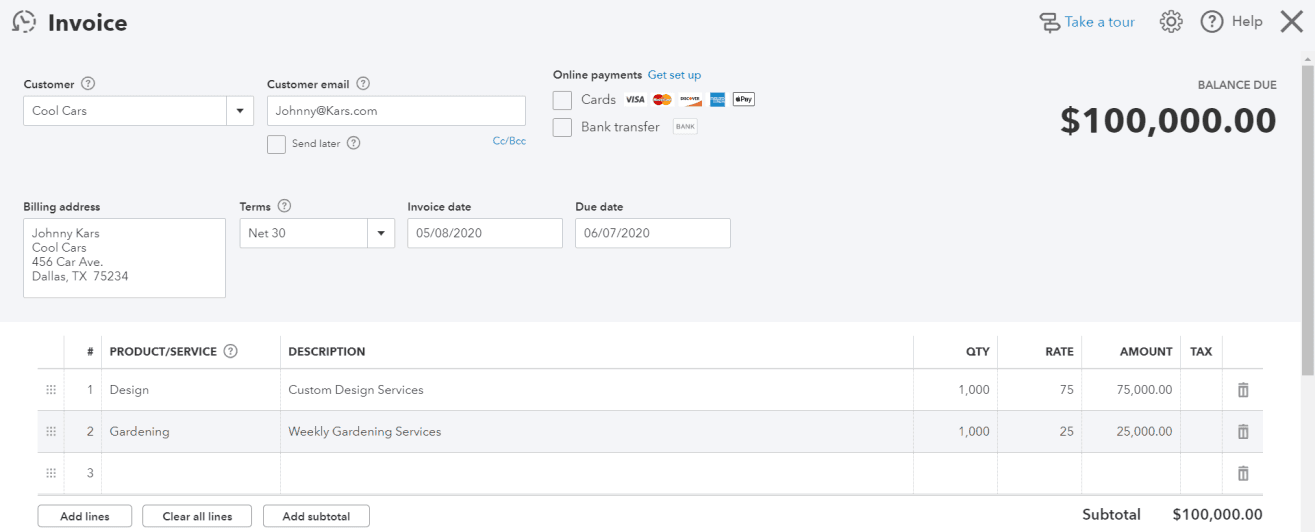
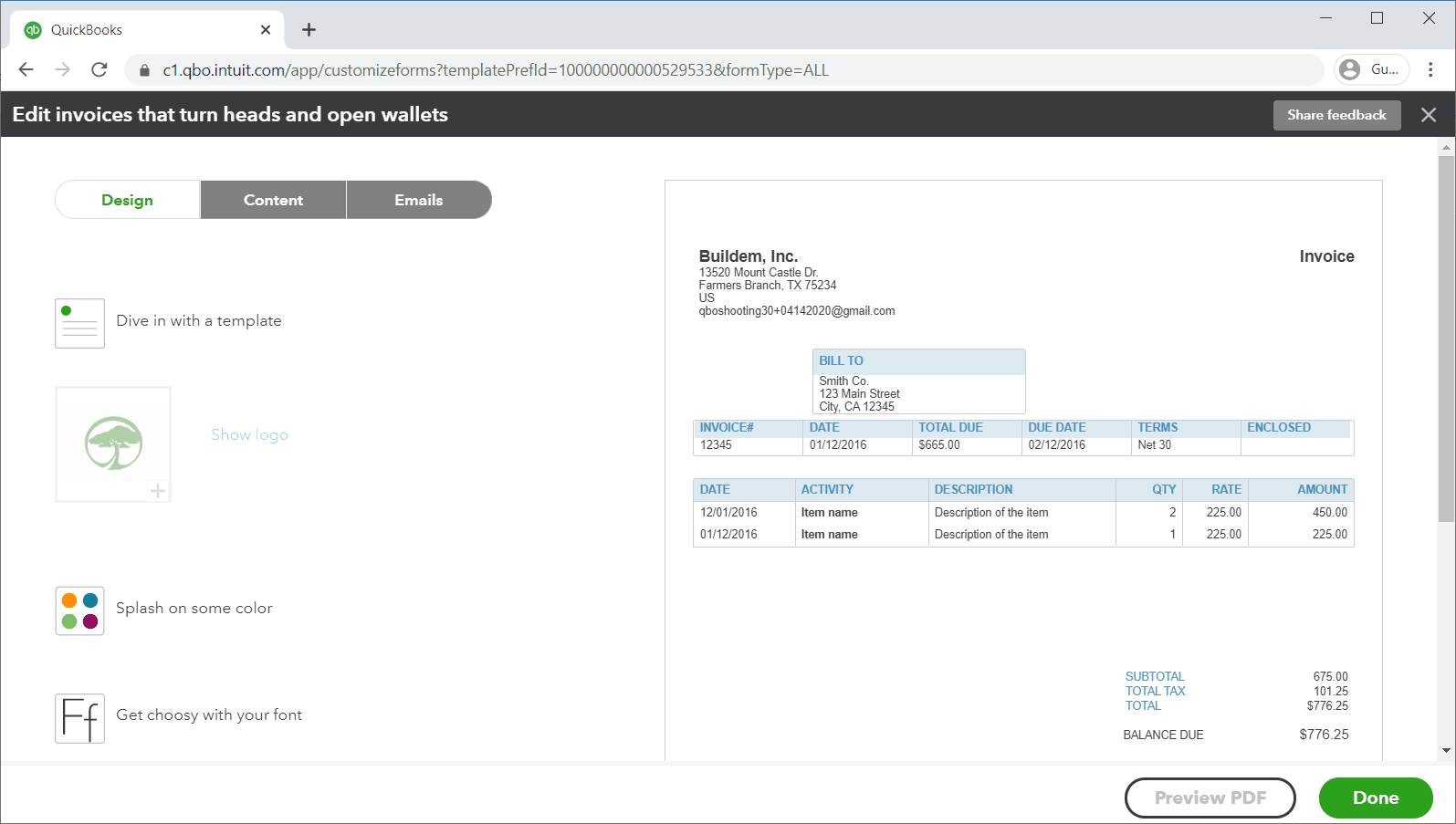
In the current QuickBooks Online workflow, create a new invoice from the create menu or the sales area. Choose the customer, review the invoice and due dates, add products or services, quantities, rates, discounts, tax, payment methods, and any customer-facing message. Preview the completed form before saving or sending.
Use a stable invoice-number policy. Changing the number to make a resend look new can obscure the audit trail and confuse both the customer and the person applying the payment. If delivery fails, work from the same invoice; the separate invoice-delivery guide covers status checks, spam filtering, safe resending, and secure fallback methods.
Use recurring invoices and AutoPay only for approved, predictable billing
Recurring templates can schedule invoices, reminders, or other supported transactions, but they should not guess variable quantities, completion, customer acceptance, tax, or contract changes. Define the customer, frequency, start and end dates, service period, price, terms, tax, approver, and exception path before enabling an automatic schedule.
For each new template, create and review the first invoice manually. Keep a register of active templates with the contract owner and next review date. At month-end, look for templates that created invoices after cancellation, missed a scheduled invoice, used an old rate, posted to an inactive customer, or crossed a closed period.
AutoPay is a payment authorization layered on an eligible recurring invoice; it is not permission to change the underlying charge. Preserve the customer authorization, disclose timing and amount behavior, restrict who can edit bank and payment settings, and reconcile the payment and processor settlement through the same invoice-to-bank chain described below.
Record the customer payment once
When a customer pays an open invoice outside an automatically connected payment flow, use the receive-payment workflow, select the customer, select the existing invoice, enter the actual payment date and method, and choose the correct destination account. A partial payment should reduce the invoice balance without closing it.
Before saving, check three things: the amount applied to the invoice, the amount left open, and the account receiving the payment. If the customer overpaid, do not hide the excess by changing the invoice. Preserve the customer credit and follow the business policy for applying or refunding it.
Duplicate-income warning: downloaded bank activity is not a second sale. If the invoice and payment are already in QuickBooks, match the deposit rather than adding it as new income.
Make the QuickBooks deposit match the bank
A bank statement may combine several customer payments into one deposit or show a payment processor's net settlement after fees. Your QuickBooks deposit needs to mirror the real bank event without changing the underlying customer payments.
- For a one-to-one deposit, match the downloaded amount to the existing payment or deposit.
- For grouped deposits, combine the customer payments through the normal deposit workflow so their total matches the statement.
- For net processor settlements, account for the fee separately instead of reducing sales or changing the customer's paid amount.
- If no match appears, compare dates, amounts, destination accounts, and whether the payment is still in Undeposited Funds before adding anything.
Review accounts receivable, not just the invoice screen
Run an accounts-receivable aging report and review the customer balance after applying payments. An invoice can look paid while a separate unapplied payment or duplicate deposit still distorts the books. Investigate negative customer balances, old unapplied credits, duplicate invoice numbers, and payments whose deposit account does not match the bank workflow.
For collection work, separate a delivery problem from a genuine overdue balance. Confirm that the invoice reached the intended recipient, that any dispute or credit is recorded, and that a payment was not posted under a duplicate customer.
Handle credits, voids, refunds, and edits as exceptions
Do not edit a paid invoice merely to force the current screen to look right. Changing the customer, amount, tax, items, or date can affect revenue, receivables, sales tax, reports, and prior reconciliations. Use the transaction type that represents what actually happened and preserve explanatory documentation.
- Price or quantity was wrong before payment: correct the invoice and resend it, following approval policy.
- Customer owes less after the sale: evaluate a credit memo or other approved adjustment.
- Customer already paid and money is returned: record the refund through the appropriate payment and accounting workflow.
- Invoice belongs to a closed period: involve the accountant before editing, voiding, or backdating anything.
Month-end invoicing checklist
- Review unsent, undeliverable, overdue, partially paid, and duplicate invoices.
- Review accounts-receivable aging and investigate unusual customer credits or negative balances.
- Apply legitimate unapplied payments and credits using supporting documents.
- Clear Undeposited Funds items by tying them to actual statement deposits.
- Match bank activity to existing payments and deposits; do not add it as income again.
- Reconcile the bank account to the statement and retain the reconciliation report.
- Restrict changes to the completed period according to the company's close policy.
The success test is not merely “invoice marked paid.” The invoice, payment, deposit, customer balance, income report, and bank reconciliation must agree.
Sources checked
First-party product documentation used to verify the workflow and risk notes in this guide.
- Create invoicesIntuit QuickBooks Support · Checked August 10, 2026
- Invoices vs sales receipts: which to use whenIntuit QuickBooks Support · Checked August 10, 2026
- Record invoice paymentsIntuit QuickBooks Support · Checked August 10, 2026
- Receive and process paymentsIntuit QuickBooks Support · Checked August 10, 2026
- Create recurring transactions in QuickBooks OnlineIntuit QuickBooks Support · Checked August 17, 2026
- Set up AutoPay for recurring invoicesIntuit QuickBooks Support · Checked August 17, 2026