Export or back up the relevant data first. Do not delete, void, unreconcile, or adjust historical transactions unless you understand the accounting impact.
Menu names can change. We link current first-party instructions so you can confirm product behavior before acting.
Quick answer
QuickBooks Online Plus or Advanced is the simplest starting point for many small nonprofits and churches. It supports browser access, accountant collaboration, bank connections, and class tracking without maintaining a Windows company file. Choose QuickBooks Desktop Enterprise Nonprofit when the organization needs an established Desktop workflow, local or hosted file control, deeper permissions, higher capacity, or Desktop's nonprofit-specific reports and templates.
Whichever version you use, keep the design simple: use accounts for what happened, one governed class or reporting dimension for why it happened, donor or grant records for who funded it, and a reviewed restriction schedule for what the money may pay for.
Choose once, then follow one path
Which QuickBooks version fits your nonprofit?
Both products can support a controlled nonprofit ledger. The difference is how your team works and how the file is managed.
Simplest for most small teams
QuickBooks Online
- Browser access for staff and outside accountants
- Automatic updates and connected bank activity
- Use Plus or Advanced when the design depends on classes
Best for established Desktop needs
Desktop Enterprise Nonprofit
- A Windows company file, locally managed or hosted
- Nonprofit-specific edition, reports, and templates
- Deeper user capacity, permissions, and reporting options
Shared foundation: clean accounts, one governed reporting dimension, donor evidence, reconciliations, and a restriction schedule.
Choose QuickBooks Online or Desktop before you build the file
Do not choose from a feature list alone. Choose the operating model your staff can control every day.
| Decision | QuickBooks Online | Desktop Enterprise Nonprofit |
|---|---|---|
| Access | Browser and mobile access | Windows company file or hosted Desktop |
| Best fit | Small or distributed teams that value simple collaboration | Established Desktop teams needing capacity, permissions, or industry reports |
| Fund or program tracking | Classes in Plus or Advanced; projects and locations depend on the plan | Classes, Customer:Job detail, and customizable nonprofit reports |
| Data protection | Cloud service; maintain exports and continuity procedures | The organization must govern company-file backups, hosting, updates, and access |
For new US buyers, Intuit no longer sells Desktop Pro or Premier subscriptions. Desktop Enterprise remains available. Existing eligible Pro or Premier subscribers may still renew, so this guide includes them only as a legacy path—not as the default recommendation for a new nonprofit.
Design the reports before configuring QuickBooks
Start with the questions the board, management, donors, grantors, accountant, and auditor need answered:
- What does the organization own and owe?
- What changed in net assets during the period?
- How much was spent on programs, administration, and fundraising?
- Which grants or donor restrictions have unspent balances?
- How does actual activity compare with the approved budget?
- Can every reported number be traced to a transaction and source document?
Then give each reporting question one home. A common mistake is creating a different income and expense account for every fund, grant, ministry, and event. That makes the chart hard to use and still does not prove the restriction balance.
The four-question coding model
Every transaction should tell one complete story
Do not force every answer into the chart of accounts. Give each reporting question one consistent home.
Account
What happened?
Contribution revenue, salaries, rent, cash, payables, or another natural account.
Class or program
Why did it happen?
Program, administration, fundraising, ministry, department, or one other governed purpose.
Donor or grant
Who funded it?
Donor record, grant, campaign, project, or other source that needs supporting detail.
Restriction evidence
What may the money pay for?
Grant agreement, donor communication, approval, release, and the controlled balance schedule.
Result: reports that trace back to the transaction and the evidence behind it.
Set up QuickBooks Online for a nonprofit
- Go to Settings → Account and settings → Advanced → Company type. Choose Nonprofit organization (Form 990), save, then sign out and back in so the terminology refreshes.
- In Advanced settings, change the customer label to Donors if that language matches the workflow. QuickBooks may then display nonprofit-oriented names such as pledges and Statements of Activity.
- Confirm the fiscal year, accounting method, legal name, tax ID, close-date controls, and administrator access.
- If the design requires classes, confirm the subscription is Plus or Advanced. Then turn on class tracking under Advanced → Categories and enable an unassigned-class warning when available.
- Create a short class list with one meaning. If classes represent programs, do not quietly mix restricted funds, campuses, events, and departments into the same list.
- Build the chart of accounts and contribution products or services. Map each item to the correct revenue account before entering gifts.
- Enter a test donation, pledge, payment, bill, allocation, and bank deposit. Confirm the Statement of Activity, Statement of Financial Position, class report, donor detail, and bank reconciliation before importing history.
Set up QuickBooks Desktop for a nonprofit
- If the organization already has a company file, create and verify a full backup before changing the edition, preferences, lists, or historical coding.
- For a new file, open No Company Open → Create a new company and use Detailed Start when you want to review the setup choices before creating the file.
- In supported Desktop products, select Help → Manage My License → Change to a Different Industry Edition → Nonprofit. In Accountant editions, the equivalent command is under File → Toggle to Another Edition.
- Review the nonprofit chart and report templates. Keep only accounts that serve a real reporting or control purpose; an industry template is a starting point, not the finished design.
- Turn on classes under Edit → Preferences → Accounting → Company Preferences → Use class tracking for transactions. Turn on the prompt to assign classes when it will improve coding completeness.
- Configure users and roles, decide where the live company file belongs, and schedule verified local and offsite backups. A portable company file is not a replacement for a full backup.
- Test the same representative transactions and reports used for Online. Confirm that every workstation, hosted session, integration, and backup procedure works before go-live.
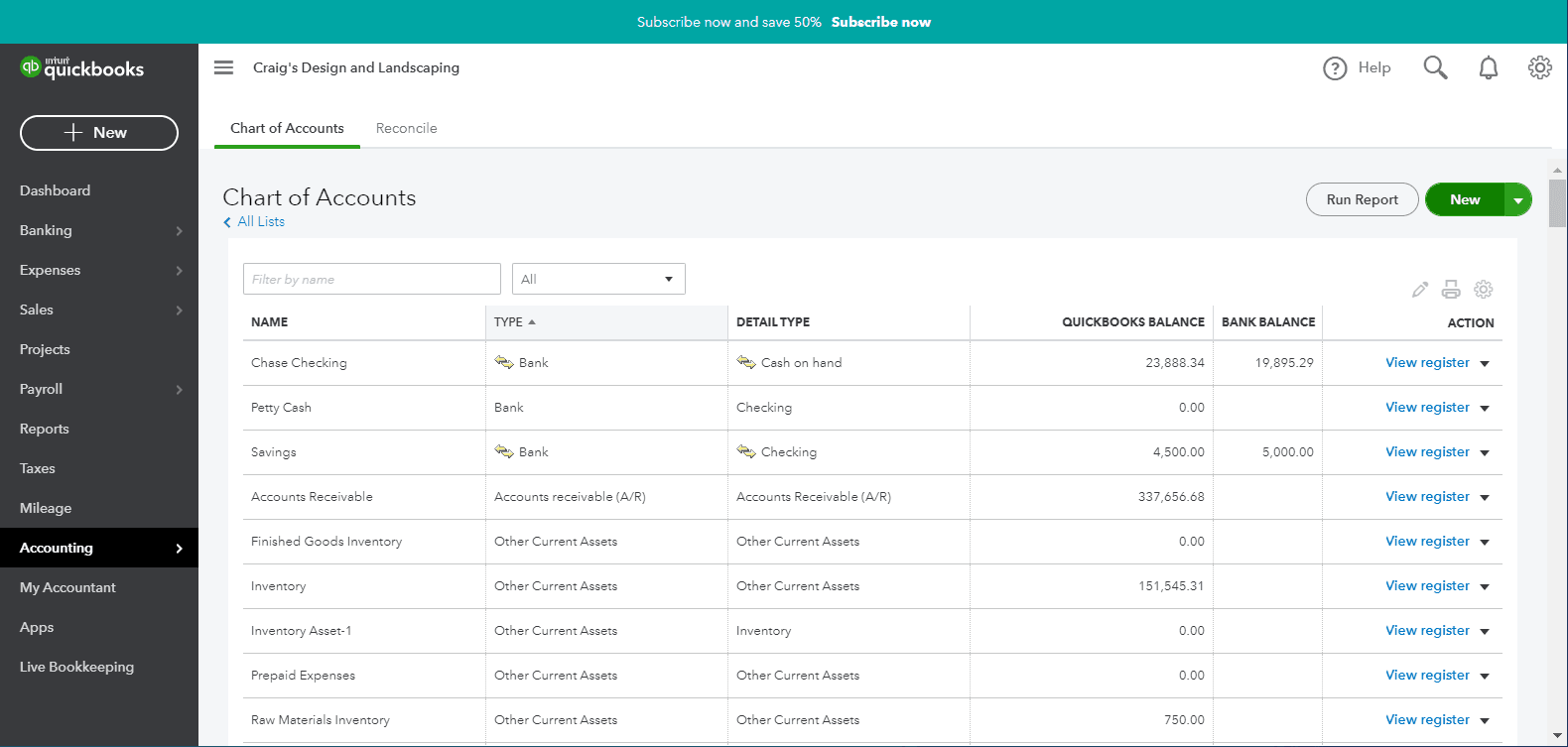
Build a nonprofit chart of accounts that stays readable
Use a compact natural-account structure and add detail only when a report, reconciliation, tax filing, or control needs it.
Assets
Operating cash, savings, receivables when appropriate, prepaid costs, deposits, fixed assets, and accumulated depreciation.
Liabilities
Payables, credit cards, payroll liabilities, refundable advances or deferred items when appropriate, and loans.
Net assets
Net assets without donor restrictions and net assets with donor restrictions, supported by the organization’s reporting policy.
Revenue
Contributions, grants, program service revenue, membership dues, events, investment income, and in-kind support when appropriate.
Expenses
Compensation, professional fees, occupancy, technology, travel, supplies, insurance, grants paid, depreciation, and other natural costs.
Dimensions
Programs, functions, grants, restrictions, campuses, or ministries—kept outside the natural account whenever a supported dimension can answer the question.
Use classes for one primary purpose
Classes are flexible, which makes them easy to misuse. Decide whether the class answers program/function or fund/restriction. Do not alternate meanings by transaction. If the organization needs both views, use another supported dimension for the second question and maintain a restriction schedule that reconciles to the ledger.
A practical design might use classes for program, administration, and fundraising; donor or Customer:Job records for grants and major funding sources; and locations for genuinely separate sites. The right arrangement depends on the reports and product features—not a universal template.
Record donations and pledges without duplicating revenue
Donation received now
Use a sales receipt or the product's equivalent donation workflow. Select the donor, contribution item, revenue account mapping, program or class, restriction detail, payment method, and the correct deposit or clearing account.
Pledge received now, cash later
Record a pledge only when the organization's accounting policy recognizes a receivable. When cash arrives, apply it to that pledge. Do not create a second sales receipt for the same gift and count the revenue twice.
Several gifts settle as one bank deposit
Preserve each donor's detail, then group the receipts through Undeposited Funds or a controlled clearing workflow so the final deposit matches the bank. Record processor fees separately and reconcile gross gifts, fees, and the net settlement.
Restricted and in-kind gifts
Attach or retain the donor communication, grant agreement, valuation support, approval, and release evidence. Code the approved reporting dimension and update the restriction schedule. In-kind gifts and conditional grants can require specialized recognition and valuation advice; do not let a QuickBooks form name decide the accounting treatment.
Build a small monthly report pack and close routine
A reliable nonprofit file should produce a short, repeatable month-end pack:
- Statement of Financial Position or the equivalent Balance Sheet.
- Statement of Activity or Profit and Loss for the month and year to date.
- Activity by program, function, class, grant, or other governed dimension.
- Budget versus actual with documented material variances.
- Donor, pledge, receivable, payable, payroll, and grant details that agree with the ledger.
- A restricted-net-asset or fund schedule reconciled to the appropriate ledger balances.
- Completed bank, credit-card, loan, investment, and clearing-account reconciliations.
Monthly control loop
Turn transactions into board-ready reporting
The same four controls apply in QuickBooks Online and Desktop. Only the menus change.
- 1
Capture
Preserve the donor, grant, purpose, date, amount, restriction, and source document.
Evidence: The record supports the entry.
- 2
Code
Use the approved account, class or program, donor or grant record, and restriction treatment.
Evidence: Each dimension has one meaning.
- 3
Reconcile
Tie receipts, settlements, banks, receivables, payables, and restricted balances.
Evidence: Control totals agree.
- 4
Review
Investigate exceptions, approve reports, preserve workpapers, and close the period.
Evidence: A reviewer can reproduce the result.
Go-live checklist
- The product and subscription support the required users, classes, reports, integrations, and hosting model.
- The legal name, tax ID, fiscal year, accounting method, and nonprofit settings are correct.
- The chart of accounts produces readable nonprofit statements.
- Every reporting dimension has one documented meaning and owner.
- Donations, pledges, processor batches, bills, allocations, and restricted gifts pass a test cycle.
- Donor, pledge, grant, and restriction schedules agree with the ledger.
- Every balance-sheet account has a reconciliation owner and frequency.
- User access follows least privilege; no one shares credentials.
- Online exports or Desktop backups are scheduled, protected, and tested.
- A representative pilot month closes cleanly before historical data is imported.
If the pilot reports are confusing, stop and repair the design. Reclassifying one test month is inexpensive; rebuilding years of nonprofit history is not.
Frequently asked questions
Can QuickBooks do fund accounting for a nonprofit?
QuickBooks can track fund or program activity with classes, accounts, customer or project records, and reports. It does not automatically enforce donor restrictions or replace a controlled restriction schedule, approval process, or nonprofit accountant.
Which QuickBooks Online plan does a nonprofit need?
Use QuickBooks Online Plus or Advanced when your design depends on class tracking. Intuit says classes are not available in Simple Start or Essentials. Confirm every required feature before subscribing.
Is there a nonprofit version of QuickBooks Desktop?
Yes. QuickBooks Desktop Enterprise has a Nonprofit industry edition with nonprofit-oriented reports, templates, and a chart of accounts. New US customers cannot buy Pro or Premier, although eligible existing subscribers may continue to renew them.
Should classes represent programs or restricted funds?
Choose one primary meaning and document it. Programs are often the better class structure because functional reporting is recurring. Track grants or restrictions in another supported dimension and a controlled schedule when both views are required.
Is QuickBooks Online or Desktop better for a church?
Online is usually simpler for browser access and collaboration. Desktop Enterprise is stronger when the church already depends on a Windows company file, nonprofit-specific Desktop reports, advanced permissions, or hosted Desktop workflows. The correct choice follows operating requirements, not organization type alone.
Does changing the company type to nonprofit fix the accounting?
No. It changes terminology and exposes nonprofit-oriented forms or reports, but the file is only reliable when accounts, classes, donor records, restrictions, reconciliations, and review controls are designed and used consistently.
Optional free utilities
Tools that support this workflow
These run in your browser and can help prepare or inspect files. They do not replace reconciliation, source-document review, or an accountant’s approval.
Sources checked
First-party product documentation used to verify the workflow and risk notes in this guide.
- Configure an account for a nonprofit organization in QuickBooksIntuit QuickBooks Support · Checked August 16, 2026
- Create and manage classes in QuickBooks OnlineIntuit QuickBooks Support · Checked August 16, 2026
- Fund accounting for nonprofits in QuickBooksIntuit QuickBooks Support · Checked August 16, 2026
- Track funds you receive from donors in QuickBooksIntuit QuickBooks Support · Checked August 16, 2026
- QuickBooks Desktop Enterprise for nonprofitsIntuit QuickBooks Support · Checked August 16, 2026
- Toggle to another QuickBooks Desktop editionIntuit QuickBooks Support · Checked August 16, 2026
- Set up and use class tracking in QuickBooks DesktopIntuit QuickBooks Support · Checked August 16, 2026
- QuickBooks Desktop availability for new US subscribersIntuit QuickBooks Support · Checked August 16, 2026