Export or back up the relevant data first. Do not delete, void, unreconcile, or adjust historical transactions unless you understand the accounting impact.
Menu names can change. We link current first-party instructions so you can confirm product behavior before acting.
Quick answer
Set up QuickBooks Online Payroll from authoritative records, not estimates. Confirm the employer legal identity and work locations, collect employee and tax forms, define pay schedules and earnings, enter accurate current-year payroll history, connect and verify the payroll bank account, then complete the tax-payment and filing authorization before relying on automation.
Preview the first payroll line by line and compare it with an independent expected-pay calculation or prior provider report. After submission, reconcile the payroll register to employee payments, payroll tax withdrawals, benefit and deduction payments, the bank statement, and the general ledger.
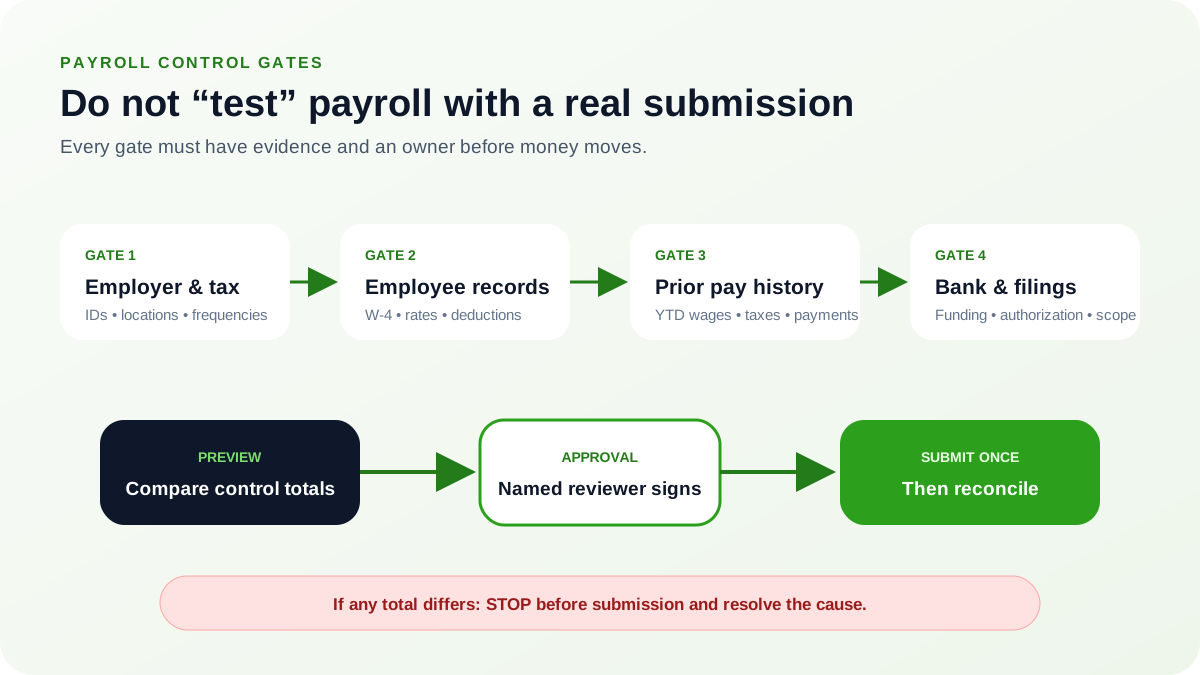
Complete these decisions before opening payroll setup
- Confirm that each worker is correctly classified as an employee or independent contractor under applicable rules.
- Identify the legal employer, federal employer identification number, state and local registrations, work locations, and filing jurisdictions.
- Choose the payroll start date and determine whether any employee has already been paid in the current calendar year.
- Document pay frequency, workweek, pay period, pay date, cutoff, approval deadline, and direct-deposit lead time.
- Assign responsibility for employee data, time approval, payroll preparation, payroll approval, bank funding, tax notices, and reconciliations.
- Confirm the selected service and current feature scope directly with Intuit; plan names and service responsibilities can change.
Do not run a test payroll with real employees and real funding merely to explore the interface. Use product demos, a sandbox if available, documented previews, and an approved parallel calculation.
Enter company and tax information from official records
Intuit currently asks for information such as:
- Physical business and work-location addresses.
- Federal employer identification number.
- State withholding, unemployment, disability, paid-leave, and other account numbers and rates where applicable.
- Federal, state, and local deposit frequencies assigned by the agencies.
- Principal officer and authorized-signer details.
- Prior tax payments and filing history when payroll already ran during the year.
Use agency notices, registration confirmations, prior filings, and provider reports. Do not guess an account number or filing frequency. Save evidence of the source and the date each field was verified.
Build each employee record completely
Collect and verify at least the information required for the role and jurisdiction:
- Legal name, address, date of birth, Social Security number, hire date, and work location.
- Completed federal Form W-4 and any state or local withholding certificates.
- Employment status, pay type, pay rate, pay schedule, regular hours, overtime rules, and other earnings.
- Deductions, employer contributions, benefits, garnishments, reimbursements, paid time off, and beginning balances.
- Direct-deposit authorization and bank details, or the approved paper-check method.
- Department, class, location, project, or other accounting dimensions used by the company.
Intuit supports employee self-setup for some personal, tax, and bank information. The employer still needs a review process for completeness, identity, work location, withholding forms, pay configuration, and authorization. Restrict payroll access because employee records contain highly sensitive personal data.
Enter prior payroll history before the first QuickBooks run
If employees were paid earlier in the calendar year, accurate year-to-date history is essential for wage bases, withholding, deductions, employer taxes, W-2s, and other filings. Intuit currently requests employee-level year-to-date pay information and detailed current-quarter totals as part of the setup path.
- Close out the prior system. Obtain final reports from the prior provider or system.
- Prove pay by employee. Reconcile gross-to-net by employee and pay date.
- Prove the tax and deduction detail. Reconcile taxable wages by tax type, employee withholding, employer taxes, deductions, benefits, reimbursements, and net pay.
- Settle what is already paid. Reconcile tax payments already made and liabilities still outstanding.
- Load the history. Enter the history using the product workflow and retain the source reports.
- Compare control totals. Run year-to-date payroll reports in QuickBooks and compare every control total before the first live payroll.
Do not summarize history into a journal entry and assume payroll forms will be correct. The payroll service may require employee and tax detail that the general ledger alone does not contain.
Verify bank funding and filing responsibility
- Use a controlled business bank account with sufficient available funds and the correct legal owner.
- Complete identity, bank, and principal-officer verification early enough to resolve holds before payday.
- Confirm direct-deposit submission deadlines and the consequence of holidays or late approval.
- Document whether Intuit or the employer will pay and file each federal, state, and local obligation.
- Confirm the effective date of automated payments and forms; obligations before that date may remain with the employer.
- Route tax notices to a monitored owner and preserve proof of response.
A setting that says automation is on is not sufficient evidence that every historical or local obligation is covered. Verify the actual payment and filing status in the product and against agency accounts where appropriate.
Preview and approve the first payroll line by line
- Set the run boundary. Confirm pay period, pay date, work location, and employee population.
- Check the earnings. Confirm approved hours, regular and overtime earnings, salary, commission, bonus, leave, reimbursements, and other pay.
- Check the withholding. Review federal, state, and local taxable wages and withholding.
- Check deductions and employer cost. Review benefits, deductions, garnishments, employer contributions, and payroll taxes.
- Compare against the control calculation. Compare gross pay, employee taxes, deductions, net pay, employer taxes, and total cash requirement to the independent control calculation.
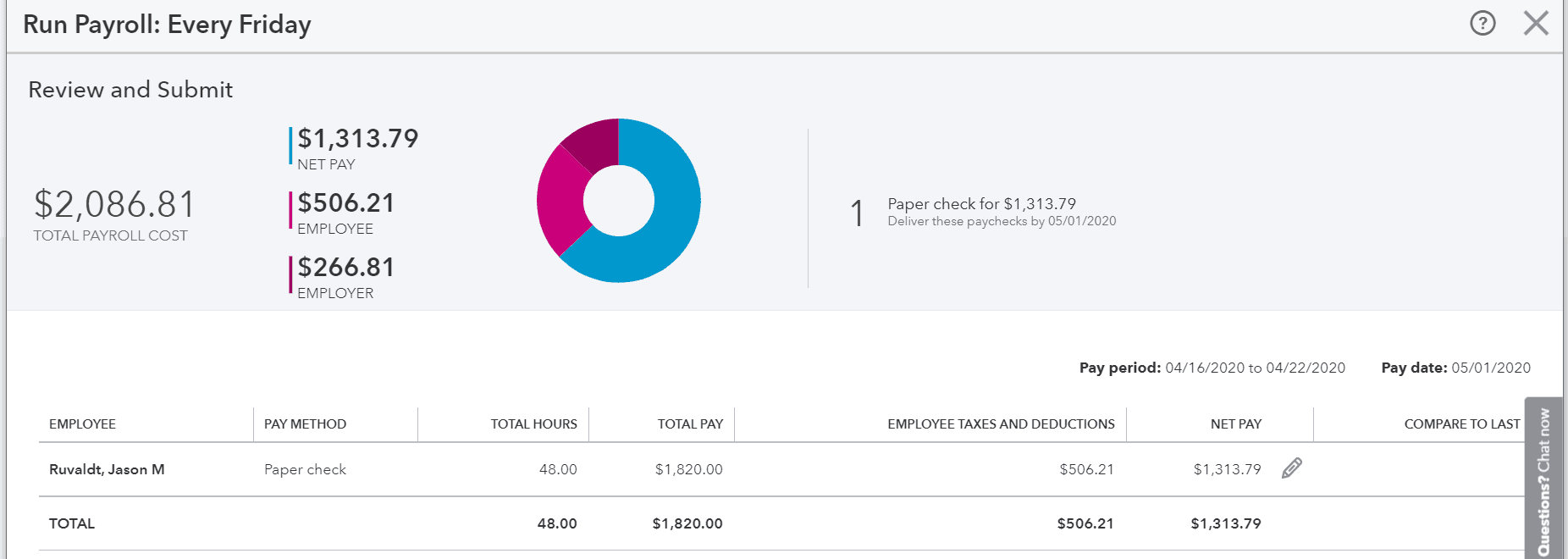
- 1Total payroll cost is net pay plus employee taxes and deductions plus employer taxes — $1,313.79 plus $506.21 plus $266.81 here. It is the cash the run will take, so agree it against the control calculation before anything else.
- 2Net pay is what leaves for employees. It is the figure a recipient will notice first and the one there is most pressure to force, which is why it is compared rather than targeted.
- 3Pay period and pay date define what the run covers and when funding must clear. A control calculation built on a different period will agree on rates and still disagree on totals.
- 4Total pay is gross. Gross of $1,820.00 less employee taxes and deductions of $506.21 is the $1,313.79 net above; if that identity does not hold in your own calculation, stop before approval.
- Check the funding. Confirm the payroll bank account and funding availability.
- Get approval. Have an authorized reviewer approve the preview before submission.
- Submit once and keep the evidence. Save the preview or approval evidence, then submit only once.
If totals differ, stop before submission. Resolve the employee, tax, history, rate, deduction, benefit, or timing cause. Do not force a net-pay target by changing withholding or deductions without valid authorization.
Reconcile payroll after every run
- Payroll register gross pay to wage and payroll-expense accounts.
- Employee net pay to direct-deposit funding and outstanding payroll checks.
- Employee and employer tax amounts to payroll-liability accounts and agency withdrawals.
- Benefit, retirement, garnishment, and other deductions to provider statements and payments.
- Payroll cash requirement to the bank statement.
- Payroll journals to departments, classes, locations, or projects where used.
- Quarter-to-date and year-to-date reports to filed forms and provider records.
Review rejected direct deposits, deleted or voided checks, tax notices, amended filings, negative liabilities, and stale balances immediately. Keep a payroll close folder for each period with the register, funding proof, liability reconciliation, filings, and approvals.
Separate setup defects from product errors
Wrong wages, taxes, deductions, bank accounts, or year-to-date balances can come from incorrect configuration even when the software runs without an error message. A service, subscription, update, connectivity, or permission failure is a different diagnostic path.
- Wrong result, no error: review employee setup, tax accounts, rates, pay history, pay period, work location, and deductions.
- Submission or service error: record the exact message, service name, company, user, time, and last successful step, then use the payroll error guide.
- Already submitted: do not rerun blindly. Determine processing status and use the authorized correction, void, or reversal workflow.
- Filed-period issue: involve payroll support and the responsible tax professional before editing history.
QuickBooks Payroll setup checklist
- Worker classification and legal employer are confirmed.
- Employer, work-location, tax-account, and deposit-frequency data come from authoritative records.
- Employee identity, withholding, pay, deduction, benefit, and bank information are complete and approved.
- Current-year pay history reconciles by employee, tax, deduction, and pay date.
- Bank verification and direct-deposit timing are complete before payday.
- Payment and filing responsibilities are documented by jurisdiction and effective date.
- The first payroll preview agrees to an independent control calculation.
- An authorized reviewer approves payroll before submission.
- Each payroll reconciles to the bank, ledger, liabilities, provider payments, and filings.
- Payroll records, approvals, notices, and sensitive data follow a controlled retention and access policy.
Sources checked
First-party product documentation used to verify the workflow and risk notes in this guide.
- Get started with QuickBooks Online PayrollIntuit QuickBooks Support · Checked August 11, 2026
- Add your new employee to QuickBooks PayrollIntuit QuickBooks Support · Checked August 11, 2026
- Set up QuickBooks Online Payroll after paying employees this yearIntuit QuickBooks Support · Checked August 11, 2026
- Run payroll in QuickBooks Online PayrollIntuit QuickBooks Support · Checked August 11, 2026